

The redesigned Windows 11 Details pane can display file information without allowing edits. Press Alt + Enter on selected files and open Properties > Details instead. That dialog can edit supported fields for one file or a group.
This avoids opening each photo separately. If Properties also refuses the edit, check support for that file format and permission to save it. Editing blocked in the side pane is different from a file refusing to save that field.
In this guide
1. Open the file's Properties instead of the side pane
Select one affected file in File Explorer. Press Alt + Enter, or right-click it and choose Properties. Open the Details tab in the dialog that appears.
This tab is separate from the Details pane beside Explorer's file list. Look for the property you need, such as Title, Tags, or Comments, then click its value rather than its label.
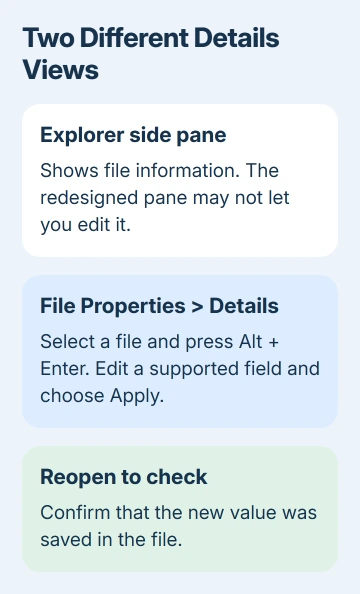
If Windows offers a text box, enter the value and select Apply. Close Properties and open it again to inspect the saved value. That confirms the change was saved rather than only typed into an open dialog.
Microsoft says photo tags can be added through Properties > Details. Which fields appear depends on the file you're editing.
If the change saves here, use this route for the affected files. Resetting search or changing Explorer's starting page won't bring an editing box back into the redesigned side pane.
If Properties won't accept the value, save any error message and go to the file-type checks. Try the multiple-file method next only if editing one file works.
2. Change a shared value for several files together
Browse to the collection you plan to update. Hold Ctrl while clicking individual files, or select the first file and hold Shift while clicking the last file in a consecutive group.
Right-click one of the selected files and choose Properties, or press Alt + Enter. Open Details and find the field you want to set for that selection.
Enter the value that belongs on all those files, then select Apply. A shared event title or source comment is a useful batch change. Different captions for different photographs still need separate edits.
The Details pane regression thread explains this multiple-selection workaround. The new side pane stopped allowing edits, but you can still open Properties for several files at once.
Start with copies of two files before applying a shared value to a whole collection. A batch edit can overwrite values that should stay different, especially if those files already have different entries.
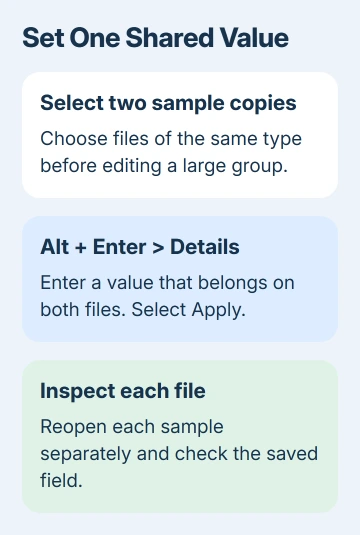
After applying the change, open each sample file's Properties separately. Check the same field on both. If both saved correctly, repeat the procedure with the intended larger selection.
If a field is absent for a mixed selection, select files of the same type and try again. A group containing different formats may not offer the same shared fields as two JPEG photos.
3. Check whether Windows can write that field
Try the same field on another file of the same type. Then compare a different supported field on the affected file. That tells you whether just one field is unavailable or the file rejects every change.
Windows uses a property handler, a component that reads file information for a particular format. Some handlers can display a property without supporting changes to it. Explorer can show a value even when it can't change it.
The property-handler reference explains that distinction. If a field stays read-only in Properties, use an app that can edit it or choose a field Windows supports. Clicking the side pane again won't help.
For music, use the file's actual format when choosing an editor. An MP3 and a WAV can store descriptive information differently. Changing the extension won't make instructions for another format apply.
For a document, check its authoring application's file information controls. For a photo, choose an editor able to write that format's specific information field.
Save the file and reopen its information in that app. Then compare what Explorer displays. Different programs can show different fields. Check that you're editing the same property; two keyword panels might not use the same stored value.
The tag-removal guide covers the opposite task, including why information can remain after removal. Use it when the goal is to strip private details rather than add a shared label.
4. Try a local copy when saving is blocked
Close the file in any editing application. Put a sample copy in a writable local folder, then try changing its Properties > Details value there.
If the copy accepts the change but the original doesn't, check the original folder's permissions or sharing rules. A read-only network location can let Explorer display information while blocking the write needed to save it.
For a shared work folder, request editing permission from its owner. Send the save error together with your local-copy comparison. Don't take ownership of the whole shared folder to change one file's comment.
If the file is managed by OneDrive, download the copy you're editing to your computer before testing it. The OneDrive availability guide explains the difference between a cloud placeholder and a file downloaded to the computer.
I'd check two local samples before changing anything about Explorer itself. When those save correctly, you have a working editing route and can concentrate on the location or files that still fail.
If both samples reject the same field, return to the file-format support question. A new Windows profile won't let that component write a field it can only read.
5. Keep the workaround stable and report the missing control
Don't rely on old registry changes that promise to restore the previous pane. The thread notes that earlier restoration methods stopped working after KB5034204. Those instructions aren't reliable for restoring the pane on a current build.
Use Properties for supported changes, and send the interface request through Feedback Hub if the extra dialog disrupts your workflow. Include the Windows build from winver, the file type, and the specific field you need to edit in the pane.
For a saving error, open Get Help and report that Properties itself fails. Give the local-copy result and the exact error text. Tell support you can't save the edit, rather than asking for the old side-pane editor back.
The Short Version
Use Alt + Enter and the Details tab for supported file properties. A selection can receive shared values together. When the field won't change there either, check format support and write access before changing Explorer.
Checked November 16, 2026.
 If you have any business, I can build it online






