

The Outlook msls70.dll error can follow an update that leaves Office's build and update channel out of step. Update from another working Office app, then ask IT to compare your installed build with the assigned channel.
Microsoft added a change in Version 2504 Build 18730.20000 to help reduce this problem. The message can also name pagelayout.dll, so record its complete wording before looking for a replacement file.
In this guide
1. Update Office from Word or Excel
Save any open documents before updating Office. Start Excel or Word, choose File > Account, then select Update Options > Update Now under Product Information. Outlook can remain closed while another Office app starts the update.
Let the update finish and close apps if the updater asks. Start Outlook again afterward. If it opens without the DLL message, check that it still opens normally after the next scheduled company update.
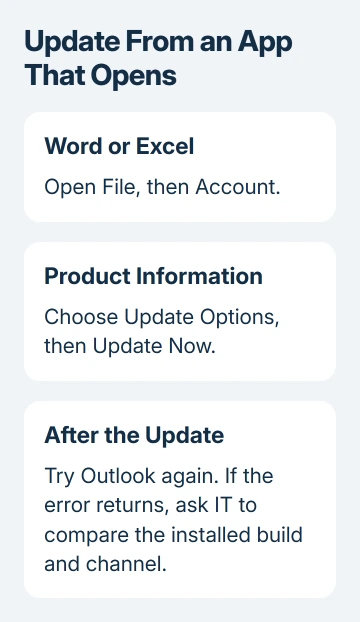
An owner reported a weekly cycle: updates cleared the error, then it returned. That's why a temporary recovery needs a channel check, especially when several employees see the same repeated failure.
When Update Options is missing or controlled by company policy, have your Microsoft 365 administrator update Office. Include the error and which Office apps still open, so they can update Office without opening Outlook.
The Office update procedure covers this route. Your company may send Office updates through its own tools. If the button isn't available, reinstalling isn't your only option.
If Outlook won't open but no DLL is named, use the broader Outlook startup checks. The steps here address the specific msls70.dll or pagelayout.dll update error.
2. Record the version and update channel together
If Word opens, choose File > Account and look in the product information area near About Word. Record the displayed version and build. Also record the update channel when it's shown.
An update channel is the schedule Office follows for receiving releases, such as Current Channel or Monthly Enterprise Channel. Two computers can both be up to date for their assigned channels while running different builds.
A colleague's version number alone isn't enough for comparison. Ask whether that colleague is assigned the same channel. A newer build from a different channel doesn't by itself explain what your machine should have installed.
Microsoft's specific DLL error guidance describes a mismatch between the installed Office version and channel. Its example is a Monthly Enterprise installation carrying a Current Channel version.
Send IT both details. Ask them to compare the channel's release history with your installed build and the build your company meant to install. Windows Update reporting no pending updates doesn't answer that Office-specific question.
If your version is older than the release with that change, ask IT to install the current build for your channel. Build 18730.20000 identifies the historical change; keep a newer release if it matches your channel.
3. Correct the deployment when the error keeps returning
This matters when the error keeps returning at work. Ask IT to check the channel and version assigned to the affected devices, including the Microsoft 365 Apps configuration if Office is deployed through Intune.
Intune is the management service an organization can use to install and configure software on its computers. The channel selected there needs to match the Office build installed on your computer.
The immediate fix is to move to the channel that matches your Office build. Have IT do this through your company's software tools; picking a channel by name alone doesn't check the installed files.
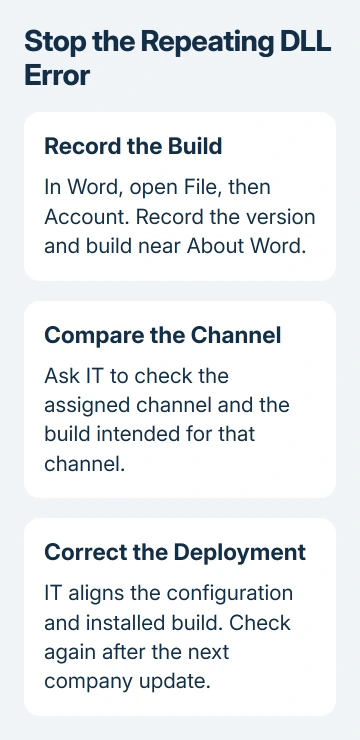
After the administrator applies the corrected configuration, let your computer receive the settings changes and Office update. Open Outlook, Word and Excel to check all three apps rather than Outlook alone.
A successful launch today is useful, but the next company update matters too. Tell IT if the same error returns afterward. Include the newly displayed build and channel so they can see whether the installation changed again.
I'd address that repeated deployment change before requesting an Office reinstall for all affected users. If the same settings overwrite the repair, the error could interrupt work again next week.
Don't copy an individual DLL from a colleague's PC or a download site. That bypasses the Office update process and can leave program files from different builds together, which is exactly the mismatch this procedure needs to resolve.
4. Let IT repair or reinstall the affected Office installation
If the build matches its channel but Outlook still fails, ask IT about repairing or reinstalling Office. Uninstalling and reinstalling may help with this error, so keep that option available if updating hasn't helped.
Repair didn't help one owner; reinstalling or updating temporarily restored Office. They still saw the error with updates disabled.
Include the channel and build check in your request. Reinstalling needs to put the intended channel and version on your PC, rather than repeat the installation that caused the mismatch.
For the Windows repair options and what each one does, use the Office repair guide. On a managed PC, let the administrator decide whether repair or reinstall fits the installation method.
Don't delete your mail profile or local mail data as a response to this DLL message. This problem involves Office program versions; resetting your mailbox won't fix a mismatch in the installation settings.
If every Office app fails, give IT that fact too. That helps IT recognize an Office installation problem rather than an Outlook account fault. It also explains why you can't use the normal in-app update steps.
5. Collect the files the deployment support team needs
If the error continues after Office is updated to a build that matches its channel, ask IT for an Office Deployment support team case. Include the message, affected apps, installed build, assigned channel and last update's date.
Close Office apps, then keep the logs in %temp%\diagnostics for the support case. The support engineer may also request the Microsoft 365 Apps Deployment Log Collector package through the official download route.
For the usual installation folder, open C:\Program Files\Microsoft Office\root\Office16. Right-click WINWORD.EXE, choose Properties > Details, and capture the version information for the case.
Repeat for msls70.dll and pagelayout.dll there. Report missing files or unlisted versions instead of adding replacements. If Office is installed elsewhere, ask IT to find the corresponding folder.
Send those files and details through your organization's approved support channel. The engineer can compare the file versions, installation settings and logs to see why an ordinary update hasn't stopped the error.
The Short Version
Update Office from a working app. For recurring msls70.dll or pagelayout.dll errors, have IT match the installed build to its update channel. If it persists, request Office Deployment support with the logs and file-version details.
Checked November 16, 2026.
 If you have any business, I can build it online






