
Pasting without formatting can get around a Word crash triggered by copied web content. Try Paste Special > Unformatted Text in a new document first. If selecting or dragging also crashes Word, check Word itself as well as the copied text.
The reports include older Word for Mac versions, where resetting preferences helped one owner. Windows Word has a separate Safe Mode route. Check your edition before moving any files.
In this guide
1. Try the same text without its formatting
Save your document before reproducing the crash. Copy a short passage from the source, create a blank Word document, and try pasting there instead of risking the working document again.
In Word for Windows, press Ctrl+Alt+V, choose Unformatted Text, and click OK. In Word for Mac, use Edit > Paste Special and choose the unformatted-text option available in your version.
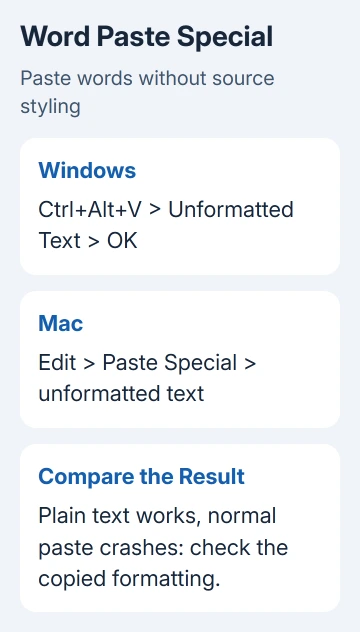
This pastes the words without the original styling or embedded layout. Expect to lose things such as its font choices and table layout. You can apply Word styles after the words are safely in the document.
An owner in the copy-and-paste crash discussion reported that unformatted text worked for text copied from a web page. I'd try it when web text triggers the crash, though other crashes can need a different fix.
If plain text works but ordinary paste crashes, use the plain-text route for that material while you check updates. If both crash, or Word crashes before you paste anything, try newly typed text in a blank document next.
For a clipboard that fails in several Windows applications without closing them, use the general copy-and-paste checks. Word disappearing or showing a crash report needs a crash repair, rather than a fix for an ignored paste command.
2. Check whether dragging crashes in a blank file
Create a new document and type two short paragraphs directly into Word. Select a few words, then try the same copy, paste or drag action that caused the original crash.
If that works, duplicate the document that crashed and compare its behavior. If only one file crashes, check its contents or structure. If newly typed text also crashes, check Word and the extras it loads.
When the failure follows equation copying in Word 2013, check the Office Clipboard before treating every pasted passage as damaged text.
If the mouse won't highlight text but Word stays open, follow the Word mouse-selection repair steps. Don't reset preferences just because a selection drag is entering the wrong part of a text box.
For a single troublesome document, keep the original and try moving its readable text to a new file in small portions. Save the new file between portions so you can identify the section that brings the failure with it.
An adviser suggested leaving the final paragraph mark behind when copying into a new document, but the asker didn't report a result. Start with the confirmed plain-text workaround and preserve the original.
If one table or block repeatedly triggers the crash, stop copying it into the new working file. Rebuild that portion separately or ask the document's creator for an intact copy, particularly when comments and revisions need to be retained.
3. Update the installed Word edition
On Mac, open Help > Check for Updates for an AutoUpdate-managed installation. For a Mac App Store purchase, check the store for a Word update instead. Finish the update and restart Word before repeating the blank-file comparison.
On a supported Windows installation, open File > Account > Update Options > Update Now when offered. An organization-managed installation may need IT to deploy the update.
Record the app version before and after the update. On Mac, use Word > About Microsoft Word; on Windows, use the product information and About Word under Account.
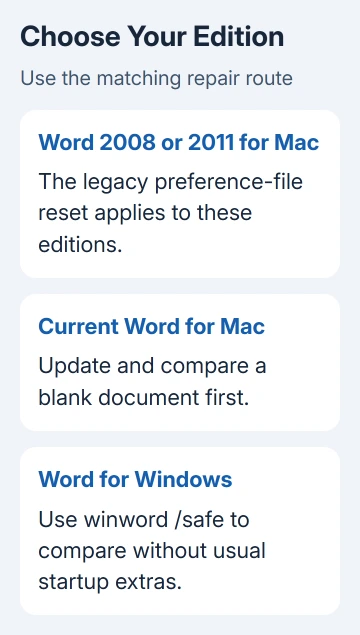
Word 2008 and 2011 Mac instructions use different preference folders from modern Office. Use the instructions for your edition, or arrange an upgrade. Don't apply a legacy reset recipe to a current installation.
If the crash stops after updating, test the original source and your normal document once more. A successful blank-file paste is helpful, but it doesn't check the formatted content you actually need to use.
4. Reset preferences only for the older Mac case
For Word for Mac 2008 or 2011, Microsoft's older Mac crash instructions include moving preference files aside. Save and quit Word before doing this.
In Finder, open Go while holding Option, then choose Library. Open Preferences, find com.microsoft.Word.plist, and move it to the desktop rather than deleting it.
Start Word and retry the short blank-document paste. The app can create fresh preferences. Custom settings may change, so keeping the old file makes it possible to restore your settings if the crash continues.
One owner in the 2011 discussion reported that this reset kept copying and pasting working for more than a week. That result applies to the older Mac setup. Don't use the same file path as a reset recipe for current Word versions.
If the reset doesn't help, quit Word and restore the file. The vendor procedure also covers a second preferences file and the Normal template. Their locations depend on the installed service pack.
Follow your edition's instructions for further resets, or have support guide you. Don't move whole Library folders or apply the legacy reset to a modern Word installation just because the application name matches.
5. Use Windows Safe Mode for a Windows-only crash
Close Word, press Windows+R, type winword /safe, and press Enter. Open a blank document in that session and repeat the short paste test.
If it works there, check File > Options > Add-ins in an ordinary session. Note the enabled COM Add-ins, disable them for a comparison, then re-enable them individually to see which one brings the crash back.
If Safe Mode also crashes, use the Office repair option in Windows installed applications. A traditional installation using an MSI installer offers Repair. A Click-to-Run installation can offer Online Repair or Quick Repair instead.
If crashing continues, send IT or Microsoft support your Word build, operating system and crash report. Include the blank-file result and a nonconfidential sample if one document triggers it.
The Short Version
Try unformatted text for copied web content. Compare newly typed text in a blank file, then update Word. Keep the preference reset to the older Mac editions it covers; use Safe Mode and add-in checks on Windows.
Checked November 16, 2026.






