

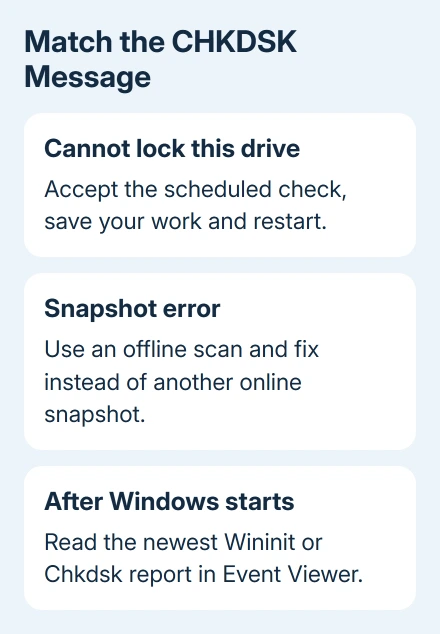
A CHKDSK snapshot error means the scan couldn't use the temporary drive view it needed while Windows was running. Schedule an offline check, which runs outside your normal Windows session.
A message saying it can't lock the current drive is different: accept its offer to check at restart.
One owner traced repeated Windows 11 snapshot failures to Controlled folder access. Their later update replaced an earlier Memory integrity explanation. Try the offline route first; check that setting only if the same error continues.
In this guide
1. Match the error before changing anything
Read the full CHKDSK output. A shadow-copy-provider error followed by a snapshot error means it failed while Windows was running. A message asking to schedule the volume for the next restart means the running system is using the drive.
For a scan started through File Explorer > This PC, right-click the drive, choose Properties > Tools > Check, and record its message. Reaching Error checking doesn't mean a repair has finished.
Open Command Prompt as administrator for command-line checks. If a normal terminal gives you a permission error, reopen it as administrator first. That error alone doesn't point to a shadow-copy problem.
Keep the exact drive letter with the error. The steps for C: apply to the Windows volume on most PCs, but an external drive may have a different letter. Read This PC before entering a command.
If the disk is disappearing, making unusual noises or showing important files that won't open, copy accessible files to another drive first. Disk repair changes the file system, and protecting irreplaceable data takes priority.
2. Schedule the repair outside the running Windows session
Microsoft lists an offline scan-and-fix option in its CHKDSK command reference. For C:, enter this command in your administrator Command Prompt window:
chkdsk C: /offlinescanandfixIf Windows asks whether to schedule the check for the next restart, type Y and press Enter. Save open work, then choose Start > Power > Restart. Plug in your laptop's charger for the check.
Allow the disk check to run rather than pressing a key to skip it. This lets CHKDSK check and repair the drive while your normal Windows session isn't using it.
If you chose another drive letter, read any request to dismount that volume carefully. Close documents and apps using that drive before allowing it. Don't approve a dismount of a drive another task still needs.
An offline check avoids the online snapshot route that failed. If it completes, you have a usable disk-check result even if an online snapshot scan still needs attention afterward.
If the command reports an unsupported file system or another error, save the wording. Changing random shadow-copy settings won't correct a drive that the command can't examine in that mode.
3. Read the completed check, rather than rerunning it
Once Windows starts, press Windows+R, enter eventvwr.msc, and select Windows Logs > Application. Use Filter Current Log and look for the Wininit and Chkdsk event sources.
A restart-time check normally appears under Wininit. The CHKDSK results guide shows how to find the full report after the startup screen disappears.
Check the date and drive in the report. An old successful scan can sit beside a new failed scan, and reading the wrong event sends you back through a repair you've already completed.
Look for whether the check finished, made corrections or couldn't complete. Copy the report into your support notes if errors persist. The last few lines matter more than a photo of a percentage halfway through.
If the file system is repaired and your original file problem is gone, stop repeating repair scans. If CHKDSK completes but an online scan still gives a snapshot error, continue with that narrower symptom.
I'd save the successful offline report before touching a security setting. It gives you a result that doesn't depend on whether the online scan starts working afterward.
4. Check the reported Controlled folder access conflict
The 2022 thread's author first reported that enabling Memory integrity helped. They later changed the explanation: temporarily switching off Controlled folder access let CHKDSK run, and the problem returned after reboots.
That later update matters. Don't toggle Memory integrity just because an earlier reply sounds successful. That owner didn't confirm a lasting fix, and the report doesn't mean every current Windows 11 PC has this problem.
Open Windows Security > Virus & threat protection > Manage ransomware protection. Check whether Controlled folder access is on. It protects selected folders against unwanted app changes.
If it's already off, this owner's comparison doesn't apply. Keep your existing security setup rather than repeatedly changing a setting that was already off when the scan failed.
If it's on and the exact snapshot error persists, you can briefly switch it off, repeat the same online scan, then turn it back on immediately. Run only that comparison during the pause in folder protection.
For an NTFS C: volume, the online comparison command is:
chkdsk C: /scanA scan that works only during that pause suggests the same conflict the owner described. Keep the successful offline route available and report the security interaction instead of leaving protection disabled permanently.
Let IT handle that comparison on an organization-managed PC. A disabled or organization-managed control isn't something to override through a registry workaround.
5. Escalate recurring snapshot failures with the reports
Install waiting Windows updates through Settings > Windows Update, restart, then repeat the check with your usual security settings restored.
The owner reported this on a 2022 installation; that report doesn't tell us whether the same problem affects the current release.
If only the snapshot scan fails, send Microsoft Support the exact error, Windows version, offline report and Controlled folder access comparison. Open Get Help and describe a CHKDSK online snapshot failure.
If the offline check also reports repeated disk errors, contact your PC or drive maker's hardware support. Say that an offline file-system check failed or keeps repairing errors, and provide the report.
For files still reporting corrupted and unreadable, follow that recovery path rather than assuming a successful scan restored every affected file. Repairing the file system and recovering missing data are separate jobs.
The Short Version
Use offline checking when the online snapshot fails, then read its report. The owner's later Controlled folder access workaround replaced their earlier Memory integrity explanation. Keep folder protection enabled after any comparison.
Checked November 16, 2026.
 If you have any business, I can build it online






