Start with an app repair when Windows 11 shows Package could not be registered while opening a file. Try Repair for that app first. If Photos, Paint, Notepad, and Microsoft Store all fail, move to Windows repair.
The message refers to an application's installation, not signing up for an account or registering ownership of your files. Keep the original files while checking whether a single app or several Windows components are affected.
In this guide
1. Find out whether one app or several are failing
Open the affected app from Start instead of double-clicking a file. For example, search for Photos and open it. Then try another built-in app, such as Paint, and check whether Microsoft Store opens too.
If only Photos fails but Paint opens the same picture, focus on Photos. If several apps refuse to start even without a file selected, repairing each photo or changing its extension won't address the shared app failure.
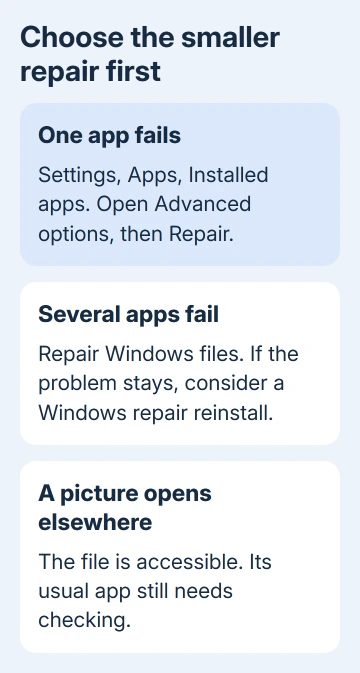
For a temporary way to view a picture, right-click it in File Explorer, choose Open with, and select another installed image app you trust. This can restore access to the picture while you repair its usual app.
Opening the picture elsewhere gives you a way to view it for now. It doesn't repair Photos or explain why Store and other apps might also be failing.
Save the full error text alongside a list of affected apps. A list such as Photos and Notepad failing while Paint works helps support choose the next repair more than a report of broken files.
2. Repair the affected app, then reset if needed
Close the failing app. Open Settings > Apps > Installed apps, search for it, select its three-dot menu, and choose Advanced options if offered. Select Repair, let it finish, and open the app again.
Repair tries to refresh the installation while keeping app data. If it doesn't help, select Reset on that app's Advanced options page. Read the warning because Reset removes preferences and other saved app data.
Microsoft's app repair instructions use Repair before Reset and note that not every app has these controls. If Advanced options is missing, follow the publisher's repair route. Don't use registry commands meant to fix a different app.
Test the app from Start, then open one of the original files. Those are separate checks: the app needs to start and its file-opening route needs to work. If both succeed, leave the other working apps as they are.
The guide for Realtek Audio Console closing uses the same Windows controls for a different app. Use that page when the console is the only program affected, rather than applying audio-driver changes here.
I'd repair one named app before making a system-wide change. The result tells you whether that app needed attention, while other apps keep their preferences.
3. Update or reinstall through Microsoft Store
In Microsoft Store, select Library > Get updates. Update the failing app and Store itself. Then open Settings > Windows Update > Check for updates. Apply the offered Windows updates and restart if prompted.
These are two update routes. Store updates refresh apps, while Windows Update updates Windows itself. A fully updated Windows installation can still have an app update waiting in the Store.
For an app that still fails, use Settings > Apps > Installed apps, its three-dot menu, and Uninstall if offered. Reinstall it through Microsoft Store > Library by finding the app and selecting Install.
Keep any app-specific data you need before uninstalling. Some built-in apps don't offer removal through this menu; don't force their removal with a bulk PowerShell command just to complete this step.
If Store won't open, continue with Windows repair. If it opens but shows a download code, record that separately. Give support that code as well as the registration message; they describe different stages of the failure.
4. Repair Windows files when multiple apps fail
Search Start for Command Prompt, select Run as administrator, and approve the prompt. Run DISM first, wait for its completion, then run System File Checker:
DISM.exe /Online /Cleanup-image /Restorehealth
sfc /scannow
DISM fixes the source files Windows uses for repairs; SFC checks protected system files. Keep the completion text and any error number from each command. Restart afterward and repeat the same app-opening check from section 1.
If SFC says it couldn't repair some files, use the SFC repair-result guide to handle that result. Repeating the commands without reading their results doesn't tell you what remains broken.
In the original thread, the asker had already tried both commands without success. Later owners also reported continuing failures. Don't expect this pair to repair every app-registration problem or keep rerunning it after the same result.
5. Reinstall Windows components while keeping apps
One owner confirmed that an ISO repair worked. Later replies report failed reinstall attempts, so keep any repair error or rollback message. The current Windows Update repair route is another supported way to replace Windows components.
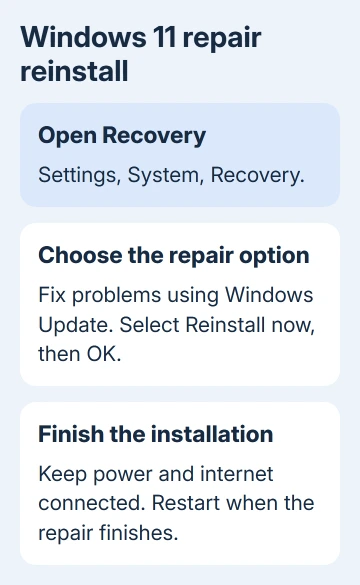
If several apps fail, go to Settings > System > Recovery and choose Fix problems using Windows Update. Select Reinstall now, review the restart option, and select OK. Windows should download and install a repair version.
Back up important files first, then leave your PC plugged into power and online until the repair finishes. It replaces Windows components without removing personal files, installed apps, or settings. Restart when the repair finishes.
Managed PCs and older Windows 11 releases might not offer this repair. Use a release from the 2022 annual update onward, with the February 2024 optional patch or something newer installed. Ask IT if your organization manages updates.
The nearby Reset this PC control performs a different operation. Its app-removal choices differ from this repair reinstall. Check the current repair option with support if it's unavailable or fails.
When the registration error survives the repair
Open Get Help from Start and report the registration message, the apps affected, and your Windows version from winver. Include any repair failure code and whether Windows Security or Firewall also shows an error.
The original thread also included a Firewall error, 0x8007045b, and later reports of failed reinstall attempts. Mention those wider symptoms if they match. Support needs to know when apps other than the picture viewer also fail.
Ask for help repairing Windows apps while preserving your files and applications. The old thread's Store troubleshooter command isn't a dependable route on current Windows 11. Use the current repair controls instead.
The Short Version
Repair or reset one failing app first. Update or reinstall it when Store works. For several failing Windows apps, repair system files and use the current-version Windows repair reinstall. Keep the error codes if the repair doesn't finish.
Checked November 16, 2026.