

PowerPoint for Mac won't apply the color you sample until you click OK in Colors. Select the object, open its fill colors, pick the color and confirm it. An owner with the original Catalina bug fixed it by updating to macOS 10.15.1.
What you see determines the next step: a missing tool in a browser, a color preview that never applies, or a picker that won't sample at all. Check those separately before changing the presentation.
In this guide
1. Use the desktop app and select the destination
Use installed PowerPoint to open the deck. Browser PowerPoint doesn't include the eyedropper, so a missing eyedropper in a browser tab doesn't mean the Mac's color picker is broken.
A Windows PC returning gray for every sample needs the Windows eyedropper checks, including the update that helped an affected owner.
Select the shape that should receive the color. For several shapes, hold Shift while selecting them. Keep that object selected when you open the color menu so PowerPoint knows where to apply the color.
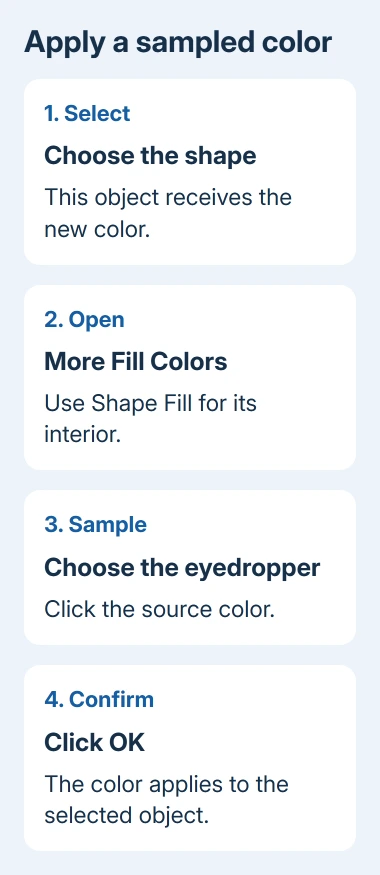
For a shape's interior, open Shape Format > Shape Fill > More Fill Colors. For text, use Text Fill instead. Sampling through an outline-color control changes the outline, which can make a successful selection appear to have done nothing.
Try this on one plain shape rather than a group of overlapping objects. If that shape changes correctly, the tool works and the original selection needs checking. Continue with the Colors dialog if the sample appears but nothing changes.
2. Confirm the sampled color in the Colors dialog
Move the Colors dialog to one side by dragging its title bar. Keep the source color visible on the slide. Click the eyedropper near the bottom of the dialog; the pointer becomes a large circle that previews the color beneath it.
Move onto the color you want and click. Then click OK in Colors to apply that selection to the shape or text you selected earlier. On the Mac, you need that final click to apply the color.
Microsoft's Mac eyedropper instructions describe this Colors-dialog route. Windows instructions showing a direct release-to-apply action aren't the same sequence as this Mac dialog.
Look at the object on the slide after the dialog closes. If its fill changed, the picker worked. If the wrong part changed, undo once and choose the correct fill or text control before trying another color.
Press Escape to cancel sampling. Use it when the dialog covers the source or the pointer lands on the wrong object. Reposition the dialog and sample again instead of accepting an accidental color.
3. Hold the mouse button to sample outside PowerPoint
Arrange the source window beside your presentation. After choosing the eyedropper, keep the mouse button pressed as you drag toward the source color outside PowerPoint. Keep watching the color preview as you move.
The eyedropper graphic disappears outside PowerPoint's window, but the color still previews and can be matched. The missing eyedropper graphic doesn't mean it has stopped sampling. Finish the selection, then confirm with OK in Colors.
Use a flat area of color for this comparison. A shadow, photograph or softened edge contains several different colors, so a tiny pointer movement can produce a different sample even when the picker is working correctly.
If you only need a color already visible on the slide, try that first. If sampling works on the slide, focus on how you're dragging outside the window. If neither location samples, check the Mac version and updates next.
I'd use a simple, solid shape for the first check. It makes the before-and-after change easy to see, and you can undo it without altering the slide's text, layout or theme.
4. Update the original Catalina 10.15 installation
Open Apple menu > About This Mac and read the macOS version. The confirmed report concerned the original Catalina release in October 2019. An owner later reported success with macOS Catalina 10.15.1, build 19B88.
On Catalina, open Apple menu > System Preferences > Software Update. Save the presentation and make a fresh backup. Then install an offered compatible update, restarting if prompted.
Don't install 10.15.1 on a newer Mac. Keep your later macOS release and use its normal update controls. That update fixed the reported Catalina bug, but it isn't the answer to every sampling problem on a newer Mac.
On newer macOS releases with System Settings, open Apple menu > System Settings > General > Software Update. For a Mac showing System Preferences instead, its Software Update pane serves that purpose.
Apple's Software Update instructions explain that the offered software depends on Mac compatibility. If the Mac can't run newer supported software, check that limit before expecting the newest PowerPoint release to install.
After the update, reopen the same presentation and repeat the plain-shape color check. If it now works, return to the original object. If it still fails, update the PowerPoint installation rather than repeatedly changing macOS settings.
5. Update PowerPoint through its installation source
In the desktop app, choose Help > Check for Updates. When Microsoft AutoUpdate opens, install the available PowerPoint or Office updates, then quit and reopen PowerPoint. Repeat the same sample so the result is comparable.
If you installed Office from the Mac App Store, check Updates in that store instead. Those installations update through the store. You don't need a second Office installer just because AutoUpdate isn't available.
Read PowerPoint > About PowerPoint to record the installed version. An update offer can depend on the macOS release and your Office license, so send both versions to support if no compatible update is available.
For a broader presentation problem, the PowerPoint basics guide explains slide objects. For a caption, check the text box selection before changing its text color.
6. Check whether one presentation is affected
Create a blank presentation and insert a simple shape. Try sampling another color on that slide. If that works, the picker itself is working. Return to the original file and check which object and color control you've selected.
If the blank file fails too, use Help > Feedback when available to report the problem. Include the macOS version, PowerPoint version, and whether sampling fails inside the slide, outside the app, or only when applying the result.
On a managed Mac, have IT check Office update compatibility before a reinstall. For a personal installation, request PowerPoint for Mac support with the small example deck and the exact step that fails.
The Short Version
Choose the object, sample through More Fill Colors, and confirm with OK. Hold the mouse button to sample outside PowerPoint. Catalina 10.15.1 fixed the original reported bug; newer Macs need their own compatible updates.
Checked November 16, 2026.
 If you have any business, I can build it online






