

Outlook error 0x80070005-0x000004dc-0x00000524 can appear when a shared mailbox opens normally but your account lacks permission to send from it. Have the administrator check Send As, rather than granting more folder access.
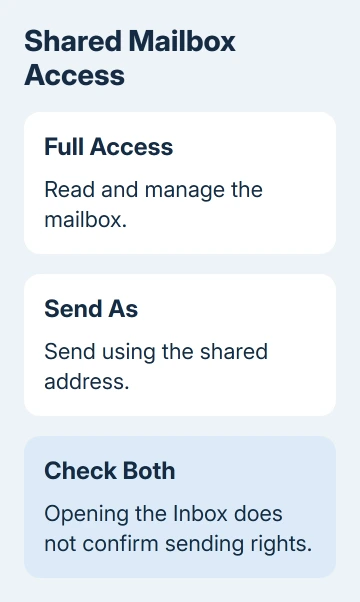
Full Access lets you read and manage the mailbox. Sending uses a separate permission. If sending already works in webmail, the next checks are the sender selected in Outlook and the shared mailbox's address-list visibility.
In this guide
1. Have the administrator check Send As
Give IT the complete sending error and shared address. Include your own work account address, since that's the account whose permission needs checking. Being able to open the shared Inbox doesn't mean you can send from it.
Microsoft's shared-mailbox sending resolution lists missing Send As permission as the cause of this error pattern, even when Full Access and Send on Behalf are already present.
For a shared mailbox, an Exchange administrator can use this route:
- Open the Exchange admin center and choose Recipients > Mailboxes.
- Select the affected shared mailbox and open its permission controls.
- Under Mailbox permissions, select Manage mailbox delegation where that label appears.
- Check Send As for the person sending the message, add the intended user if missing, and save.
The exact pane layout can differ between admin-center versions. Ask them to check Send As on that shared mailbox. It isn't the permission on an Inbox folder or a Windows administrator setting on your computer.
For your own mailbox, old-message resend failures after migration need an old-identity check when fresh messages send normally.
Keep the permission limited to the people who should send from the mailbox. Changing a folder's Default entry to Owner gives a different kind of access and isn't the supported correction for missing Send As.
After the change, ask the administrator when to retry. Permission changes can take up to 60 minutes to take effect. After repeated removals and changes, you can't easily tell which permissions apply when you retry.
2. Confirm the From address in a fresh message
Start with a fresh draft instead of resubmitting the failed item. Check From before sending. Your personal work address and the shared address can both be available, but they send under different identities.
In classic Outlook, pop out the compose window and use Options > From if the From field is hidden. Select the shared mailbox address. If necessary, choose Other Email Address and select the mailbox from the address book.
Use a harmless message to a colleague or another mailbox you can check. Ask the recipient to inspect the sender, then confirm that the message arrived. A disappearing compose window alone doesn't show that delivery succeeded.
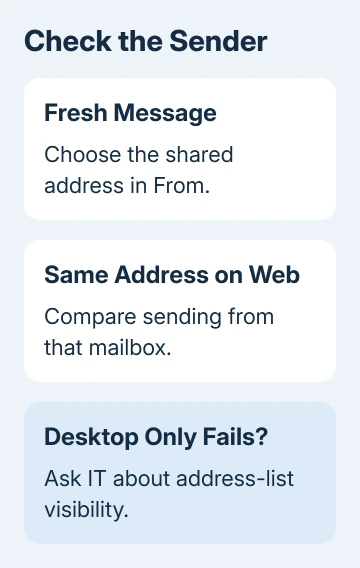
If the personal address sends but the shared address produces this code, tell IT which sender failed. That points to a problem sending from the shared address, rather than Outlook losing its mail connection entirely.
For messages stuck under your own address too, follow the broader Outlook sending checks. An offline app or a blocked Outbox needs attention separately from shared-mailbox delegation.
3. Compare the same shared address in webmail
Sign into Outlook on the web using your work account. Open the shared mailbox through your account menu's Open another mailbox option, enter its address, and open it.
Compose a new message there and check the sender. Use the same intended recipient and harmless content as the desktop check. Using the same details helps you compare the two apps without changing the account or address too.
If webmail also refuses the shared sender, return to the permission check. A desktop profile reset won't grant a permission the server is rejecting. Send IT both error messages, from webmail and the desktop app.
If webmail sends successfully, tell IT. It tells IT that the account can send through that route, so they should check the desktop sender selection and address-list visibility before removing the mailbox.
One owner in the original error discussion reported successful web and desktop sends after escalation and delegation checks. Other owners could send on the web but still couldn't in classic Outlook.
Adding Send on Behalf wasn't a consistent fix across these reports. In the successful report, sending continued after that extra permission was removed.
4. Check whether the mailbox is hidden from address lists
Ask IT whether the shared mailbox is visible in the Global Address List. That's the organization's address book. The setting they need to inspect is HiddenFromAddressListsEnabled.
Send As and Send on Behalf don't work in the Outlook desktop client when that setting is True. A mailbox can therefore work through another route while classic Outlook still fails to use it as the sender.
IT should decide whether the mailbox should be visible and correct its configuration if necessary. Don't work around an intentional organization setting by repeatedly creating personal contacts for the shared address.
After IT changes the configuration, close and reopen Outlook and select the shared mailbox from the address book again. Retry with a fresh message. Record whether the same full error returns or a different message appears.
If the mailbox itself doesn't appear in Outlook, the shared-mailbox setup steps cover adding and opening it. That's a separate task from authorizing its From address.
5. Escalate the remaining desktop-only failure
I'd keep using the working web route while IT checks a desktop-only failure. It lets you send from the intended address without changing the whole Outlook account setup during a busy workday.
Give IT File > Office Account > About Outlook details, the full error, both mailbox addresses, the time of a failed send, and the webmail result. Include whether another authorized user can send from the same shared mailbox.
Ask IT to confirm that your Send As permission has taken effect and that the address list shows the mailbox. If both are correct, ask them to raise the failure with Microsoft 365 support.
An owner still had the error after permissions were removed and reassigned. Another reported that switching off cached mode changed the error but didn't restore sending. Include failed attempts in the support request.
The Short Version
Check Send As, allow time for the change, and verify From. Compare webmail. For a classic-only failure, report the build, code, and webmail result to IT for an address-list check.
Checked November 16, 2026.






