

Updating Outlook fixed the reported fault where Save Sent Item To worked for new messages but replies kept landing in Sent Items. Update classic Outlook first, then send a fresh message and a reply to the same selected folder.
That specific bug is different from choosing a folder your account type doesn't support, or looking in a shared mailbox that saves another copy. Those cases need different checks, so note which message and mailbox had the problem.
In this guide
1. Update classic Outlook before changing mail settings
In classic Outlook for Windows, open File > Office Account > Update Options > Update Now. Save your work before accepting a prompt to close Office apps. Reopen Outlook once the update finishes.
One owner in the Save Sent Item To discussion confirmed in July 2024 that an Outlook update released around May had fixed their problem. Their earlier reply singled out replies; new messages worked.
The owner didn't give the build number that fixed it. Use the latest available update for your Office product and update channel rather than trying to locate an unnamed May 2024 download.
Use the Office update instructions if Update Options is missing. Workplace installations can have updates controlled by IT, and some installation types use a different update route.
I'd do this before repairing the mailbox. The confirmed result was an app update, and the original account had used only 10 GB of its 100 GB allowance. That report wasn't a full-mailbox case.
If the available updates are installed and the fault remains, compare how the app saves a new message and a reply. The two results tell your help desk whether only replies are affected.
2. Send a fresh email, then reply in a popped-out window
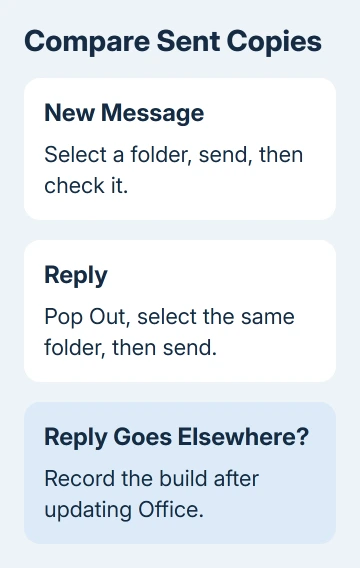
Create a harmless new email addressed to a mailbox you can check. In its compose window, open Options > Save Sent Item To > Other Folder and select the destination you normally use. Send the message.
Check the selected folder after sending. Search by the unique subject if necessary, and confirm the message's time and recipient. Check Sent Items too, so you know whether a copy appeared there instead or an extra copy exists.
Next, open an existing message and choose Reply. If the reply opens inside the Reading Pane, select Pop Out to give it its own window. Choose the destination through Options > Save Sent Item To again, then send.
Pop Out gives you the full compose ribbon. The update, rather than Pop Out, was what fixed the bug for the owner. The important comparison is whether Outlook honors the selected folder for a new message and ignores it for a reply.
Use the same account and folder for both messages. Changing the mailbox between attempts could turn this into a comparison of two account types or permissions instead of the new-message/reply behavior.
If both copies reach the selected folder, your present setup is working. If only the reply lands in Sent Items, write that down along with the Outlook build. Continue by checking the account type before changing folder preferences.
3. Check whether the account supports changing sent folders
Open File > Account Settings > Account Settings and inspect the account's Type. Outlook.com and other Exchange accounts support the documented originating-folder setting. IMAP has different sent-message behavior.
Microsoft's sent-message storage guide says you can't change where sent items are stored for an IMAP account using this setting.
If the account is IMAP, the Exchange storage setting won't fix this. Keep the provider's normal sent folder and move a saved message to your project folder after sending when you need that organization.
Don't turn off saving sent copies just to stop them appearing in the wrong folder. That can leave you without the record you expected. Disabling saved copies solves a different problem, such as duplicate IMAP sent items.
For a missing message, first check whether a copy exists anywhere in that account. A message absent from every sent folder needs its save and send status checked before you try changing the destination again.
If Outlook also reports that an item cannot be saved because it changed, protect the draft and address that error. Folder selection can't fix a compose item that hasn't saved correctly.
4. Use the same-folder reply option for filed conversations
For an Exchange or Outlook.com account, open File > Options > Mail. Scroll to Save messages and check Save copies of messages in the Sent Items folder.
Select When replying to a message that is not in the Inbox, save the reply in the same folder if that matches the way you file mail. Choose OK, then reply to a message already stored in the intended folder.
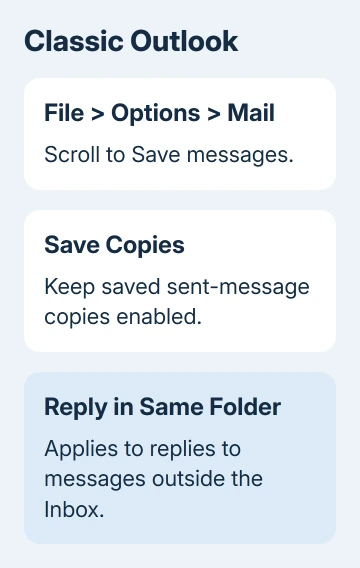
This setting follows the folder containing the original message. It doesn't mean a reply to an Inbox message will automatically find an unrelated project folder. Move the original conversation first when you want that workflow.
Check the result with a filed conversation rather than an Inbox reply. If the saved reply appears alongside the original, the setting is doing its job. Note that result separately from your Save Sent Item To check for an individual message.
For a separate folder choice on every message, keep your filing routine and report the Save Sent Item To failure. Changing a global preference can hide the symptom without fixing the command you use.
5. Check shared-mailbox copies and report a repeatable failure
A shared mailbox can retain sent copies through organization settings. Seeing a message in its Sent Items doesn't, by itself, show whether Outlook ignored the folder you selected for your own copy. Check both locations and the sender used.
Tell IT whether this happens in a personal work mailbox or a shared mailbox. The original asker clarified that their fault affected an individual mailbox, so changing shared-mailbox sent-copy settings wasn't the answer in their case.
If access to the mailbox is also wrong, use the shared-mailbox setup guide. Don't remove a working account just because one sent-copy command is failing.
Record the version from File > Office Account > About Outlook, the account type, and the target folder. Tell your help desk where each of the two messages was saved and ask about a reply-only Save Sent Item To fault on that build.
The Short Version
After updating classic Outlook, test a fresh message and a popped-out reply, then inspect the account type. Exchange accounts can save replies beside filed originals. IMAP restrictions and shared-mailbox extra copies need separate handling.
Checked November 16, 2026.






