
Power Pivot's Sort by Column can look right in the model while an Excel 2016 PivotTable sorts months alphabetically. For labels such as Dec-16 and Jan-17, use a custom list containing those labels in chronological order.
Start with the PivotTable's sorting options, rather than rebuilding the model. The final answer in the original discussion took back the earlier claim that this was a bug and explained how to use a custom list instead.
In this guide
1. Check whether the order fails in the PivotTable
Open the affected workbook in Excel 2016 for Windows. Compare the label order inside Power Pivot > Manage with the order in the worksheet PivotTable. Note which field you're using for the row labels.
If the model is sorted as intended but the worksheet report isn't, repeating the same sort in the model may leave the report unchanged. The model and the worksheet report can use different sorting rules.
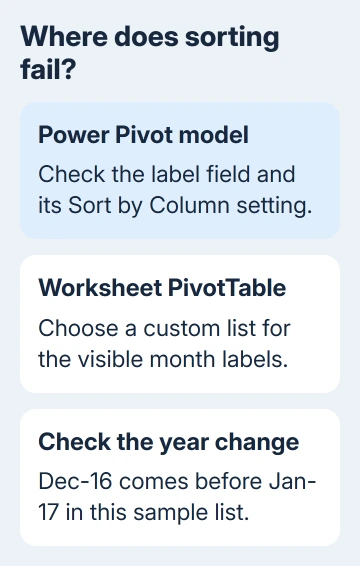
The original Excel 2016 discussion concerned build 7571.2072. The final explanation said the PivotTable didn't follow the model's Sort by Column setting the way the asker expected.
Earlier replies suggested a bug involving linked tables, apostrophes, or an internal index. A later post said the apparent repair stopped working, and the final answer replaced that explanation with the custom-list approach.
Those later replies change the advice: the thread doesn't give you a confirmed fix through deleting linked model tables or removing punctuation. Keep the relationships and calculations intact while you try the report's sorting controls.
For a report you're still assembling, the PivotTable field-placement guide covers Rows and Values. This sorting problem starts after the correct labels are already appearing in the report.
2. Create a custom list with the exact month labels
On a spare worksheet, enter the required labels in one column, one per cell, in chronological order. For example, use Oct-16, Nov-16, Dec-16, Jan-17, and Feb-17 if those are the labels in your report.
Use exactly the text shown in the PivotTable, including spaces, punctuation and year format. An entry for January won't match Jan-17. Include every month and year the report needs.
Select the cells containing that ordered list. Open File > Options > Advanced, scroll to General, and select Edit Custom Lists. Check the range in Import list from cells, then select Import.
The imported entries should appear in the Custom Lists dialog in the order you supplied. Confirm with OK, then OK again to return to the workbook. Keep the spare list available while checking the result.
For a short list, select NEW LIST and type the entries directly into List entries, pressing Enter after each one. Select Add when the entries are ready. Importing cells is easier when the list spans several years.
The custom-list instructions cover both methods. Review the first and last entries before leaving the dialog; an alphabetized source list would just recreate the wrong order.
3. Apply that list through the PivotTable's sort options
Return to the PivotTable and open the relevant row or column field's menu. Choose More Sort Options. Select Ascending (A to Z) by and choose the label field you're trying to order.
Select More Options. Clear Sort automatically every time the report is updated so the First key sort order control becomes available. Select your imported custom list there, then confirm the dialogs.
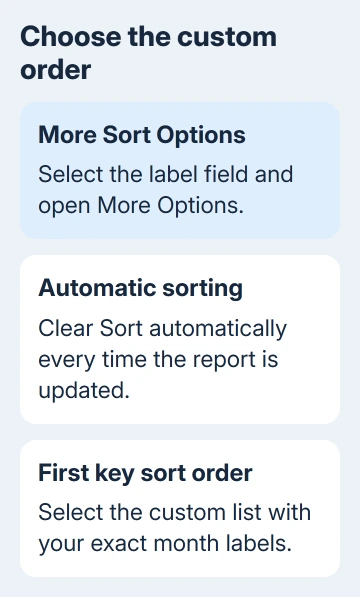
Read across a year boundary after applying the sort. December should precede January of the next year when that's the order you entered. Checking only January through March won't catch every year-order mistake.
Also check that you sorted the label field, rather than a total. Sorting Sum of Sales would rank months by their sales amounts, which is a different instruction even if some months happen to end up in the expected places.
If the order stays alphabetical, reopen More Options and check that your list was selected. Compare one troublesome label with its list entry. Leading spaces or a different apostrophe can make apparently similar labels different text.
4. Separate plain month names from month-and-year labels
Excel already includes custom lists for full and abbreviated month names, such as January through December and Jan through Dec. That explains why a report using plain month names can look correct without your own custom list.
A label such as Jan-17 isn't just a month name. It identifies a month in a particular year, so the built-in January-to-December list doesn't describe the full sequence you need.
Keep the year in the label for a report spanning multiple years. Otherwise, January entries from different years become indistinguishable to someone reading the report, even if a separate model key carries more detail.
For an ordinary worksheet date column rather than model labels, use the date-sorting procedure. A real date can be sorted chronologically without inventing a text order for each month label.
Don't change the whole model's design just because one report needs a custom order. First confirm that the source field and the report's visible labels represent the periods you intend to compare.
5. Recheck the order after refreshing the report
Refresh the PivotTable once you've confirmed the correct sequence. Then inspect the same year boundary again. Microsoft's PivotTable sorting guidance warns that refreshing PivotTable data doesn't keep the custom-list order.
If refresh changes the order, reapply the custom sort before sending the report. Make this part of your reporting routine. A saved sheet can look correct, then lose that order when new data arrives.
Extend the list when another reporting period appears. A list ending at December gives Excel no position for a later month. Match the new entry's text to the report and place it in the intended sequence.
I'd check both the refreshed report and the copy being delivered. The model can look right while the worksheet you send still shows the labels alphabetically.
If sorting still fails, send the workbook maintainer an example without private data: the visible label, sort-key field, custom list, and Excel build. Ask them to reproduce the worksheet sort before changing model tables.
The Short Version
Check the worksheet PivotTable separately from Power Pivot. Make a custom list of the exact month-and-year labels, select it in the report's sort options, and inspect a year boundary. Recheck after refreshing; the order can be lost.
Checked November 16, 2026.





