

An Excel pivot table groups repeated labels and summarizes their numbers. Select a clean data range, choose Insert > PivotTable, then put the category in Rows and the number to total in Values.
Start on a new worksheet so the report has room to expand. The example here totals sales by region, then adds a product comparison. Its small numbers make a wrong field placement easy to spot.
Prepare one row per sale and one header per column
Use three columns headed Region, Product and Sales. Enter these sample records in rows 2 through 5: East, Mouse, 20; West, Mouse, 30; East, Keyboard, 40; West, Keyboard, 10.
Keep Sales numeric and leave out any manually entered total row. Microsoft's PivotTable overview describes a list with column labels, consistent data types and no blank rows or columns inside the source.
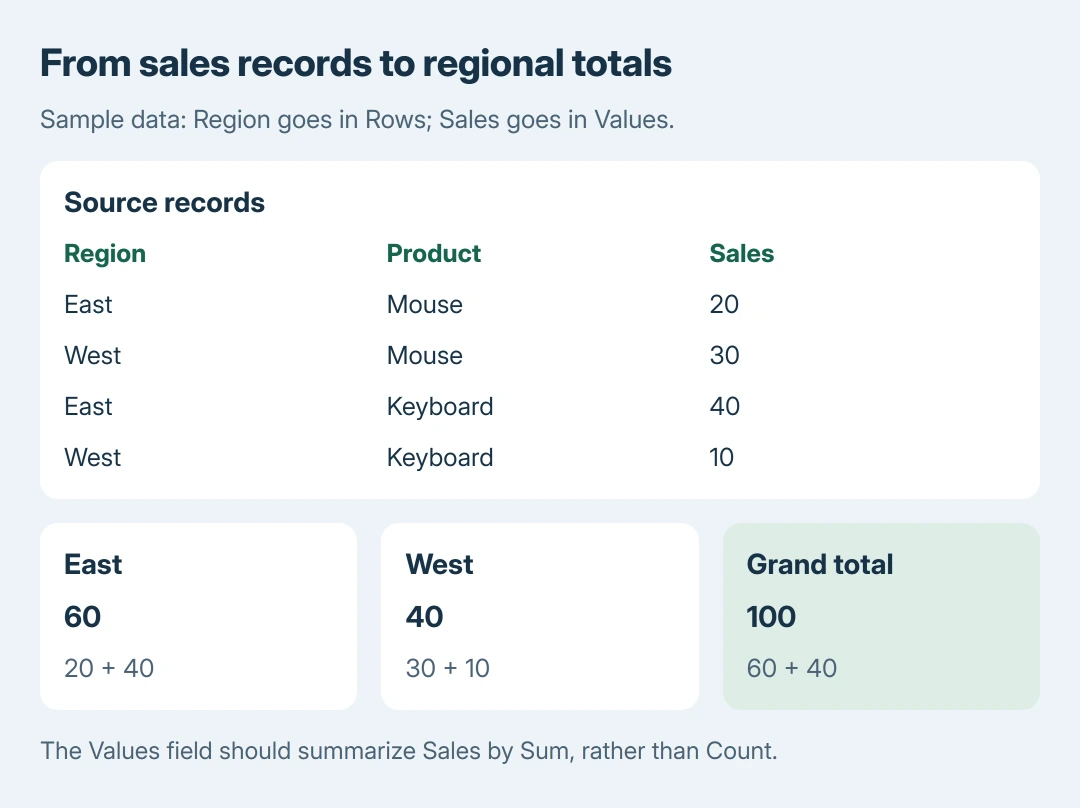
Status: Microsoft PivotTable creation, field arrangement and refresh guidance checked October 28, 2026. The sales example is calculated sample data, not an Excel screenshot or workbook test.
For a growing list, an Excel Table is a useful source because added table rows can be included when the PivotTable refreshes. If its appearance is distracting, clear the table style without converting it and retain that behavior.
Insert the report on a new worksheet
For the Windows desktop example, select A1:C5. Choose Insert > PivotTable. If a source menu appears, choose the table or range option, then verify that the shown range includes all four records and their headers.
Choose New Worksheet, then OK. A blank report and its field pane should appear. Microsoft documents the insertion controls in its PivotTable creation instructions.
For an existing-sheet destination, choose an empty area that can accommodate a larger report later. The new-sheet choice avoids placing a summary over information already in use.
Excel for Mac and Excel for the web also start with Insert > PivotTable, but their insertion panes and confirmation controls differ. Select the source and destination in the version being used, then arrange the fields as described next.
Put the labels in Rows and the amounts in Values
In PivotTable Fields, drag Region into Rows. Drag Sales into Values. The sample should now show East as 60, West as 40, and a grand total of 100.
Microsoft says the field-list areas decide the report's arrangement. Rows hold the vertical labels; Values hold the summarized results. Adding a field is only part of the job: its area matters.
If the pane disappears, click a cell inside the report. In desktop Excel, open PivotTable Analyze > Field List if it still stays hidden. Clicking ordinary source cells will not select the PivotTable's tools.
For a comparison across products, drag Product into Columns. East should show Mouse 20 and Keyboard 40; West should show Mouse 30 and Keyboard 10. The regional totals remain 60 and 40.
The Filters area can restrict the whole report to a chosen category. Keep it empty for the initial check so a forgotten filter does not hide one of the four example records.
Check Sum before trusting the result
A heading such as Count of Sales means the report is counting entries. For a sales total, inspect the source for numbers stored as text or mixed with text before changing the summary calculation.
In the Values area's Sales menu, choose Value Field Settings, then Sum under Summarize Values By. Microsoft states that text interpretation can cause Count to be selected instead of Sum. Refresh after correcting source entries.
Use the example's total of 100 as a simple check. Selecting Sum cannot turn nonnumeric text into valid sales amounts. A larger workbook needs the same comparison against a known source total.
Refresh after source records change
Right-click inside the report and choose Refresh. Microsoft's refresh instructions explain the update controls. Do this after changing source values instead of assuming every version refreshes immediately.
For a fixed range, a row added outside that range is not automatically part of the source. Expand it through PivotTable Analyze > Change Data Source, or use a suitably expanding Excel Table, then refresh.
Once the numbers are correct, make a chart from the summarized results if a visual comparison would help. Styling comes after checking the represented records and calculation.
If the report remains incorrect, give the workbook's maintainer or Microsoft Support a harmless sample, the source range and the selected summary function.
Our recommendation is to reproduce the mismatch with a few rows before sharing a full business workbook.
The Short Version
Prepare labeled columns, insert a PivotTable, and put categories in Rows and amounts in Values. Verify Sum versus Count. Refresh after changes, and make sure new records are inside the source before relying on the totals.

Isaac Smith is the founder and editor of PC Glance, a website that covers computers, laptops, and technology. He is a tech enthusiast and a computer geek who loves to share his insights and help his readers make smart choices when buying tech gadgets or laptops. He is always curious and updated about the latest tech trends.