

A PivotTable can refresh locally yet fail from SharePoint because of how Excel opens the file. In the reported Excel 2011 for Mac fault, downloading the workbook restored refresh. Start with a local working copy.
The old report includes Cannot open data source file with an HTTPS address and Invalid reference to data source. Even same-workbook sources failed, so the warning didn't always mean another file was missing.
In this guide
1. Refresh a downloaded copy on the Mac
Download the affected workbook from your SharePoint library into a normal local folder. Open that downloaded file in desktop Excel, rather than reopening its SharePoint link from the browser or the Recent list.
Select a cell in the PivotTable, then use its Refresh command. Check the resulting totals against a source value you recognize. The totals should match the source data, not just stay on screen without an error.
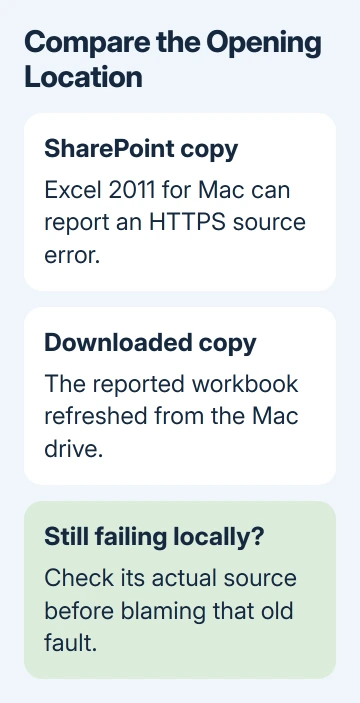
One owner in the original Excel 2011 report confirmed that downloaded files worked again. They could also refresh through Excel 2010 on Windows.
Give your local copy a name you can tell apart from the shared report. It won't automatically become the shared report just because it refreshed. Coordinate with the workbook owner before putting your revised copy back into the library.
If the downloaded workbook still fails, the local-copy workaround hasn't solved your problem. Continue by checking its source reference. Check why the local file fails before treating SharePoint as the cause.
2. Check whether the source is inside the workbook
Select the PivotTable and check where its data comes from. In current desktop Excel, open PivotTable Analyze > Change Data Source for an ordinary table or range source. Note whether it names a worksheet range, a table, or another workbook.
For a worksheet source, confirm that the named sheet and range exist in the downloaded copy. Don't replace the range with a guessed HTTPS address. A web address for opening a workbook isn't necessarily a usable PivotTable source reference.
If the source is another workbook, download the required source as well and ask its owner how the connection should be maintained. Moving only the report file can't supply records that live elsewhere.
Current PivotTable refresh instructions describe refreshing from tables and external connections. The repair controls differ by source type, so check what your report actually uses.
In the older Mac report, a source inside the open workbook could still fail after SharePoint opening. Even if the range looks correct, try refreshing a local copy. The owner confirmed that the downloaded copy refreshed successfully.
For a source that refreshes but excludes new fields, use the missing PivotTable column checks. Expanding a source range answers a different question from an HTTPS source that won't open.
3. Use the refresh control for your Excel version
In current Windows Excel, select a report cell and choose PivotTable Analyze > Refresh, or right-click and select Refresh. Use Data > Refresh All when you need every workbook connection updated.
In current Excel for Mac, select the report and choose PivotTable Analyze > Refresh. The ribbon labels in Excel 2011 are older, so don't expect every current tab name to match. The original case used that retired Mac release.
Wait for refresh to finish before judging the totals. If a different message asks for credentials or permission, record it separately. An account failure on a current connection isn't explained by an old Excel 2011 compatibility report.
Excel for the web also has PivotTable refresh controls, but the desktop comparison is important here. Seeing existing totals in the browser doesn't tell you whether Excel 2011 on the Mac can refresh the source data.
I wouldn't rebuild a report because a tab looks different. Check whether the existing report refreshes from a local file in your version. That preserves its fields and calculations while you work out what fails.
4. Keep Power Pivot advice separate from this fault
An ordinary PivotTable summarizes worksheet data. Power Pivot adds a separate data model with its own features and version limits. The original discussion briefly confused those two, then corrected that advice.
Don't conclude that SharePoint cannot hold any workbook containing PivotTables. The original owner had a working Windows route. The problem was how that Mac version opened and refreshed these files.
Removing filename spaces wasn't a confirmed repair. A later owner tried a name without spaces or international characters and still couldn't refresh. Renaming every shared report adds work without addressing that result.
If you need help arranging a report after it refreshes, the PivotTable creation walkthrough explains the Rows and Values areas. Those layout choices don't repair a source-opening failure.
5. Have the workbook owner handle a lasting workaround
For a team still depending on Excel 2011, show the workbook owner the local-copy result and request a supported desktop Excel workflow. Include the exact Mac version and the version that successfully refreshes the same file.
One later owner rebuilt their PivotTable sheets with VBA code and reported that it worked. That approach deleted and recreated report sheets. It's a workbook-development task, especially when charts or formulas depend on those sheets.
If your team can't move to a supported version yet, ask your workbook maintainer to try that option on a copy. A generic macro pasted into a business report won't know its field names, calculations, or downstream references.
The accepted reply in the old discussion said the problem could be reproduced and was being looked into. It didn't announce a released fix. Keep that distinction when deciding whether an old update or a filename change will solve the fault.
If a supported Excel version fails, send your Microsoft 365 administrator a harmless workbook sample, the full error message, and its data source type. Include whether local refresh works, and ask them to compare both opening routes.
The Short Version
Download the workbook and refresh locally first. That worked for the reported Excel 2011 for Mac fault, including same-workbook sources. If local refresh also fails, inspect the source before treating it as that historical problem.
Checked November 17, 2026.
 If you have any business, I can build it online





