

Excel's Data source reference is not valid error can come from filename brackets or an unsaved download. Save a local workbook with a simple name, then select the source cells again before inserting the PivotTable.
For an existing PivotTable, check its source range instead of rebuilding the whole report. A renamed file and a broken reference can show the same message, but they need different repairs.
In this guide
1. Remove square brackets from the workbook name
Look at the workbook's filename, including any number added during download. Names such as Sales[1].xlsx contain square brackets that can prevent Excel from creating a PivotTable from that workbook's data.
Save the file with a name such as Sales-report.xlsx instead. In Windows Excel, choose File > Save a Copy; other editions call it Save As. Pick a folder and enter the new name. Leave the appropriate Excel file type selected.
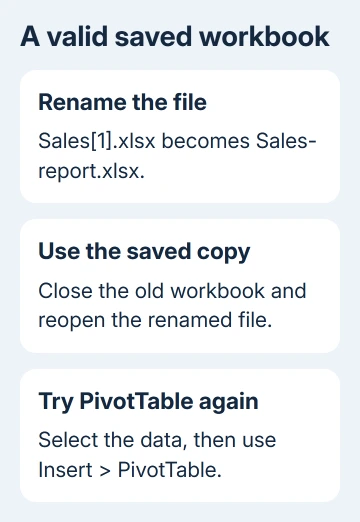
Microsoft's filename error article identifies square brackets as a cause of this exact PivotTable message. Change the workbook name, rather than removing characters from every cell.
Close the old copy and reopen the renamed one so you know which workbook you're using. Select the data and retry Insert > PivotTable. If the field list appears without the error, the report can now read its source.
On a Mac, use Save As from the File menu to give it that simple name. Some editions label the command Save a Copy. On either platform, keep the original extension or choose the correct format through the save dialog.
A macro-enabled workbook needs its macro-capable format, such as .xlsm, if you want to preserve its code. Renaming a file doesn't require converting every workbook to .xlsx.
If the name contains no brackets, leave it alone and check whether the workbook has been saved outside the download or attachment session.
2. Save the downloaded workbook before inserting the report
In the original discussion, one owner found that the error occurred after downloading a workbook and working without saving it to a drive. After saving it, they could create the PivotTable.
Select Save As in the File menu. If the menu instead offers Save a Copy, use that. Save to a normal local folder, such as Documents. Use a recognizable name, then close and reopen that saved copy before inserting the PivotTable again.
If the original is a CSV or a web-generated table, save a working copy in a suitable Excel workbook format before building the report. Set the desired file type while saving; typing another extension alone won't convert the contents.
For a downloaded file, leave security prompts in place until you're satisfied the file is trusted. The aim is a saved workbook whose source Excel can read, not switching off Protected View for every future download.
Select a cell inside the actual data, then use Insert > PivotTable. Check the table or range shown in the creation dialog before accepting it. If that range points to the wrong cells, select the data again.
If saving resolves the error, continue building the report in that copy. If a properly saved workbook still fails, check the source selection next instead of repeating the same Save As step.
3. Select the source cells again
Cancel the failed PivotTable dialog and return to the worksheet containing the data. Select the rectangular block you want to summarize, including its heading row. Exclude unrelated notes or an empty sheet beside the data.
Choose Insert > PivotTable and inspect Table/Range. For a worksheet range, check that the sheet name and cell addresses describe the selected block. Use the range selector to choose the cells again if they don't.
The PivotTable creation guide covers the remaining setup once Excel accepts the source. This error happens before you choose Rows and Values, so rearranging those fields won't fix an invalid reference.
If the source is an Excel table, confirm you're selecting that table's data rather than a similarly named range in another workbook. Keep the source workbook open while comparing the names and locations.
Try a small range with headings in a new saved workbook if the original still fails. If that creates a PivotTable, Excel can create PivotTables, so check the original workbook's data source more closely.
A different warning about an invalid field name needs its own check of column headings. Keep the wording of the message when seeking help; different creation errors need different repairs.
4. Repoint an existing PivotTable to the intended data
Click inside the existing PivotTable. On the ribbon, open PivotTable Analyze > Change Data Source. Older Excel releases can label the contextual tab Options instead.
Select the intended table or worksheet range in Table/Range, then confirm. Check that the range reaches the last record and includes the heading row. Refresh the report after correcting its source.
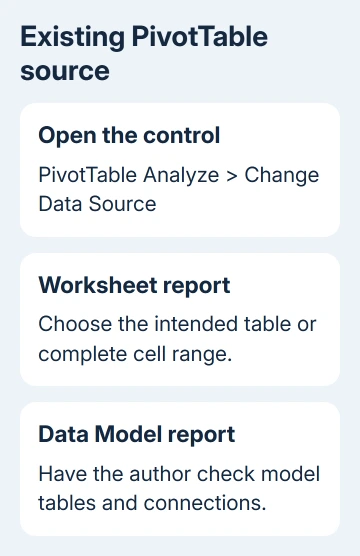
For external data, Change Data Source can open connection controls instead of letting you select worksheet cells. Choose the intended existing connection and check that its source file is still where the connection expects it.
The source-change instructions separate ranges from external connections. The Workbook Data Model holds tables and their relationships inside the file. Its reports have different limits; don't replace their source with an unrelated range.
For a Data Model report, ask its author to check tables and connections. I'd preserve its relationships while checking the filename and saved location. Rebuilding can lose more than the broken reference.
If the table never reaches the model, check the Power Query model load before changing the PivotTable source.
When the report opens but the label order is wrong, use the Power Pivot sorting steps. Sorting isn't the remedy for Excel refusing the data source.
5. Compare local and shared copies before escalating
If a report fails only from SharePoint or another shared location, test a saved local copy with a simple name. Use that copy to compare results; don't replace the shared team workbook with a local version that others can't track.
For one SharePoint owner, removing filename brackets cleared the error. Another participant still had trouble after saving web-derived data as an Excel workbook. Format conversion alone won't resolve every invalid source.
Send the author or Office administrator your error, filename, Excel version and source type. Include results from your small test workbook and saved local copy. Request a check of the affected table, range or connection.
The Short Version
Save a properly named workbook without filename brackets. Select its source again for a new PivotTable; use Change Data Source for an existing one. A Data Model report needs its model connections checked.
Checked November 16, 2026.
 If you have any business, I can build it online





