

Dates that look correct in Excel can still be text, stopping PivotTable grouping even without visible blanks. Convert the source dates through Data > Text to Columns, refresh the report, then group a date cell again.
A missing Group command or a date field used only as a report filter needs a different check. Start with the source values when Excel displays Cannot group that selection.
In this guide
1. Convert the source dates, not just their appearance
Save an untouched copy of your workbook before converting any dates. Go to the original data sheet, select the date entries without their header, and choose Data > Text to Columns in desktop Excel for Windows.
Choose Delimited and select Next. Clear delimiter choices that would split your dates into separate columns, then select Next again. The preview should still show one complete date per row.
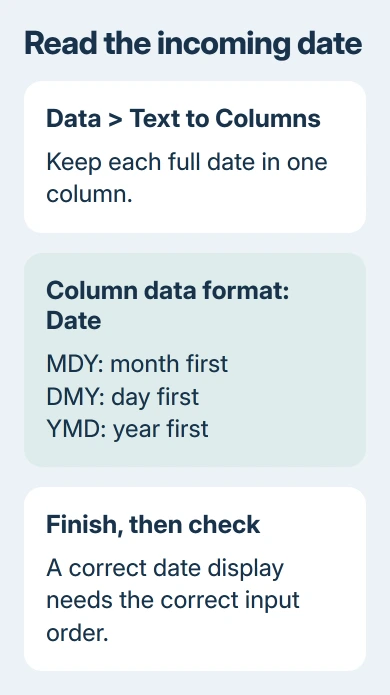
In the wizard's last step, select Date under Column data format. Choose the order used by the incoming text: MDY for month/day/year, DMY for day/month/year, or YMD for year/month/day. Select Finish.
The choice describes the text you're converting, not how you want the result displayed. For example, 23/04/2026 needs DMY. A value such as 04/05/2026 is ambiguous, so check another record or ask which order the source uses.
An owner in the original PivotTable discussion confirmed that this conversion fixed their dates. Applying the Date number format had changed their appearance without converting the stored text.
On desktop Excel for Mac, look for Data > Text to Columns and the date-format choice in its conversion wizard. For a browser workbook without those controls, switch to the installed Excel app to convert the column.
Check a few dates whose day is greater than 12 after conversion. Those entries make a reversed month/day interpretation easier to catch. Once they're correct, format the column as your preferred visible date style.
2. Check the rows that still aren't numeric dates
Excel stores real dates as numbers. Beside the source column, enter =ISNUMBER(A2) if A2 contains your first date, then fill the formula down through the records. Replace A2 with the first date cell in your workbook.
TRUE means the cell contains a number; FALSE means it doesn't. A number could still be the wrong date, so compare the displayed day, month and year with the source rather than trusting TRUE alone.
The ISNUMBER function distinguishes text from numbers without converting it. This makes it useful for finding a few remaining text entries hidden among hundreds of valid dates.
Filter the helper column to FALSE. Look for a stray heading, a leading apostrophe, an error, a placeholder such as TBC, or a formula returning empty text. An empty-looking cell isn't always unused.
Correct each record using its real date. If the date is genuinely unknown, keep that record in your main data, but use records with known dates for the date-grouped report. Inventing dates would make the monthly totals misleading.
If conversion fails for a consistent text pattern, the text-date conversion guidance includes DATEVALUE as another route. The result depends on your date settings, so check dates that could be read in either order carefully.
I'd check the stored values before trying more number formats. Repeatedly picking Short Date can't turn text into the date numbers that grouping needs.
3. Inspect the complete source range and refresh
Click inside the PivotTable and open PivotTable Analyze > Change Data Source on current Windows desktop Excel. In Excel 2007 or 2010, use PivotTable Tools > Options > Change Data Source.
Inspect the whole selected range, including its last row. It may include unused rows after the visible records or omit the column you corrected. Hidden or filtered source rows are still part of a selected source range.
If the source uses a name or an Excel Table, check which cells it includes. Don't assume the report reads your selected worksheet cells. The missing PivotTable fields guide explains how to check which cells the report uses.
Correct an oversized or incorrect range, preserving the header and every intended record. Then right-click inside the report and select Refresh. Source conversions don't update the PivotTable's stored copy of the data until it refreshes.
An owner removed unnoticed blanks and could then group. Another had converted dates change back after refreshing. If you import the source again, fix how the import reads dates so you don't repeat yesterday's conversion.
If a query imports your data, ask whoever maintains it to set the column's type to Date using the region that matches the source dates. That makes the conversion part of each import, so the next refresh won't undo your manual edit.
4. Group a date item in Rows or Columns
Put the date field in the PivotTable's Rows area, then right-click an actual date item inside the report and choose Group. Don't click a sales total, the source worksheet, or a different label field.
In Grouping, select Months and Years for a multi-year report, clear unwanted periods and choose OK. Years keeps each year's January separate instead of combining every January into one total.
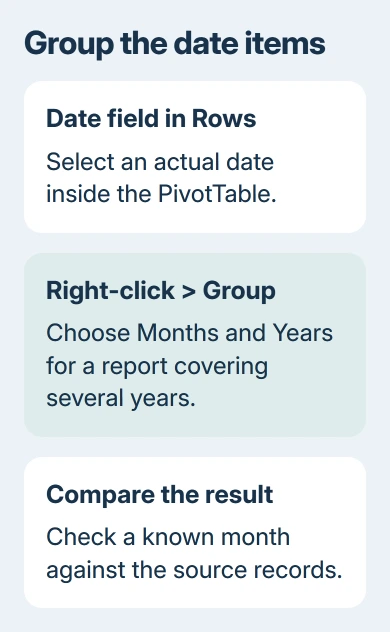
The date grouping controls cover both Windows and Mac desktop editions. After grouping, compare a known month's total with its source records before using the report.
A field placed only in Filters doesn't provide the same right-click date items. Move it temporarily into Rows to group it. The ordinary source-sheet filter's year/month tree and the PivotTable's report filter are different interfaces.
If the report uses the Data Model and Group is unavailable, ask whoever maintains it to add Year and Month fields from a calendar table. Or compare a standard worksheet PivotTable. Converting valid dates again won't add a missing command.
The PivotTable setup guide explains Rows, Columns, Values and Filters if you're unsure which area holds the date field. Changing a field's placement doesn't correct text in its underlying source.
5. Compare a fresh report when the corrected one still fails
Save and reopen the workbook, then try the same grouping again. One owner reported that reopening alone restored grouping, but other later Excel 2013 reports remained unresolved despite checking dates and blanks.
Create a separate PivotTable on a new sheet using a small set of verified date records. If that groups, compare its source and field placement with the original report. Keep the original until the replacement's totals match.
If that also fails, ask Microsoft Support about date grouping. Send a workbook with invented data and your Excel version. Include the ISNUMBER result, the full source range and whether the report uses the Data Model.
The Short Version
Convert text dates in the correct input order, check all source rows and refresh. Group a date in Rows or Columns, choosing Years with Months when needed. A disabled command or changing import needs a source or model check.
Checked November 17, 2026.
 If you have any business, I can build it online





