

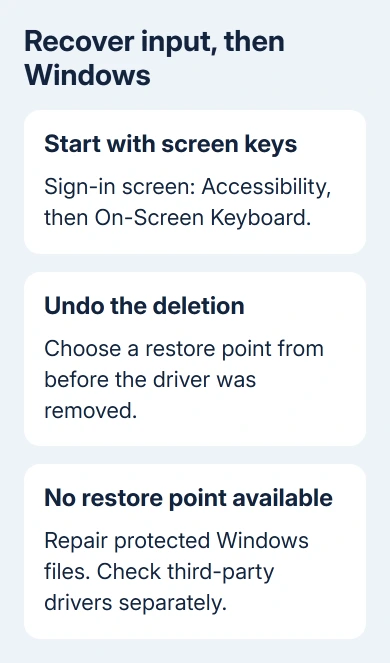
A keyboard can stop working when a needed driver is deleted from Windows\System32\drivers. Sign in using the On-Screen Keyboard, then choose a restore point made before the deletion.
Without a suitable restore point, repair Windows' protected files or reinstall the correct device software. The filename matters: a Windows component and another program's keyboard filter don't necessarily come back through the same repair.
In this guide
1. Get past sign-in without the physical keyboard
At the Windows 11 sign-in screen, click Accessibility at the screen's bottom right, then select On-Screen Keyboard. Click the matching screen keys for each character in your password or PIN. You don't need a touchscreen.
On Windows 10, the sign-in control is called Ease of Access. Open it and select On-Screen Keyboard. A USB mouse or the laptop's touchpad can operate the keyboard window.
If the keyboard opens in its navigation layout, choose General to show the full set of keys. Microsoft's On-Screen Keyboard instructions explain that the tool remembers its previous layout.
Once signed in, Windows 11 also offers it under Settings > Accessibility > Keyboard. Windows 10 uses Settings > Ease of Access > Keyboard. Leave the keyboard window where you can reach it during the repair.
A spare USB keyboard is another way to try entering text. If it works, keep using it for recovery. If it fails too, that doesn't mean both keyboards broke. They can rely on the same Windows component.
When neither keyboard nor pointing device can operate the sign-in screen, move to the recovery route in section 3. Don't delete additional driver files to see whether input returns.
2. Restore the system state from before the deletion
If the file was flagged as malware, ask the security vendor to check it before restoring Windows to that earlier point.
Connect a laptop to power, save open work, and open Control Panel > Recovery > Open System Restore. Use the mouse and screen keyboard to search for Control Panel if necessary. Both Windows versions offer this Control Panel route.
Select Next, check the dates, and choose a point made before you deleted the driver file. Use Show more restore points if offered. A point made after the keyboard failed won't undo the original change.
Select Scan for affected programs to review what will change. System Restore takes system files, registry settings, and installed programs back to that point. Your personal documents aren't part of that rollback.
Once you've chosen a suitable point, select Next > Finish. Let System Restore finish and Windows restart. Test the physical keyboard at sign-in, then type a short line after signing in.
The System Restore guide covers restoring from Windows or the recovery environment. An owner recovered from this driver deletion after reaching System Restore through Safe Mode.
I'd try that before guessing which .sys file disappeared. A suitable restore point can undo the related system changes together, while a single copied file can leave the device's configuration wrong.
If the restore-point list is empty, you'll need a different recovery route. Turning on System Protection now can help with future changes, but it can't create a point from yesterday.
3. Use recovery when the desktop isn't reachable
If a spare physical keyboard works at sign-in, hold Shift while choosing Power > Restart to open recovery options. With only screen-keyboard input, sign in first and use the Settings route instead.
From a working Windows 11 desktop, another route is Settings > System > Recovery > Advanced startup > Restart now. Windows 10 puts Advanced startup under Settings > Update & Security > Recovery.
In the recovery environment, choose Troubleshoot > Advanced options > System Restore. Select the earlier restore point, review affected programs if offered, then follow the prompts to finish and restart.
For an encrypted device, keep its BitLocker recovery key at hand. Recovery can request it before letting you work on the Windows installation. It's different from your Windows sign-in PIN.
If no pointing device works there either, ask a technician for help with recovery media. Request recovery of the deleted driver while keeping personal files, before considering a complete erase.
The thread began in 2010 and refers to older Safe Mode and last-good-configuration options. The steps here are for Windows 10 and 11. Their startup menus don't have all those older options.
4. Repair missing Windows files if restore isn't available
Once you can sign in using the screen keyboard or a spare keyboard, open Start and search for Command Prompt. Right-click it, choose Run as administrator, and approve the permission request.
Enter this command and allow it to finish:
DISM.exe /Online /Cleanup-image /RestorehealthThen run:
sfc /scannowDISM prepares the Windows repair files needed by the second tool. System File Checker, or SFC, checks protected Windows components and replaces missing or damaged copies. Keep the window open until the scan finishes.
If SFC reports successful repairs, restart and test the keyboard again. A no-integrity-violations message means SFC didn't find damaged protected Windows files. A driver or keyboard filter from another program can still need repair.
Ask Windows repair support for help when SFC leaves files unrepaired. Keep the exact message. Repeating the same scan indefinitely won't tell a technician which step already failed.
5. Identify third-party software before replacing a file
A driver removed after a security alert needs special care. Note the filename if you can recover it from your security app's history. Don't restore a quarantined file solely because input stopped working afterward.
Give the name to your security vendor and device maker. Ask whether it's a Windows component, their driver, or a filter from another program. Follow the matching software's repair or reinstall instructions.
If your keyboard was already failing before you deleted the file, the general typing checks cover the original input fault separately. Restoring a deleted component and fixing a pre-existing hardware problem are different jobs.
If recovery still fails, ask a Windows repair technician to preserve your files, check the missing driver's origin, and review the restore and SFC results. Bring the BitLocker key and any record of the deleted filename.
The Short Version
Sign in with the screen keyboard, then restore a pre-deletion point. Use recovery options if Windows isn't reachable. Without a restore point, repair protected files and check the missing driver's origin before replacing it.
Checked November 16, 2026.






