

DirectX 12 can be installed while a game still rejects your graphics chip. Check the GPU name and its supported features first; reinstalling DirectX won't turn an unsupported GPU into one that meets the game's requirements.
A disabled DirectX 12 Ultimate entry is also different from losing all DirectX 12 support. Check which graphics feature the game needs and whether the GPU it's using supports it.
In this guide
1. Compare the graphics chip with the game's requirement
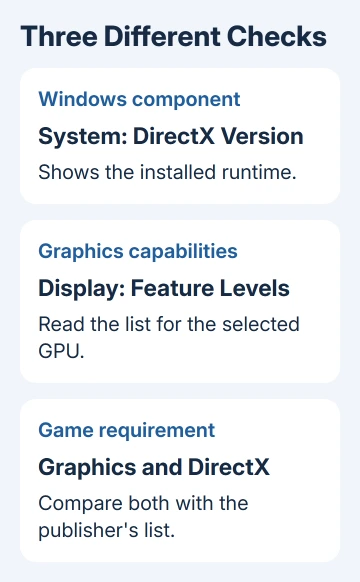
Open the game's store page and expand System Requirements. Read the Graphics line as well as DirectX. Enough system memory and the right Windows version don't compensate for a graphics chip that falls short.
Press Ctrl + Shift + Esc, select Performance, and select each GPU entry. Write down the full name shown in the corner. Some laptops list both their built-in graphics and a separate, more powerful chip.
The original owner had Intel UHD Graphics 630 and was trying Fort Solis, which listed a GeForce GTX 1060 or Radeon RX 5600 as its minimum graphics hardware. Seeing DirectX 12 in Windows didn't mean that UHD chip met the game's requirements.
I'd settle that comparison before downloading another installer. Otherwise, you can spend an afternoon replacing software without changing the part that prevents the game from starting.
For a complete hardware comparison, check a game's requirements against your PC. Keep the graphics requirement separate from the CPU and RAM lines as you work through it.
If the chip doesn't meet the published requirement, skip to the last section. If it should meet it, check what Windows reports about the driver and features next.
2. Read the Display tab, not just the DirectX version
Press Windows + R, type dxdiag, and press Enter. Let the tool finish collecting information. On System, DirectX Version identifies the installed Windows component.
Select Display, or each numbered Display tab if there are several. A separate Render tab can describe another GPU. Check the device name, driver details and Feature Levels list for the chip your game uses.
Feature levels tell you which groups of graphics features the GPU and its driver support. They aren't a switch for choosing which DirectX version Windows installs. Compare them with any feature-level requirement the game publisher supplies.
DirectX 12 Ultimate adds a particular set of features. Its disabled or unsupported status doesn't mean every DirectX 12 game is unavailable. A game that doesn't require those additional features can have different hardware requirements.
The DirectX 12 Ultimate announcement explains how those extra features differ from existing DirectX 12 game support. Don't use an Ultimate label alone to decide whether a particular game should run.
If the GPU and required features match, look for a driver problem next. If a required capability is missing, changing a Windows gaming preference won't add it.
3. Install the matching graphics driver and Windows updates
Open Settings > Windows Update, select Check for updates, and apply the packages Windows offers. Restart when requested. Microsoft says Windows Update supplies the current components in its DirectX instructions.
For a laptop or all-in-one, start with the PC maker's support application and the package matching that computer's model. For a graphics card added to a desktop, get the card maker's supported driver for that GPU and Windows release.
An AMD graphics package isn't a DirectX upgrade for an Intel-only PC. Match the package to the device name you recorded. Driver-download utilities and old DirectX bundles aren't a substitute for that match.
After installation and a restart, open dxdiag again. Check that it names the intended GPU and its driver. Then launch the same game once with the same settings and check whether the startup error has changed.
If Device Manager or dxdiag still shows a generic display adapter instead of your GPU, take that detail to the PC maker. Resolve the missing graphics driver before judging the game's hardware compatibility.
4. Give the game the GPU it needs
When the computer has two GPUs, open Settings > System > Display > Graphics. Find the game, open its graphics preference and choose High performance, reading which GPU that option names. Save it and reopen the game.
Add the game's own executable if it isn't listed. Selecting the launcher alone can leave the game's separate executable using a different preference. The install location depends on the launcher and game.
This helps if one of your GPUs meets the requirements and the other doesn't. It doesn't improve the supported features of a PC with only one graphics chip, so an Intel-only all-in-one won't gain anything from that preference.
If the correct GPU is selected and the error remains, record the exact message. A missing feature, an outdated driver and a general game crash can need different advice even when they all mention DirectX.
5. Use another graphics mode only when the game supports it
Check the publisher's troubleshooting instructions for a DirectX 11 mode or an in-game graphics API selector. Use the method the publisher provides, then test whether the game reaches its menu.
Don't assume a -dx11 launch option works in every game. The owner in the original thread tried starting Fort Solis with DirectX 11 and reported another error. Their follow-up didn't confirm that workaround as a solution.
If the game supports another graphics mode, that mode can give it another way to run. A DirectX 12-only game still needs the hardware and driver features its publisher requires.
When the game still won't start, send the publisher the GPU name, Windows version, full error and dxdiag report through its support channel. Save All Information in dxdiag creates that report. Review it before sharing it publicly.
When the hardware is the limit
Ask the PC maker whether your exact model supports a graphics upgrade before buying one. An all-in-one or laptop has different expansion choices from a desktop tower. A USB-C socket doesn't mean your computer supports an external GPU.
For a recent purchase that can't meet the game's requirements, ask the store about its refund terms. For a capable GPU still being rejected, ask the game publisher to check the required feature level against your driver report.
Once the game launches, a different problem such as low frame rates or game lag needs performance checks rather than more DirectX installation attempts.
The Short Version
Compare the actual GPU with the game's graphics requirement. Read dxdiag's Display details, update the matching driver, and select the capable GPU on dual-GPU PCs. An unsupported chip needs another hardware option or another game.
Checked November 16, 2026.
 If you have any business, I can build it online






