

An interrupted network save or blocked replacement can trigger Excel's Document not saved message. Save the open workbook under a new name on a local drive first, then check whether only network saves fail. Leave Excel open until it saves.
Intermittent failures across several office PCs need the administrator's attention. One old Windows 10 incident involved Defender ATP, the organization's security service. Its proposed registry workaround wasn't confirmed.
In this guide
1. Save the work that's still open
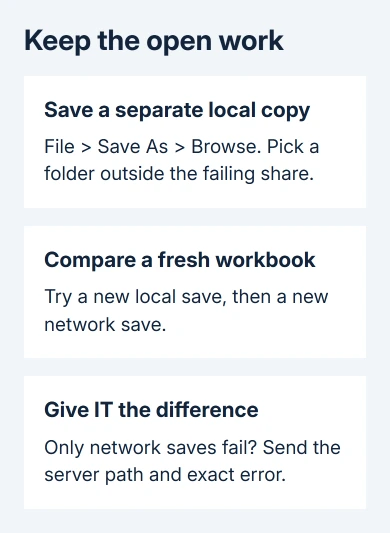
Choose File > Save As > Browse in Windows desktop Excel. Choose a local folder away from the failing share, give the workbook a new name and keep its existing file type. A macro workbook should stay .xlsm.
Check the actual destination. A company can redirect Documents to a server, and OneDrive can back up Desktop and Documents. Choose a location that you and IT can confirm is local rather than another route to the same failing storage.
Let the save finish, then verify that the new copy appears. Keep the original workbook open while you check that the local copy has your latest edits. Closing the workbook isn't a safe experiment while it holds unsaved edits.
The full error wording matters. Document not saved and a warning that a previously saved copy has been deleted describe different stages of the save failing. Tell IT the exact text rather than shortening both to a save error.
The specific Excel sharing-violation message also has an old-format conversion fix confirmed by owners, including failures on local storage.
Microsoft's Excel saving guide recommends an alternative drive for an interrupted save. If no copy will save, ask IT for help protecting the open edits before a PC restart.
2. Compare a local save with a network save
Create a blank workbook containing a short line of text. Save it locally, then save a separate copy under a new name in the affected shared folder. Use a test file rather than repeatedly overwriting the working document.
If the local save succeeds and the network save fails, check the shared folder and connection next. That gives IT somewhere to start without assuming that every workbook has become corrupt.
If the blank workbook saves in both places but the original doesn't, report that difference. IT can then check that file for a lock, a permission problem or damage, rather than treating the whole folder as the problem.
Record whether Word documents fail on that same share too. In the original network-save incident, the problem spread beyond Excel. Reinstalling Excel alone wouldn't explain a save failure affecting another Office app.
For an error that appears while opening the workbook and says it's already in use, check the Excel network file lock instead. A lock before editing and an interrupted save after editing aren't the same symptom.
3. Ask IT to check replacement permissions and storage
Give the administrator the full shared-folder path and the name of your account. A mapped drive letter such as S: identifies the drive on your PC; IT needs the server and folder path to check where the save is failing.
Ask them to check read, write, modify and delete permission. Excel can write a temporary file before replacing the existing workbook. Reading a spreadsheet successfully doesn't show that your account can finish that replacement.
Have IT check the destination drive's available space as well. The save needs space for its temporary copy, not just the size of the existing workbook. A nearly full server needs attention even if you changed only one cell.
If a message names another editor, have that person finish editing and close their copy, then retry. Don't remove unfamiliar temporary files from a shared folder while someone could still be working.
The broader Excel file-access checks cover changed paths and replacement permissions. For repeated failures across several PCs, collect their results together so IT can check the shared service rather than each spreadsheet separately.
4. Treat the old Defender ATP report as an IT lead
The 2018 network-save thread described Windows 10 version 1709 machines with intermittent Office saves. One owner reported that removing a test device from ATP stopped the errors initially.
That was an early result, not a reason to remove your PC's protection. It tells an administrator handling the same old setup to check the endpoint security service and its logs alongside the file server.
A later accepted reply proposed a support-provided GroupIds registry value with exclude_network_share. The writer hadn't confirmed it worked. Another owner later said that value failed. Give IT the reference instead of applying it now.
Ask IT to reproduce the failure on an approved test workbook and review current security software, policy and update versions. A managed security change should come from their support case, while keeping the PC protected during the test.
The original report also said an Office reinstall and a change to 32-bit Office failed. Repeating those steps before checking a network-only pattern can cost time without addressing the shared cause.
5. Check Excel add-ins if the failure follows one PC
Once your work is saved independently, close Excel. Start it again while holding Ctrl and accept the prompt to open in Safe Mode. This starts Excel with fewer startup customizations so you can compare saves.
Open the test workbook and try the same destination. If it saves in Safe Mode but fails after a normal launch, have IT review Excel add-ins and startup files. Change one approved item at a time, then repeat the comparison.
When IT needs a support case
If saving to the network fails in Safe Mode too, tell the administrator. Include the error text, server path, Windows version, Excel build and whether other users or Office apps fail too.
Ask them to check interrupted server connections and endpoint security events at the time of a failed save. When the cause remains unclear, give your administrator those details for a Microsoft 365 support case.
The Short Version
Preserve the open workbook locally, compare a fresh network save and have IT check permissions, space and security logs. The old ATP report is a specific lead. Its unconfirmed registry workaround isn't a current fix to copy.
Checked November 16, 2026.






