

An Excel network file can show File in Use while Windows Explorer holds it for preview or file information. For this old Excel 2007 fault, use Excel's Open command first, then turn off Explorer's Preview and Details panes.
A genuine editing lock needs a different response: wait for the other editor to close the workbook. Try opening that network file inside Excel and compare the result with double-clicking it.
In this guide
1. Use Excel's Open command on the shared workbook
Keep Excel open and choose the workbook through its own Open command. In Excel 2007, click the Microsoft Office Button > Open. For current Windows desktop releases, choose File > Open > Browse.
Select the same workbook on the same network share. Use the original network file for this first comparison, rather than a local copy. You're checking whether the way you open it changes the result.
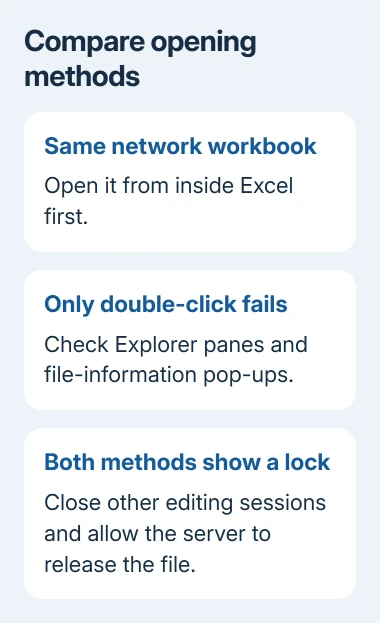
In the original Excel 2007 report, Open and Recent Documents worked even when double-clicking failed. Right-clicking the file and choosing Open also worked for the asker.
If those methods work, check how Explorer handles the workbook before assuming its contents are damaged. If the file opens normally inside Excel, use that route to continue working while checking the panes.
If it fails inside Excel too, read the lock message and jump to the real-lock section. For blank windows, format errors, or crashes rather than File in Use, use the Excel opening troubleshooting instead.
When opening succeeds but later saves fail, check the network save error before treating it as an opening lock.
2. Turn off the Windows Explorer panes
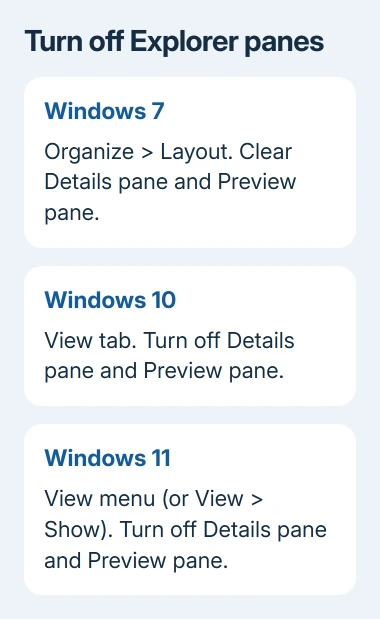
On Windows 7, open the folder holding the network workbook. Choose Organize > Layout and turn off Details pane. Open the same Layout menu again and turn off Preview pane if it is enabled.
Then close that Explorer window, reopen the folder, and double-click the workbook with Excel already running. Keep the file in the same place and Excel running. That way, you're checking only the effect of switching off the panes.
A workbook preview can also accompany a frozen Excel 2010 ribbon while cells still work, which needs a menu-response check rather than an editing-lock repair.
Turning off these Explorer settings stopped temporary locks for one owner. The asker later reported a coworker could open files after closing Explorer and starting again. That case involved Windows 7 and Office 2007.
On Windows 10, File Explorer puts Preview pane and Details pane on the View tab. On Windows 11, open View and switch off Preview pane and Details pane. Some layouts put these controls in View > Show.
Use those current controls to check a similar symptom on newer Windows releases. If disabling the panes doesn't help, leave the workbook intact and check its lock status rather than changing unrelated Excel options.
3. Stop pop-up file descriptions on the old setup
The same old Explorer fault also appeared when hovering over a workbook's name to show its information pop-up. Turning off the panes doesn't turn off that separate information pop-up.
In Windows 7, open Organize > Folder and search options > View. Find Show pop-up description for folder and desktop items, clear its checkbox, and choose OK. Reopen the folder and try the affected network workbook again.
For the corresponding setting in Windows 10, use View > Options > Change folder and search options > View. In Windows 11, open File Explorer's three-dot menu, select Options, and choose the View tab.
Clear the same Show pop-up description option if it is enabled. This removes informational tooltips for folder and desktop items; it doesn't remove or rename the workbooks themselves.
I'd try the visible folder settings before importing an old registry file. They are easier to reverse, and the registry values posted for a Windows 7 Explorer layout aren't instructions for a current Windows 11 deployment.
If the fault affects a managed office, tell IT which setting changed the result. They can decide whether to apply that setting to affected users through a policy, rather than using a registry export from a different Windows version.
4. Release a real editing lock without risking changes
If the message names a coworker, ask them to save and close the workbook. Choose Read-Only for viewing without changes. When Notify is offered, it can alert you after the editing lock is released.
If it names you, close the workbook on your other computers too. An earlier session may still have it open, even when the Excel window you're looking at doesn't show the file.
Microsoft's locked-workbook guidance advises closing the file, then allowing a few minutes for the server to release its lock. Retry the original workbook after that wait.
Don't delete temporary owner files or force a server session closed while somebody could still be editing. Give the shared-folder administrator the full workbook path and ask them which computer or process still holds the file open.
Tell the administrator whether the lock survives after all editors close the file, and whether Excel's Open command changes the result. That helps them tell whether a session is keeping the file open or Explorer is briefly locking it.
5. Separate network-share locking from cloud collaboration
A mapped drive or \\server\share path differs from OneDrive or Microsoft 365 SharePoint storage. Giving several people access to a server folder doesn't let them edit the same workbook at once with Excel's co-authoring feature.
To edit together, you need supported Excel versions and a supported file location. If one editor's version doesn't support co-authoring, others can get a locked-file message even if their own version supports it.
Moving a shared business workbook to cloud storage changes how the team accesses it. Have the owner and IT plan that move, including permissions, rather than making a second working copy and ending up with edits in two places.
If the failure is actually cannot access the file, check the path and folder permissions. That error can involve saving or replacing a file rather than an active editing lock.
If the old setup keeps failing, give IT the original path, Windows and Excel versions, pane settings, and opening method. Plan migration from Office 2007; an old registry workaround won't replace that move.
The Short Version
Compare Excel's Open command with double-clicking. For the legacy Explorer pattern, turn off previews, details, and pop-up descriptions. For an editing lock, close other sessions, allow the server time, and ask the share administrator.
Checked November 16, 2026.






