

An Excel 2010 ribbon that stops responding while cells still work can be tied to Windows Explorer's workbook preview. Turn off the Preview pane first, then switch windows if needed to restore the commands and save.
This is the fault where the buttons remain visible and colored but don't respond. A ribbon that has disappeared or collapsed needs a different setting, while a completely frozen Excel window needs broader troubleshooting.
In this guide
1. Close the workbook preview in Windows Explorer
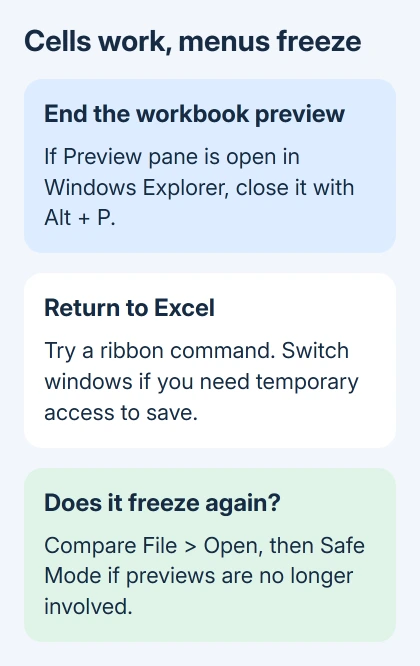
Bring the workbook's folder to the front. If its Preview pane is open, press Alt + P to close it. In Windows 7, Organize > Layout > Preview pane offers the same control. Try a ribbon command in Excel afterward.
Alternatively, navigate Explorer to a different folder so it stops previewing that workbook. Closing that Explorer window is another straightforward way to end the preview without closing the spreadsheet you're editing.
An owner in the frozen-ribbon discussion reported that ending the workbook preview made the menus work again. That's a more useful first check than repeatedly reinstalling Office.
Reopen the workbook with previews disabled and try the command that freezes. Continue your usual work to check whether the menus stay responsive. If it freezes again, note what you did just before it happened.
On Windows 10, use View > Preview pane in File Explorer. On Windows 11, use View > Show > Preview pane. These paths help with a similar symptom on a newer PC; the original reports came from older Office installations.
If Excel starts responding only after that preview ends, tell IT exactly that. That gives IT a reason to check how the file opens and how Explorer previews it. It doesn't mean every calculation or workbook is damaged.
If your problem is an explicit editing-lock message instead, use the network file-in-use checks. That message and this unresponsive ribbon can involve Explorer but aren't the same failure.
2. Switch windows and save the current workbook
Press Alt + Tab to move to another application, then return to Excel. In the original report, switching away and back made the ribbon work again. The worksheet had stayed usable the whole time.
Once the commands respond, save your work. Ctrl + S is also available to try while the worksheet still accepts keyboard input. Check that any Save As dialog finishes and that the saved file has the expected name.
Don't end Excel through Task Manager while it still lets you save. That can turn a menu problem into lost edits. If a save command opens a dialog, complete or cancel that dialog before testing other buttons.
Switching windows can get you back to work for now. If the ribbon freezes again minutes later, compare the opening methods next. Repeatedly switching windows helps you work around the symptom but doesn't remove its trigger.
When Alt + Tab reveals a dialog awaiting an answer, finish that action first. A dialog asking for input can prevent the main window from accepting commands, so answer that prompt before checking Explorer again.
3. Compare opening from Excel with double-clicking
After saving and closing the workbook, open Excel by itself. Choose File > Open and select the same document. Keep Explorer's Preview pane closed during this comparison.
If opening from inside Excel avoids the freeze, keep using File > Open and tell IT what changed. That tells IT to check how the file opens, since the same workbook works when you open it from inside Excel.
If workplace rules permit, compare a network workbook with a separately named local copy. Open the copy inside Excel and try the same command. Keep using the shared original for the team's work.
A local copy that works while the shared copy freezes gives your administrator a specific comparison to repeat. It doesn't automatically mean the server or workbook is damaged. Record whether the failure also depends on an Explorer preview.
The original report involved virtual desktops through two remote connection methods. If several users are affected, tell the desktop administrator the file location, how you opened it, and whether closing the preview helped.
Give them those details before arranging individual reinstalls.
4. Test a session without the usual add-ins
If the ribbon freezes with Explorer out of the way, save your work and close Excel. Press Windows + R, type excel /safe, and press Enter. Use that session to open a duplicate of the workbook whose menus freeze.
Look for Safe Mode in Excel's title bar. Safe Mode skips several extras and custom settings that normally load with Excel. If ribbon commands work there but fail in a normal launch, an add-in or startup customization needs attention.
Quit the Safe Mode session, then relaunch Excel in its usual mode. Open File > Options > Add-Ins, choose COM Add-ins in Manage, and select Go. Record the checked entries, then disable one and restart Excel to compare.
Restore entries that make no difference. If one disabled integration stops the freeze, ask its publisher or IT for a compatible version. Leave it off until that repair is ready, especially if you can work without its commands.
If COM add-ins don't explain it, select Excel Add-ins under Manage to compare the other list. Microsoft's Excel freezing instructions also cover startup files and toolbar settings.
Those checks can help you find other causes; they don't explain every freeze linked to the Preview pane. If Safe Mode behaves the same way, report that result and move to installation or display troubleshooting with IT.
5. Avoid the old separate-instance workaround
The accepted reply describes changing how files open so that workbooks run in separate Excel instances. A later reply warns that links between workbooks then stopped working in the way users expected.
That tradeoff matters if your spreadsheets refer to other workbooks. I'd try closing the preview and opening files normally before following an old post that changes how Windows opens Excel files across the PC.
If it keeps freezing, ask IT to compare a fresh workbook with the affected file, check the display driver, and repair Office if needed. Tell them which checks helped and which didn't so they can choose what to try next.
Security updates and product support for Office 2010 have ended. If this setup is still needed for a business workflow, ask the help desk to plan its replacement and test the required add-ins and workbook links during that move.
If the issue turns out to be hidden commands rather than unresponsive buttons, restore the ribbon's display controls. Safe Mode and preview changes aren't needed just to expand a collapsed ribbon.
The Short Version
End the workbook preview in Explorer, switch windows if needed to save, and compare opening through File > Open. If it still freezes, test Safe Mode and add-ins. Avoid old separate-instance changes that interfere with workbook links.
Checked November 16, 2026.






