

An Excel ribbon that vanishes after clicking a cell is usually collapsed or set to hide automatically. Open a tab and choose Always show ribbon in its display options. On Windows, Ctrl + F1 also toggles its commands.
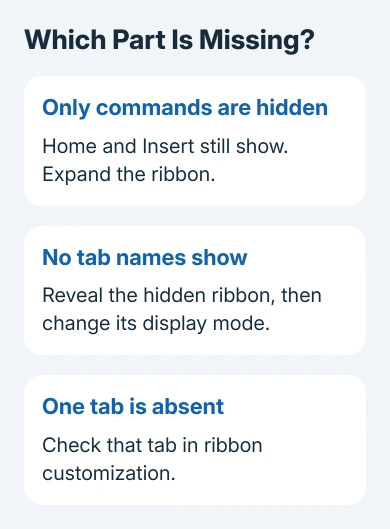
When even Home and Insert are missing, check the full-screen ribbon setting. When only one tab is gone, check ribbon customization instead. Those cases look similar, but expanding the command area won't restore a tab that's been unchecked.
In this guide
1. Expand commands when the tab names still show
Click Home or Insert at the top of Excel. If the commands appear, then disappear after you click a worksheet cell, Excel is showing the ribbon temporarily instead of keeping it open.
On Windows, press Ctrl + F1 once. Alternatively, right-click a tab name and clear Collapse the ribbon if that option is checked. Click a cell afterward to confirm the commands remain in place.
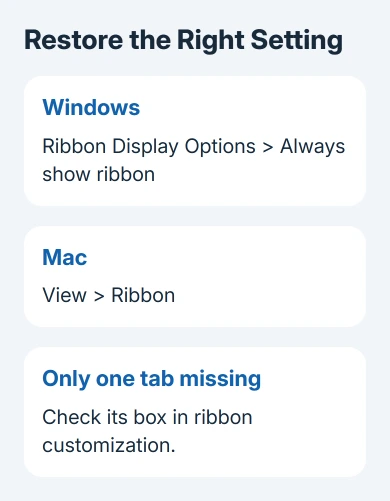
Microsoft says to use Ribbon Display Options to choose when the ribbon stays visible. In current Excel, find this control near the ribbon's lower-right corner and choose Always show ribbon.
Some older builds call the expanded choice Show Tabs and Commands and put the display control toward the window's upper edge. Choose the option that keeps both names and commands visible, rather than one that shows names alone.
Don't keep pressing the shortcut once the command area stays open. It's a toggle, so another press can collapse what you just restored. The useful check is whether clicking back into the grid leaves the ribbon visible.
For the same behavior in Word 2010, keep its Home commands expanded before changing tab order.
If the buttons remain visible but ignore clicks in Excel 2010, check the Explorer workbook preview for that separate frozen-menu fault.
2. Recover a ribbon with no visible tabs
If the sheet fills the window and no tab names appear, look for the three-dot control near the upper right. Click it to reveal the hidden ribbon temporarily, then open its display options.
Select Always show ribbon. On a Windows desktop build, pressing Alt can also reveal the ribbon while it is in its full-screen ribbon mode. Choose the option that keeps commands visible before returning to the worksheet.
This setting isn't the same as maximizing the application window. Excel can occupy the whole desktop and still show its complete ribbon. Leave the workbook window large while bringing Home or Insert back.
If the temporary controls appear but vanish again, reopen the display menu to see the selected option. Show tabs only hides commands, while Full-screen mode hides more of the interface.
For a missing pointer rather than missing commands, use the Excel cursor recovery checks. A cursor that vanishes over cells needs a different check from ribbon display settings.
3. Restore the Mac version's ribbon controls
In Excel for Mac, choose View > Ribbon from the Mac menu bar. That brings the ribbon back when it was turned off. Check the command area after returning to the sheet.
If the tab names are already visible, use the ribbon's expand control to show the commands. Use the visible Mac menus rather than expecting the Windows ribbon display button to sit in exactly the same place.
The Mac's menu bar is separate from the ribbon inside Excel. Having File, Edit, and View in that menu bar doesn't mean the workbook's Home tab commands are expanded.
For a single missing Mac tab, open Excel > Preferences > Ribbon and Toolbar. In the ribbon customization area, select the checkbox for the tab you need. Recent versions may label the app's preferences entry Settings.
Return to the workbook and look for the restored tab. Selecting the checkbox brings the tab back without changing your cell data. Leave other customizations alone when only one checkbox needs correcting.
4. Stop the web ribbon hiding between clicks
In Excel for the web, point near the workbook's upper edge to bring a hidden ribbon into view. Open Ribbon Display Options at the right and choose Always show ribbon.
The web interface offers Classic Ribbon for a full command layout and Single Line Ribbon for a compact one. Choose Classic when a familiar command is missing from the smaller row.
Adjust automatically changes ribbon visibility as the pointer moves. That explains commands returning near the page's top, then hiding as you enter the grid. Choose Always show ribbon if you want the commands to stay in place.
On a touchscreen, scrolling to the top or tapping the title bar can reveal the web ribbon. A browser's address bar and tab strip are separate controls, so aim for the workbook's title and ribbon area.
Check the ribbon in the same open workbook after changing the option. If the sheet is also slow to update formulas, the Excel calculation setting is a separate issue from how much of the ribbon is shown.
5. Restore an unchecked tab before resetting everything
In Windows Excel, right-click the ribbon and choose Customize the Ribbon. Look in the tab list for the missing tab and select its checkbox. Choose OK, then check whether it appears beside the other tabs.
This applies when Home, Insert, or another ordinary tab is missing while the others remain. Extra tabs for a chart, picture, or table can depend on selecting that object, so select the relevant item before treating its commands as missing.
If several changes have made the ribbon unusable, the customization dialog has a Reset menu. Use Reset only selected Ribbon tab when only one default tab needs fixing, rather than clearing the whole layout.
Reset all customizations also resets the Quick Access Toolbar. Export a layout you want to keep through Import/Export > Export all customizations before resetting everything.
I'd fix a missing checkbox before resetting a carefully arranged toolbar. A reset can help with a damaged layout or lots of unwanted changes, but you don't need it for one accidentally hidden tab.
If commands still won't appear, save the workbook and reopen the application. Tell Microsoft Excel Support your platform (Windows, Mac, or web), Excel version, and whether all tabs, only commands, or one named tab is missing.
The Short Version
Expand collapsed commands and choose Always show. Reveal a fully hidden ribbon to reach that option. On Mac, check View > Ribbon. Use customization to restore a missing tab before resetting the full layout.
Checked November 13, 2026.






