A disappearing Excel cursor can blend into the worksheet even while the mouse works. Move it onto the ribbon or taskbar, then try a larger, darker Windows pointer. A frozen workbook or disconnected mouse needs a different fix.
The cell selection and the mouse pointer are separate things. If the pointer is visible but the selected cell won't move, check whether Excel is editing a cell or has stopped responding before changing your mouse settings.
In this guide
1. Check which part of the cursor disappeared
Move the mouse out of the cell grid and onto Home, then onto the Windows taskbar. Notice whether the pointer returns outside the worksheet. If it reappears there, it's hard to see in the worksheet but still works on the desktop.
Excel changes the pointer's shape for different jobs. The cell-selection pointer doesn't always look like the desktop pointer, and the thin blinking mark inside text appears only while you're editing. A changed shape isn't itself a fault.
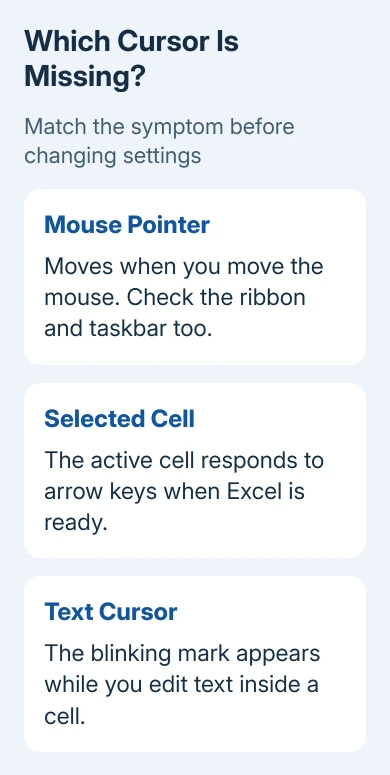
Press Esc to leave an unfinished cell edit, then press an arrow key. If the cell selection moves, Excel is responding to the keyboard even if you can't see the mouse. Keep that distinction in mind during the next checks.
If neither keys nor mouse input work in Excel, switch to another program with Alt+Tab. If the desktop works, focus on Excel. A pointer missing everywhere needs section 4's mouse connection checks.
Save your workbook with Ctrl+S if Excel responds. I'd do that before closing the application; it keeps a pointer problem from becoming a lost-work problem.
2. Make the Windows pointer easier to see
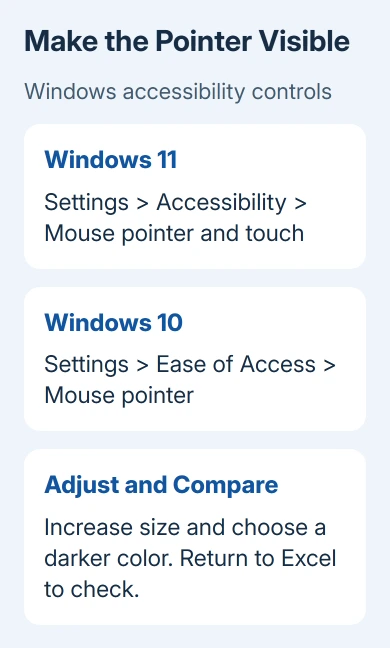
Microsoft recommends changing pointer size and color when it disappears into a background. That helps when the pointer blends in; it won't fix a mouse that isn't sending movement to the computer.
On Windows 11, press Windows+U to open Accessibility. Select Mouse pointer and touch. Increase Size, then choose a black, inverted, or colored pointer under Mouse pointer style.
On Windows 10, press Windows+U, then choose Mouse pointer in Ease of Access. Use Change pointer size and Change pointer color. The names differ from Windows 11, but the purpose is the same.
Choose a color visible against white cells, then return to Excel. Move between the ribbon, cell grid, and taskbar. If the desktop pointer changes but the worksheet pointer still vanishes, try the Excel checks next.
This Windows setting applies across applications. Keep the smallest size that you can follow comfortably. A very large pointer can cover a cell's contents and make selecting a narrow column harder.
If the missing mark is the blinking line inside text, return to Accessibility and open Text cursor. Turn on Text cursor indicator and choose its size and color. This helps you find the text cursor; it doesn't highlight the selected cell.
3. Restart Excel and compare a blank workbook
Close Excel normally after saving, then open it again. Create a blank workbook before opening the file that showed the problem. Move the pointer around its empty cells and the ribbon.
If the pointer is visible in the new workbook, open the original and compare. If it happens only in that workbook, you have a specific example to give support instead of a report that the mouse disappears somewhere in Office.
If Excel is frozen, allow an active calculation or other job to finish if its status bar shows progress. When the window won't recover, Ctrl+Shift+Esc opens Task Manager. Select Microsoft Excel and use End task only as a last resort.
Unsaved edits can be lost when you end the task. When Excel reopens, check any Document Recovery pane and save the version you need. Don't assume every recent edit reached the file before the application stopped responding.
For repeated application freezes, the Excel not responding checks cover that wider fault. A pointer that becomes invisible while everything else works doesn't need every freeze repair at once.
4. Check the mouse when the pointer is missing everywhere
For a wired mouse, unplug its USB cable, wait briefly, and reconnect it. Try another USB port. If it connects through a hub, plug it directly into the computer for this check.
With a USB wireless mouse, unplug its receiver for about 10 seconds before reconnecting it. Check the mouse's power switch and replace or charge its battery. A lit sensor alone doesn't show that the computer is receiving movement.
For Bluetooth, check the mouse's connection in Windows Bluetooth settings. If you have no other way to control the PC, keep the pairing in place. First check that the mouse has power and is switched to the correct computer.
Try the mouse on another PC if you can. A second failure points to the mouse or receiver. If another mouse works on this PC, keep that working device connected while checking the original manufacturer's driver.
A laptop's touchpad not working needs its own checks if an external mouse works normally. That result points toward the touchpad setting or driver rather than Excel's worksheet display.
5. Use safe mode for an Excel-only problem
Save and close your work, then press Windows+R. Type excel /safe and press Enter. This opens the Windows desktop app without loading several startup customizations and add-ins.
Open a blank workbook and compare the same pointer movement. If the pointer works in safe mode, check what loads with Excel before replacing the mouse again.
Open File > Options > Add-ins. In Manage, choose COM Add-ins, then Go. Note which entries are checked, clear their checkboxes, and choose OK. Restart Excel normally and check again.
If the problem stops, enable the add-ins individually, restarting between checks. The one that brings the symptom back needs an update or help from its developer. Leave a required work add-in to your administrator if you can't change it.
If safe mode changes nothing, install available Office updates through File > Account > Update Options > Update Now, when that option is available. On a work computer, your organization may control those updates.
When the pointer still disappears
Find the Excel version in File > Account > About Excel. Send it and your Windows version to support, with the blank-workbook and safe-mode results. Mention whether the taskbar pointer stays visible.
Those details help support tell an Office display problem from a mouse connection problem. If the mouse also fails on another computer, ask its manufacturer about receiver replacement or warranty service instead of repairing Office.
The Short Version
Compare the cell grid with the rest of Windows to locate the pointer problem. Adjust pointer visibility first, then compare a blank workbook and Excel safe mode. Check the mouse connection if it also disappears outside Excel.
Checked November 12, 2026.