

Disk Cleanup can finish while its Temporary files number stays unchanged. Compare C: free space before and after cleanup, then review Storage settings. Open files and a Temp folder that keeps refilling need different fixes.
The estimate alone won't tell you why files remain. Check whether cleanup freed space and whether it stayed free while you used the PC.
In this guide
1. Check whether the drive actually gained space
Open File Explorer > This PC and note the available space on your Windows drive, usually C:. Close any running cleanup window first. Write down the starting value for comparison after cleanup.
Open Disk Cleanup, select the same drive, and let it finish calculating. Check which category holds the space. Temporary files, Temporary Internet Files, and Windows Update Cleanup are separate entries with different contents.
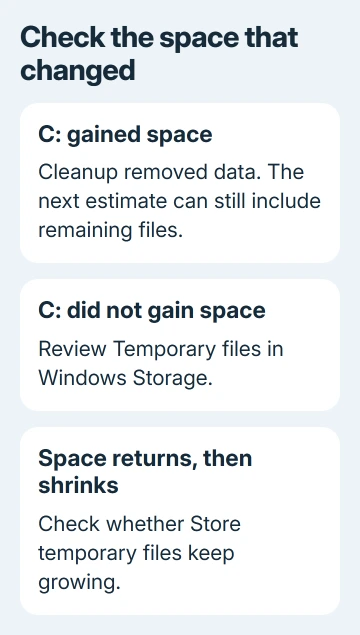
Select the unwanted file categories, select OK, and confirm the deletion. Let the operation finish. Return to This PC, refresh the view, and compare the free-space reading instead of relying on the next cleanup estimate.
More free space means cleanup removed data, though some categories can remain. If nothing changed, try Storage next. If the space fills up again, go to section 4.
I'd check that drive reading before trying a more aggressive cleaning tool. You can see whether it worked without changing extra settings or deleting folders by hand.
2. Review the files through Windows Storage
On Windows 11, open Settings > System > Storage > Cleanup recommendations. Expand Temporary files, review the proposed removals, and use Clean up for the items you selected. Let Windows finish before checking the drive again.
On Windows 10, open Settings > System > Storage > Temporary files. Let the category sizes finish calculating, choose the items you want removed, then select Remove files. The screen can take time to calculate after a large update.
Microsoft recommends these Storage controls alongside Disk Cleanup. Read the individual categories to see what remains instead of chasing a total.
Read the list before accepting it, especially any entry for Downloads. Those are your downloaded files, not an application cache. Keep a category selected only if you understand what Windows will remove.
For missing update-cleanup categories, the separate Disk Cleanup system-files button explains how to recalculate with system files included. It won't explain a Temp folder that grows back immediately.
If Storage removes the files and free space stays available, stop there. A small amount of new temporary data during normal use isn't a reason to keep cleaning. Continue only when the original large amount remains or returns.
3. Leave files that Windows reports as open
Save open documents, close your applications, then restart. A running program can keep temporary files open until it exits. If cleanup reported an open file, retry before launching that program again.
After signing back in, try the Windows cleanup controls again before reopening your usual applications. If a dialog still names a file that's being used, choose Skip for that item. Forcing access isn't necessary for routine space recovery.
One owner eventually removed Windows.old by repeating system cleanup and rebooting. They also deleted most of their Temp folder. They didn't say in their final reply whether the original 4 GB temporary-file estimate changed.
Note any file-in-use message and whether the category shrinks. If the estimate stays unchanged without a deletion error, review Storage before checking file permissions. An unchanged number doesn't identify a permissions problem.
Don't take ownership of Windows folders to make cleanup finish. Use Windows to clear files it no longer needs, and leave protected system files alone.
4. Reset the Store cache when Temp keeps refilling
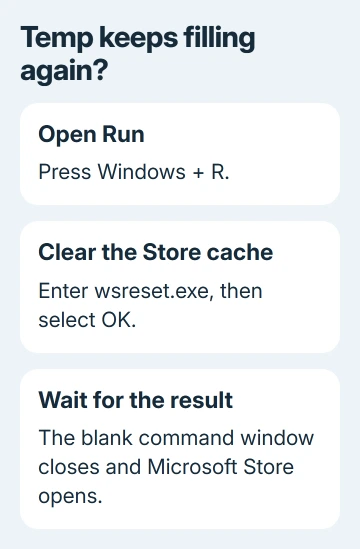
If cleanup frees space but the low-space warning returns, new files may be filling the drive. Microsoft Store's .appx files can cause recurring Temp growth. Use this check for that pattern, rather than every unchanged estimate.
Press Windows+R, enter wsreset.exe, and select OK. A blank command window appears during the cache reset. It should close and open Microsoft Store automatically; give it time rather than launching the command repeatedly.
Then check Settings > System > Troubleshoot > Other troubleshooters for Windows Update and run it. Older Windows 10 systems put troubleshooters under Settings > Update & Security > Troubleshoot > Additional troubleshooters.
Run Windows Store Apps too if your version offers it in the troubleshooter list. If it's absent, use Get Help for Store troubleshooting. Avoid replacement troubleshooters from download sites.
Restart when finished, then watch whether the drive starts filling again. If it does, record when it happens and whether Store downloads are active. That gives support a specific recurring problem to work on.
5. Stop chasing the temporary label when another category is large
Return to Settings > System > Storage and compare the categories. A large Apps, Other, or system-files category won't disappear just because Temporary files was selected. Look at the category that actually holds the space.
For a drive that's genuinely full, the broader Windows space-recovery guide covers other places to recover capacity. Start with the largest category once you've checked whether cleanup worked.
If deletion errors keep appearing, open Get Help and ask for help removing temporary files. Include the category and size, C: free-space change, Windows version, and error text. Say whether the removed files return.
The Short Version
Compare free space before and after cleanup, then review the remaining Storage categories. Skip open files. Reset the Store cache for recurring temporary-file growth; an unchanged estimate alone doesn't identify that cause.
Checked November 16, 2026.
 If you have any business, I can build it online






