
A Samsung tablet can receive mail yet fail to send when its app sign-in or outgoing connection breaks. Try sending through webmail, then clear the tablet app's cache and reconnect the account if webmail works.
An Outlook or Hotmail address doesn't tell you which app you're using. Samsung Email and Microsoft Outlook have different reset controls, so use the section matching the app on your tablet.
In this guide
1. Separate a tablet problem from an account problem
Send a short message with no attachment to another mailbox you can open. Watch whether it leaves Outbox, appears in Sent, or immediately shows an authorization or server error. Note the complete message before resetting anything.
On a computer, open your email provider's webmail and try sending from the same account. For Outlook.com or Hotmail, use outlook.com. If it sends there, your account can send mail outside the tablet app.
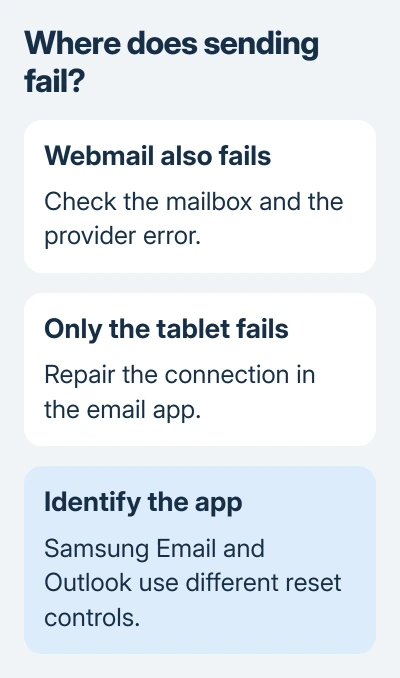
If webmail fails too, keep the exact error and follow the provider's account or mailbox instructions. Clearing the tablet app won't remove a sending restriction or fix a mailbox problem on the server.
The original Samsung tablet discussion described Outlook and Hotmail working on a PC while the tablet couldn't send. The server and authorization errors in that report make the app's connection a useful place to check.
If a browser on the tablet can't load ordinary pages, reconnect Wi-Fi first. On a tablet with cellular service, compare Wi-Fi with cellular data. A Wi-Fi-only model can try another trusted Wi-Fi network instead.
If receiving is also delayed, the Outlook sync checks cover that broader symptom. For messages arriving normally with only outgoing mail failing, continue with the app connection.
2. Clear the cache for the affected email app
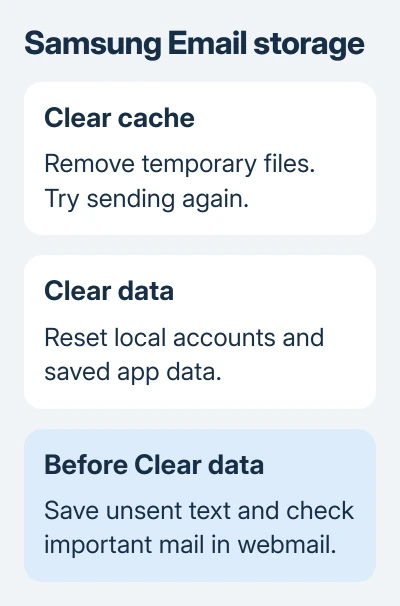
Open Settings > Apps, then select Email or Samsung Email for Samsung's app, or Outlook for Microsoft's app. Choose Storage > Clear cache, reopen the email app, and retry the short message.
Clearing cache removes temporary app files. It's a smaller step than Clear data, which resets the app's saved setup. If the send works now, check a reply too before changing account settings.
Samsung recommends cache clearing in its email server troubleshooting alongside checking the connection and credentials, followed by an app-data reset if needed.
Keep a copy of any unsent message text before a deeper reset. Also check your password and make sure you can finish sign-in verification, so resetting the account in the app doesn't leave you unable to add it again.
For an app update, open Galaxy Store and check updates for Samsung Email, or Play Store and check Outlook's app page. Install an offered update, reopen the app, and retry before clearing its stored account setup.
If cache clearing doesn't change the result, use the matching reset procedure next. Don't clear the data of every mail-related app on the tablet; select the app that's failing to send.
3. Reset Samsung Email's local setup
For Samsung Email, open Settings > Apps > Samsung Email > Storage. Some tablets label the app simply Email. Choose Clear data, then confirm the reset when you're ready to add the accounts again.
This removes local accounts, settings and saved mail data. Check important mail on the web and save needed drafts or attachments first. Resetting the app doesn't tell the server to delete your mailbox.
Reopen Samsung Email and add your account. For Outlook or Hotmail, use the matching provider option when offered. Finish the provider's sign-in page, including any password or verification request.
An old tablet can show Data or Clear data where another Android version says Clear storage. Read the warning for the selected app instead of assuming another Android model uses your tablet's labels.
After adding the account, wait for its folders to load. Send a new short message and check both its arrival and the Sent folder. Then try replying to a message, since that was part of the original fault.
Use your provider's current incoming and outgoing settings if setup asks for them. SMTP is the connection used to send mail. Mail arriving normally doesn't tell you whether those outgoing settings are right.
4. Use Reset Account in Outlook
In Microsoft Outlook, open the app's Settings, select the affected email account, and choose Reset Account. After the reset, quit Outlook and launch it again, then allow it to sync before sending a new test message.
The local Outlook reset steps use this control on Android to reset just the selected account. I'd try it before clearing all of Outlook's app data when you have several accounts set up.
Sign in again if Outlook asks you to. A workplace or school can require a security app or approval before Outlook connects. Send IT the organization prompt if it prevents you from finishing setup.
If the account still won't send, remove and add the affected account in Outlook after saving unsent text. Confirm the account address during setup, especially on a shared family tablet with more than one person's mailbox.
For a work mailbox with a forgotten password, use the Microsoft 365 work-password reset or ask IT. App resets can't replace a forgotten account password.
When mail still stays in Outbox
Check whether only a particular message fails. Try the same recipient with plain text and no attachment. If that succeeds, save the troublesome message's text and attachment separately, then check the provider's size or recipient error.
For Samsung Email, open Samsung Members > Support and submit an error report after sending fails again. Include the app version, tablet model, exact error and whether the same account sends successfully through webmail.
In Outlook, try Settings > Help & feedback > Contact Support when available. For a managed mailbox, give the administrator any authentication or access-policy error too.
The Short Version
Compare webmail, clear the app cache, then use Samsung Email's Clear data or Outlook's Reset Account. Save unsent and local-only mail first. Check that fresh messages and replies both leave the tablet afterward.
Checked November 16, 2026.






