OneDrive's Recycle bin can hang on Please wait while the selected items are retrieved when the bulk-delete action stalls. Cancel it, select the unwanted files in the Recycle bin list, and use Delete on the selection toolbar instead.
That route cleared the bin for one owner. If selecting everything also stalls, try a smaller selection. Emptying your PC's Recycle Bin won't clear this online bin or release the personal cloud storage it uses.
In this guide
1. Delete from the file list instead of Empty recycle bin
Return to the OneDrive website. Open the profile menu to check your signed-in account. Open Recycle bin in the navigation. The list belongs to that account. Check that it's the personal or work account whose bin you want to empty.
Cancel the waiting dialog if it has a cancel or close control. If it doesn't respond, reload the page and open Recycle bin again. Check the list first: the previous deletion might have finished while the page was unresponsive.
Select only items you intend to remove permanently. You won't be able to restore them through the normal Recycle bin option afterward, so restore anything you still need before continuing.
Move the pointer beside the Name column heading and look for the select-all circle. In the saved report, the control appeared on hover. Select it, then choose Delete from the toolbar that appears for the selected files.
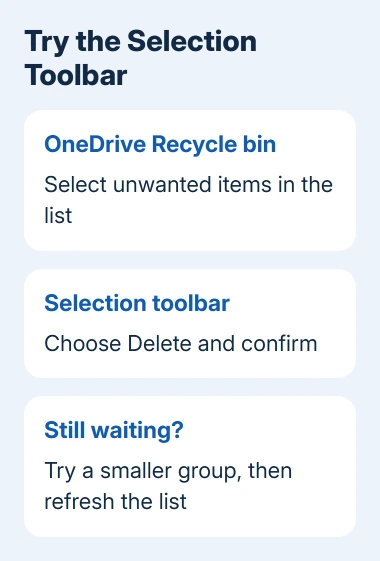
Confirm the deletion if prompted. Check that the selected entries disappear when the list refreshes. A dialog closing on its own isn't enough if the same files remain in the bin.
One owner confirmed that this selection-toolbar route cleared their bin. This uses a different deletion control on the website, without needing to reinstall the OneDrive desktop app.
2. Reduce the selection when deleting everything still hangs
If the select-all route brings back the same waiting message, return to the list and deselect everything. Select a small group of unwanted files manually, choose Delete, and check that those entries disappear.
Start with a group you can easily recognize. After it succeeds, repeat with another group. You can then see whether each group disappears instead of trying to empty the entire bin again while the page is stuck.
A later owner in the discussion said they had to select files manually in groups of 50. That's the group size that worked for them, rather than a published OneDrive limit. Use fewer than 50 when that's the size your account can complete.
If a single selected file also won't delete, stop repeating the batch approach. Even the smallest selection is failing. Record whether the toolbar appears, whether a confirmation opens, and the exact message after confirmation.
Since this happens on OneDrive's website, keep troubleshooting there. Resetting or reinstalling the sync client doesn't change which files the website's Recycle bin contains.
3. Separate the cloud bin from the PC's bin
For a personal account, items in the online Recycle bin count toward Microsoft cloud storage. The OneDrive deletion instructions explain permanent deletion separately from deleting an item out of My files.
The Windows Recycle Bin is a different location. Emptying it, or using Free up space on a synced folder, doesn't permanently delete items from the online bin. Keep working in the account's web Recycle bin for this fault.
If you still need to make room after the bin clears, clearing OneDrive storage explains how to protect local copies and check the rest of the cloud allowance. Keep the files you want while you wait for the storage meter to update.
With work and school accounts, the organization controls storage and recovery. Have your administrator review the account's storage report. Its allowance can work differently from a personal account's.
4. Allow for storage updates before checking Outlook.com
The original report also described email blocked by full storage. With a personal account, OneDrive and Outlook.com can be affected by the Microsoft cloud storage allowance, even though Outlook.com also has a separate mailbox limit.
After the cloud deletion completes, check the storage display for that same account. The frozen-account guidance says applying those changes can take 24 hours.
Those 24 hours are for the account's storage display to catch up. Don't leave the retrieving-items dialog running for a day while you wait for that update. Files remaining in the bin and a delayed storage display are two different results.
If the bin is empty but storage is still over its allowance, check what's consuming the remaining space. For a mailbox-specific problem, Outlook not receiving emails helps separate storage from filters and delivery problems.
Once the account is back under its limit, send yourself a fresh email using a different address and check whether it arrives. Don't use an old missing message as the only sign that receiving has resumed.
5. Report a deletion that fails even for one item
Some owners in the discussion still couldn't delete their files, and one said clearing the browser cache didn't help. Although the selection method worked for one person, other accounts still needed help.
For a personal account, use Contact Microsoft Support from the deletion help page. Enter the OneDrive Recycle bin waiting message and choose Get Help. Tell support whether one item, a small group, and select-all each fail.
Include the time of the attempt, browser name, account type, and a screenshot with private filenames hidden. Say whether the selected files disappear after refreshing and whether email is blocked by a storage warning.
For an organizational account, send your Microsoft 365 administrator those results. Have the administrator review your OneDrive account. If deleting one item still fails, request a service ticket for that account.
I'd keep the report focused on the web deletion. Tell support exactly which web deletion fails, so they can focus on that rather than sync-app reinstalls or Windows bin repairs.
The Short Version
Select unwanted items inside OneDrive's online Recycle bin and use the toolbar's Delete command. Try a smaller selection if needed. Check that entries disappear, allow time for storage updates, and report a single-item failure.
Checked November 16, 2026.