

Word may save normally, then crash on exit when a graphics driver or add-in fails. For Word 2013, turn off hardware graphics acceleration first; check add-ins next if the closing error remains.
The timing matters. A crash after clicking the window's X needs different troubleshooting than a document that won't open. Start with a saved blank document so you can repeat the same close action without risking your work.
In this guide
1. Turn off graphics acceleration in Word 2013
Open Word 2013 and choose File > Options > Advanced. Scroll to Display, select Disable hardware graphics acceleration, then click OK. Close every Office app before starting Word again.
This setting stops Office from using the graphics card for accelerated drawing. A driver problem can affect more than scrolling or typing. It can also make Word crash as it closes.
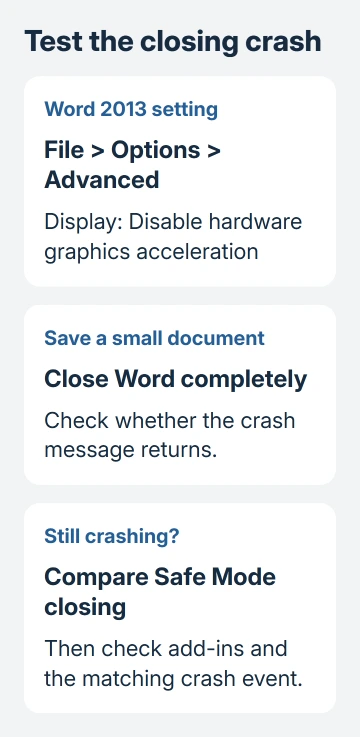
Create a blank document, enter a short sentence and save the file. Close Word with the same button that produced the error. Open Word again and repeat the check with an ordinary saved document if the blank one closes cleanly.
An owner in the closing-crash discussion confirmed that disabling hardware acceleration stopped their problem. Another traced their Office 2013 crashes to an NVIDIA driver.
I'd try this checkbox before reinstalling Office. It's quick to test, and reinstalling the suite hadn't helped the person who asked about this fault.
Current Word builds may not offer that checkbox. Don't search through unrelated display settings to replace it. Continue with Safe Mode and the driver checks. This setting only applies to Word editions that show it.
If the checkbox makes no difference, put it back as it was. Note whether Word still crashes when you close it, then try Safe Mode. With only one option changed, it's easier to tell whether that setting helped.
2. Compare a complete Safe Mode session
Save and close your documents. Press Windows + R, enter winword /safe, and press Enter. Separate winword and /safe with a space. Word should show Safe Mode in its title bar.
Make another small document, save it and close Word. Opening successfully isn't enough for this check: the crash happens when you close the app. Note whether the stopped-working message returns then.
Safe Mode skips add-ins and startup customizations, and disables graphics acceleration. If Word closes without crashing there, an add-in isn't necessarily responsible. Compare a normal Word session before blaming a particular add-in.
If Safe Mode closes cleanly but normal Word still crashes, inspect add-ins next. If both sessions crash, continue to the application error details and repair steps without repeatedly changing add-in checkboxes.
For an app that never reaches a document window, use the separate Word startup checks. That guide covers a failure to launch, rather than a failure after an otherwise usable session.
3. Disable the add-in that fails during shutdown
In Word, choose File > Options > Add-ins. At Manage, select COM Add-ins and click Go. Write down the checked entries before clearing one suspected entry and clicking OK.
Start with an older scanning or document-conversion add-in if one is listed. These programs can install Office integration with a printer package, so an unfamiliar entry may have arrived with software you installed for scanning.
Restart Word normally, make a saved test document and close the app. If it closes cleanly, keep that entry disabled; check with its developer for an updated release. The document itself doesn't need rebuilding for an add-in fault.
If the crash remains, restore that entry and compare the next one. Check Word Add-ins too if the Manage list offers it. Testing one entry at a time helps you keep the useful tools and turn off just the one causing trouble.
Microsoft's stopped-working troubleshooting specifically names older ABBYY FineReader integration among problematic add-ins. Owners in the closing-crash thread also reported success after removing that scanner software.
Check whether ABBYY is installed and involved before removing scanner software. Its text-recognition tools may still be useful to you, so don't remove the entire printer package for an Office integration fault.
4. Read the crash entry before changing drivers
Press Windows + R, enter eventvwr.msc, and open Windows Logs > Application. Find the error recorded at the time Word closed. Open it and look for the application and faulting module names.
Check the time carefully. An unrelated background-program error won't explain Word's closing crash. The application should identify Word, usually listed as WINWORD.EXE, before you use the module name to choose the next action.
The original asker reported NVWGF2UM.DLL in the error details. Support traced that case to the NVIDIA graphics driver, and Word worked after a technician changed the driver file. That was a specific Windows 7 and GeForce 210 case.
Don't rename graphics DLL files yourself. Give the module name, computer model and crash time to your PC's technical support team, and ask for a compatible graphics-driver update or a return to the previously working driver.
For supported current systems, the Office display troubleshooting page recommends keeping display drivers compatible and current. Don't treat the old thread's warning about future driver updates as advice to stop updating a current PC.
If the error names an add-in component instead, give those details to the add-in provider. If it names only an Office component, keep the report to show support during repair. That module name alone isn't enough to blame the graphics card.
5. Repair Office if the crash survives those checks
Close the suite, press Windows + R, enter appwiz.cpl, and select your Office installation. Choose Change. Depending on the installation, select Repair or start with Quick Repair.
A Click-to-Run installation may also offer Online Repair. Use it if the first repair fails, with an internet connection and your Office sign-in details available. Repair applies to the installed suite, even when only Word is affected.
When Word still crashes after repair
After repair, close a saved blank document again. If it still crashes, give IT your crash report or open a Microsoft Support case. Explain which checks changed Word's behavior and mention any Excel or Outlook crashes too.
Support for Office 2013 has ended. Ask IT how to move your documents onto supported Windows and Office software. Repeatedly reinstalling the same old suite won't resolve a remaining incompatible component.
If the crash happened before saving, the unsaved Word recovery steps are the next priority. Recover that document before repeating shutdown tests with it.
The Short Version
For Word 2013, try the graphics-acceleration checkbox, then compare Safe Mode closing and add-ins. Read the matching crash event before replacing a driver, and repair Office if the targeted checks don't help.
Checked November 16, 2026.
 If you have any business, I can build it online






