

Office 2013 crashing only when a Canon job starts points toward the printer driver, even if other apps print normally. Update the driver for the exact model; replacing driver components fixed the reported MF8350-era crash.
The original case used Windows 8 and Office 2013. If you need IT's help, share the old workaround involving another printer model. First, compare print destinations before installing software intended for a different printer.
In this guide
1. Compare the Canon queue with another destination
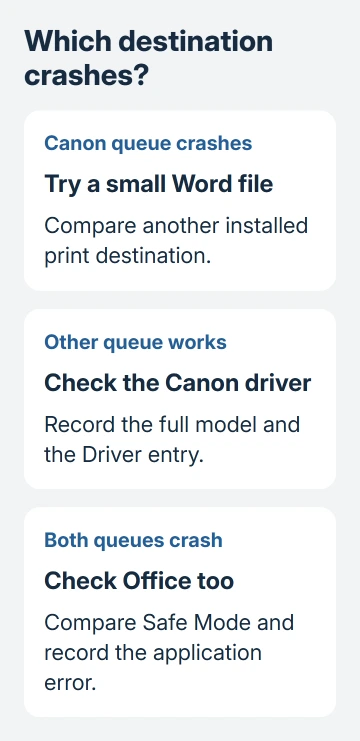
Save the document, then create a one-line blank document in Word. Open File > Print and select the Canon printer. Note whether Word crashes when opening the print screen or after you press Print.
Reopen Word and try the small document through another installed printer queue. On Windows 10 or 11, Microsoft Print to PDF can make a local PDF for this comparison. Choose a short filename and a local folder.
Windows 8 didn't include Microsoft Print to PDF. Use an already installed PDF printer, Microsoft XPS Document Writer if available, or another real printer. An XPS file isn't a PDF, so don't rename its extension.
If the alternate destination works and the Canon queue crashes, focus on the Canon driver and queue. If both fail, compare another Office application before assuming the printer is the only cause.
Try printing to the Canon from a non-Office app too. If it prints, the printer can receive jobs, but its driver can still have a compatibility problem with Office.
One owner in the Canon 8350 crash discussion initially thought normal printing elsewhere ruled out the driver. They later confirmed that a driver-component change solved the Office crashes.
If a downloaded PDF also makes its own viewer crash when sent to the Canon, record that too. That tells the printer technician the problem affects more than Office's print command.
2. Identify the exact printer and installed driver
Read the full model from the printer's label. Select a package using the full model, not just 8350. Include the MF prefix and the letters after the number, such as Cdn, when looking for software that supports your printer.
In Windows 8 or 10, open Control Panel > Devices and Printers, right-click the queue and choose Printer properties. This is the printer-specific properties dialog, not the general device Properties entry.
In Windows 11, open Settings > Bluetooth & devices > Printers & scanners, select the Canon and open Printer properties. Choose the Advanced tab and record the Driver entry.
Also note the Windows edition and whether it is 32-bit or 64-bit. The driver package must match the operating system, not simply the Office edition. Office can be the 32-bit edition even when Windows is 64-bit.
Keep the existing port and queue details for the technician. Leave the network address unchanged during driver testing, so a new connection fault doesn't confuse the result.
If the queue isn't your printer model, correct that with IT before proceeding. If it is correct, check the installed driver against a package that lists both your full model and Windows edition.
3. Install a matching driver through printer properties
Ask Canon support or your workplace IT team for the matching MF8350Cdn package and any applicable printer-driver service pack. Give them the driver name and Windows version you noted, and explain that only Office crashes when printing.
Use a package that lists your actual printer. Extract it according to its instructions, then open Printer properties > Advanced > New Driver. Follow the wizard, choosing Have Disk when directed to the downloaded driver folder.
The file selected through Have Disk is an .inf setup-information file. It tells Windows which printer models the driver package supports. Pick the exact matching model from the wizard, then complete installation and apply the change.
If the wizard rejects the package, or omits your model, stop and ask the provider for the correct file. Don't force an unrelated printer entry just to finish the wizard.
Restart the affected Office app and repeat the one-line print. Check the paper output as well as whether the app stays open. An error disappearing isn't enough if the selected driver can't print the document.
If basic printing works, try the original document and any features you need, such as duplex printing. A different driver can offer different options. Before removing the old package, try the features you use.
I'd compare the driver through this dialog before reinstalling Office again. A suite repair won't necessarily replace a printer-driver component that remains installed separately in Windows.
4. Keep the historical workaround in its proper context
The confirmed 2013 workaround temporarily installed an MF9280 driver package, version 20.85, manually through Control Panel. The owner then returned to the correct printer driver on the Advanced tab.
The MF9280 driver itself didn't operate their printer. The report said the process appeared to replace a shared component, after which the original driver worked. Leaving the wrong driver selected wasn't the working result.
Another owner with an MF8050cn reported success after choosing the XPS variant through New Driver > Have Disk. That was a related model, not confirmation that every MF8350Cdn installation needs the XPS option.
Give these details to IT if a matching driver update hasn't helped. IT can use that history to assess the next step, without assuming a package for another model supports your current Windows version or printer.
If IT tries another supported driver variant, keep the original queue information and repeat both Office printing and required printer features. Check that the printer does what you need as well as whether Word stays open.
5. Check Office when every print destination fails
If more than one printer queue crashes Excel, the Excel crash troubleshooting includes printer-driver comparisons. Use the same small file each time so a change in document contents doesn't confuse the result.
For Word, save and close documents, press Windows + R, and run winword /safe. Try the one-line print again. If it works there, ask IT to check Word add-ins before replacing more printer components.
For Excel, use excel /safe and test a new workbook. If Excel instead hangs specifically while copying cells, the copying-related Excel freeze steps cover that separate trigger.
If the Canon stops mid-job without closing Office, follow the Canon printing-stops-halfway checks. A paused or interrupted queue needs different attention from an application crash.
For a continuing crash, ask Canon support to review the driver and IT to review the Office application error at the matching time. Give them the exact model, driver and Office version, plus which other print destinations worked.
Office 2013 and Windows 8 are out of support. When the old combination can't be repaired with a compatible package, work with IT on a supported replacement instead of another reinstall of the obsolete setup.
The Short Version
Compare another print destination, record the full Canon model and driver, then install a matching package. The old cross-model fix restored the correct printer driver afterward; let IT assess that history if a normal update fails.
Checked November 16, 2026.
 If you have any business, I can build it online






