

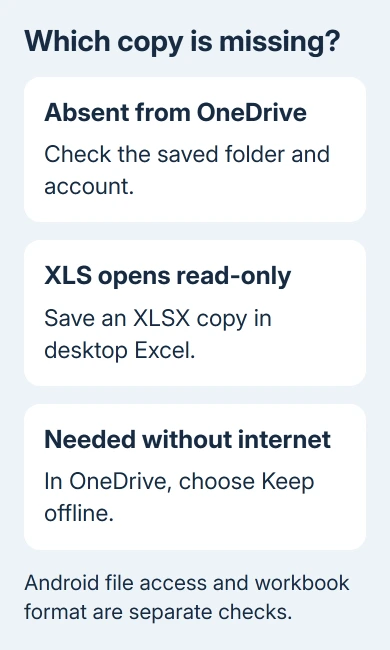
Excel files missing from OneDrive on Android need two checks: did the workbook reach the cloud, and can Android Excel open its format? Open the intended OneDrive folder first, then check the file's extension.
A visible .xls file that refuses edits needs a format check. An empty folder needs an account and upload check.
OneDrive on Android also doesn't automatically copy a PC folder into your phone's regular storage. Open cloud files through the app, or use Keep offline when you need a copy without an internet connection.
In this guide
1. Look in OneDrive rather than the phone's Downloads
Open OneDrive > Files and browse to the workbook's folder. Desktop OneDrive doesn't put a matching copy in Android's Downloads folder. Your phone's file manager and the OneDrive app show different locations.
Open your profile or account controls and check the email address. Personal OneDrive and a work or school OneDrive are separate accounts, even if both belong to you. Browse inside the account that received the workbook.
If another file in the same folder opens, the phone has at least some access to that account. Look for the workbook by its actual saved name rather than assuming the most recent entry in Excel is the cloud copy.
When opening a file in Excel, choose the matching OneDrive location instead of a recent file stored on the phone. Recent items can point at earlier downloads. Editing a download won't change a separately saved OneDrive workbook.
If the workbook appears and opens, you've found your file. If it appears but won't accept changes, go to the format check. If the whole folder is empty, compare the saved location and account before reinstalling an app.
2. Make sure the computer saved the workbook to OneDrive
On the computer where the workbook was last edited, open it in Excel and check where it's saved. A copy in Documents and another copy in a OneDrive folder can have the same filename while holding different changes.
Save the intended copy in the correct OneDrive folder and let the desktop client finish uploading. Check its cloud icon for an error or paused state. If it names a blocked file, deal with that file rather than resetting the Android app.
The desktop OneDrive sync checks cover rejected names, storage limits and a stopped client. Those conditions prevent the updated workbook reaching the cloud in the first place.
Open OneDrive in a browser for another comparison. Sign in and inspect the same folder. If the workbook is absent there too, the fault starts before Android. Recheck the computer's saved path and upload status.
Check the folder after signing in, rather than stopping at OneDrive's public home page. Before comparing filenames, use the browser address and signed-in account to confirm which personal, work or school OneDrive you're viewing.
If the web copy is present but the phone doesn't list it, keep its folder path and filename handy for the Android checks. Conversion won't help a workbook saved to the wrong account.
3. Convert an XLS copy when the file opens read-only
Android Excel supports opening .xls workbooks as read-only, while .xlsx files support editing. Microsoft's mobile file-format table lists that difference. It doesn't say OneDrive refuses to store XLS files.
For a normal workbook without macros, open the original in desktop Excel and choose File > Save As. Select Excel Workbook (*.xlsx), give the copy a distinct name and save it to the intended OneDrive folder.
Don't just change the filename's ending in a file manager. Save As converts the workbook's actual format. Keep your original workbook, then review the sheets, calculations and formatting in the converted copy.
If the workbook contains macros, XLSX won't preserve them. Use the appropriate macro-enabled format when those are needed, and remember that VBA macros won't run in Android Excel even when the workbook itself can open.
After upload finishes, open the new XLSX copy on Android. If you can edit it, the old format explains why the XLS copy was read-only. That's separate from a missing folder and doesn't tell you whether the older file uploaded.
The old thread mentions XLS files but has no confirmed fix. I'd follow the current format table when deciding what to convert. The reinstall suggestion was marked accepted, but no owner reported that it worked.
4. Keep the workbook offline when connectivity is the issue
For a file you can already see in OneDrive, press and hold it or open its three-dot menu, then choose Keep offline. Wait for the offline status to appear before leaving the network.
That saves a copy managed by the OneDrive app. It doesn't copy your entire PC OneDrive folder into the phone's normal Documents folder. Keeping whole folders offline can also depend on your subscription.
Open the offline workbook once while you're still connected so you know Excel can read it. If the file format is unsupported, downloading it won't add support. Finish the format check before relying on it for travel or a meeting.
The offline file instructions mark these copies as read-only. An offline edit saves a new file instead of changing the original. Reconnect and check that copy before resuming on the computer.
If the phone itself keeps dropping its connection, use the Android Wi-Fi checks before changing the workbook. Camera upload settings aren't the control for downloading spreadsheets.
5. Reset the Android app only after protecting unsent work
When the web copy exists but Android won't load it, check your phone's internet connection and free space. Try Wi-Fi instead of cellular data. Reopen OneDrive and revisit the workbook's folder.
The Android troubleshooting procedure includes clearing data and cache, then reinstalling. Save any unsent work first: this resets the app and can remove offline copies.
Open Android Settings > Apps > OneDrive. Use Force stop, then the storage controls for Clear data and Clear cache. Names vary by phone; some versions put these under Storage & cache.
Remove the app, install OneDrive from Google Play, then log in with the correct address. Browse Files again. Don't delete the cloud workbook to make the app reload it; that can remove the copy other devices need.
If it still fails, use Contact Microsoft Support on that page or ask your work help desk. Include the file extension and folder path, and say if the browser shows the workbook. Mention whether Android lists it but won't allow edits.
The Short Version
A workbook's cloud path and account come first. For a read-only XLS file, save an XLSX copy. Keep offline provides access without internet. Reinstall only when the web copy exists but Android still can't load it.
Checked November 16, 2026.
 If you have any business, I can build it online






