

OneDrive's setup message on High Sierra can mean an unfinished account connection, but today's app doesn't support that system. Get your cloud files from a supported computer first; reinstalling the latest app on 10.13.6 won't fix that.
One owner restored syncing after this exact error in 2018 by opening their work OneDrive online and selecting Sync. That helped with the old app in 2018. It won't make today's app run on High Sierra.
In this guide
1. Check the Mac's version before changing OneDrive
In the Apple menu, select About This Mac. Note both the system name and version. High Sierra 10.13.6 is an old operating system, even when Software Update has no further High Sierra updates to offer.
Microsoft's current system requirements put the Mac sync app's minimum at macOS 15.8. High Sierra is outside that supported range. An old copy already on your Mac isn't the same as the app you'd download today.
Before removing the old app, save copies of edited documents outside OneDrive. Use a separate local folder or external drive, then open the copies to check their contents. Keep the working app installed until those copies are safe.
A filename in Finder isn't enough when the file still needs a cloud download. If a document won't open without internet access, get its contents from your online library on a supported device before making changes to the old client.
If About This Mac shows a newer, supported macOS release, the High Sierra limit doesn't apply to you. Continue with the account and reset checks later in this guide, using the app already installed on that Mac.
2. Recover access through the right online account
On a computer with an up-to-date browser, open OneDrive using the account connected on the Mac. Personal and work addresses can look alike even though the accounts store separate files.
Open a document you recognize and check a recent change. The online library tells you what reached the cloud. If the old Mac has newer changes that haven't reached the cloud, copy that version separately before replacing it.
For a work account, open your organization's Microsoft 365 portal and select OneDrive from the app launcher. If the library won't open there either, have your IT helpdesk verify OneDrive access and licensing for that account.
For a personal account, use the personal OneDrive website. An organization administrator can't repair a separate consumer account. Check that the browser and the Mac's cloud menu show the same account.
Download the files you need to continue working on the supported computer. Check the downloaded documents before editing them. You can then keep working while you arrange to upgrade or replace the old Mac.
If the same account opens normally online but desktop setup fails, the files and account are reachable. Next, check the Mac app. Leave your password as it is when online sign-in already works.
3. Understand the old portal Sync workaround
The original High Sierra discussion ended with the asker reporting successful syncing after opening the portal and clicking Sync to connect their laptop.
Their earlier replies matter: clearing cached credentials didn't fix it, and reinstalling also left the setup message in place. I'd avoid repeating those unsuccessful changes before checking the online library and macOS compatibility.
For an organization account on a supported Mac, open its online library, choose Sync, and accept the browser's request to open Microsoft OneDrive if it appears. Finish the account prompts in the desktop app.
Check the menu-bar cloud for sync progress, then open the matching organization folder in Finder. Confirm that a small familiar document opens and that the app isn't still asking you to finish setup.
The button starts a connection to the desktop sync app. It doesn't update macOS, supply a compatible old installer, or change whether that client is supported. On High Sierra, that report only tells you what worked with the 2018 app.
If no Sync control appears in an organization library, ask IT whether syncing is allowed for that library and device. The old steps were for a work account, so trying them in a separate personal account won't recreate that setup.
4. Reset only a supported Mac client that stays stuck
Use this section when your macOS version meets the current requirements and OneDrive still won't finish setup. First check the installed app and account using the Mac sync troubleshooting steps.
Quit OneDrive from its menu-bar controls. In Finder > Applications, Control-click OneDrive, choose Show Package Contents, and open Contents > Resources.
Run ResetOneDriveApp.command, or ResetOneDriveAppStandalone.command for the standalone installation. Open OneDrive again and follow setup. The reset instructions distinguish those two app packages.
Resetting rebuilds the app's connection and settings. It can trigger a full sync, so let the app finish before checking for missing folders. When setup asks which folders to sync, restore your previous selection.
Use the Mac OneDrive download guide if you're unsure which app copy is installed. Keep one installation source; running the App Store and standalone copies side by side isn't supported.
A company name containing a slash is a different setup fault. If failure occurs while creating that named folder, use the company-folder setup checks rather than treating every setup message alike.
5. Choose an upgrade or ask for a supported route
For a High Sierra Mac, ask Apple support or your IT team which macOS version that exact model can run. Check that version against OneDrive's requirements before committing to an upgrade intended to restore syncing.
If the hardware can't run a supported system, use another supported computer for OneDrive. If the newest macOS your Mac can run still falls short of the minimum, the current sync app won't be supported on it.
For a supported Mac that still fails, send OneDrive support the macOS version, app build, exact setup message and whether the same account opens online. For an organization account, have IT check library access and device restrictions too.
The Short Version
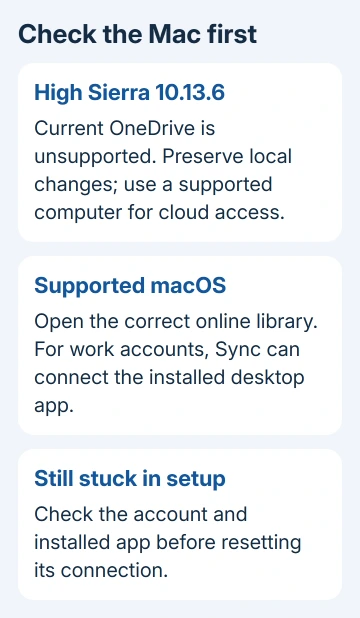
High Sierra can't run today's supported OneDrive app. Preserve local changes and use a supported device for your files. The 2018 portal Sync workaround helped its asker; current setup repairs need a supported macOS version.
Checked November 16, 2026.
 If you have any business, I can build it online






