
An empty SharePoint folder can lose OneDrive Android's Add button while uploads work elsewhere. Leave the folder and reopen it first. In the reported bug, adding one desktop file also restored the button.
That report involved an older app version, so it won't explain every missing upload button. Check whether the folder is empty, whether you're in the right work account, and whether the same folder accepts uploads through another route.
In this guide
1. Leave the new folder and open it again
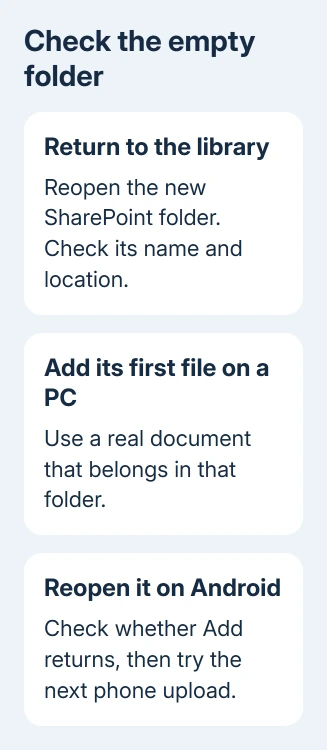
Back out to the SharePoint document library in OneDrive, then reopen the new folder. Look for Add, usually represented by a plus symbol, and check that the folder name is still the intended destination.
If creating the folder moved you into your own Files area, return to the intended SharePoint site and library before reopening it. A folder in your own work OneDrive and a folder in a team's library are different destinations.
Pulling down to refresh didn't help the original owner. A later support reply described the button returning after reopening the folder. Try that before changing your account or its permissions.
If the button appears, tap it and choose the upload action. Select one intended file, let the transfer finish, and confirm the file appears inside that folder. Seeing the upload menu doesn't confirm a completed transfer.
If the folder still says it's empty and tells you to use a button that isn't there, continue with the desktop workaround. Note exactly what that screen says so support can understand the problem beyond a failed upload.
2. Put the first file there from a computer
Open the same SharePoint library on a computer with your work account. Enter the affected folder and use the library's Upload command to add a real file that belongs there. Wait until the file appears before returning to the phone.
If that library already syncs to your computer, you can use its local folder instead. Copy the file into the correct folder and wait for it to reach SharePoint. A local copy that hasn't synced won't change the folder the Android app sees.
Reopen the folder on Android. In the original missing-button report, one owner showed that adding a file from their desktop made the plus button appear again.
That workaround applies to the empty-folder problem; you don't need to fill every library with dummy files. Use an intended document and check the destination carefully, particularly when several sites have folders with the same name.
If the button returns, try the next phone upload into that folder. If it remains absent, record whether Android can at least see the desktop file. A file missing on both routes needs a destination or upload check before an app repair.
3. Compare this folder with a working location
In the Android app, open an existing folder in the same SharePoint library that already contains files. Check for Add there. Then compare a folder in your own work OneDrive without uploading confidential material into a different location.
The original owner could upload in populated SharePoint folders and saw Add in an empty personal work folder. They also reported full control of SharePoint, so missing edit access didn't explain their case.
That distinction helps you explain your own case. A missing button only in newly created, empty SharePoint folders matches the reported pattern. If the button is missing everywhere, check your account, permissions and app instead.
If another person owns the library, ask them to confirm you can add files to the affected folder. The OneDrive sharing permission choices explain the difference between permission to view and permission to edit.
If creating the folder itself failed, check the OneDrive folder creation steps before troubleshooting its upload menu. Confirm the new folder exists in the intended location instead of making a similarly named replacement.
4. Update the app and check its upload control
Open Google Play, find Microsoft OneDrive, and install an offered update. Reopen OneDrive and return to the affected library. The old report used version 5.4 QFE 1; don't install that old release on a current phone.
Microsoft's Android manual upload instructions use Add followed by Upload. The same control can offer camera capture, scanning and folder creation, so choose the file upload action for an existing document.
If Add opens a file picker that can't access a picture, handle Android's permission request. Photo or camera permission affects that later action; it doesn't explain a folder with no Add control at all.
If the app also freezes or fails in folders that normally work, try the general app repair steps. Before removing OneDrive or clearing its data, preserve phone-only files and changes still waiting to upload.
Open Android Settings > Apps > OneDrive. Use Force stop, clear data and cache, then reinstall from Google Play. Some phones put the clearing controls under Storage or Storage & cache.
Sign back into the intended work account afterward. Reopen the same folder and compare it with your earlier result. Reinstalling can address general app problems, but the owner didn't confirm it fixed this empty-folder bug.
Send support the empty-folder comparison
Have the Microsoft 365 administrator report OneDrive Android's missing SharePoint upload control. Include your phone model, Android and app versions, site and folder location. Describe which button is missing.
Add whether a populated folder has the button, whether desktop upload succeeds, and whether the first desktop file restores it. These results help IT tell an empty-folder bug from a wider upload problem or a library permission restriction.
The old reports covered several Android versions and phone models. They don't justify blaming only Samsung, Android 8 or the phone's language. The discussion has no confirmed language-change repair.
Use the working desktop route for necessary files while IT checks the app behavior. Ask for a support case about the missing upload control, rather than a general password reset when sign-in and other folders still work.
The Short Version
Reopen the empty folder from its SharePoint library. If Add is missing, upload the first intended file from a PC and check Android again. Compare other folders, update the app, and send the results to IT if it continues.
Checked November 17, 2026.






