A USB copy that stops with 0x80070052 can hit an older FAT drive's root-directory limit despite free space. Create a folder on the drive, then put the files inside before trying a format.
That fix fits older FAT-formatted drives that stop accepting loose files. If a new folder fails too, or the error already happens inside one, check the drive's format and whether it can accept any new file before considering a format.
In this guide
1. Put the USB copy inside a named folder
Open File Explorer > This PC and double-click the USB drive. This first view is the root directory, the top level of the drive. If it contains many individual photos or documents, try a folder-based copy instead.
Use New > Folder from the empty-area right-click menu. Give it a simple name such as PhotosBackup, open it, then copy a small group of the files that failed. Use Copy and Paste so the originals stay on the computer.
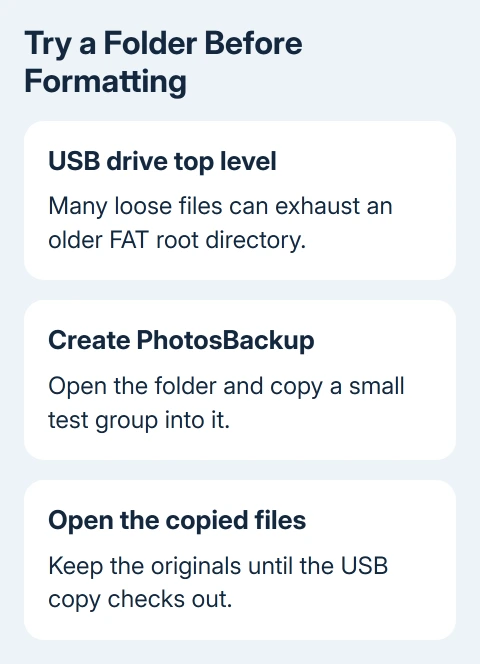
Check several copied files by opening them from the USB drive. If they work, continue with the remaining files in that folder. Successful copying to another folder on that USB drive points to a limit in the original directory.
This fixed the error for an owner on Microsoft's forum after even another USB drive produced the same failure. It's a useful first try because it changes how the files are arranged without erasing the drive or changing Windows.
If the root won't accept a new folder, copy a few existing files to the PC and check them before removing the USB versions. That can free directory entries as well as space. Then retry folder creation.
For the normal copy-and-eject process, the USB memory-stick guide covers the controls. Open the backup from the stick before removing your originals.
2. Check which file system the USB drive uses
Return to This PC, right-click the USB drive and select Properties. On the General tab, read File system. Write down whether it says FAT, FAT32, exFAT or NTFS, along with the free space.
Older FAT directory limits differ from free-space limits. A drive can have room for file contents but no room for another name in that directory. Longer names can consume extra directory entries.
The FAT file-system overview explains the older root-directory layout. Don't assume every modern USB drive has the same fixed root-directory restriction merely because an old thread describes it.
On a FAT16 drive, moving loose files into a subfolder addresses that root-directory issue. If a copy fails inside a folder on exFAT or NTFS, check more than the folder arrangement, especially if a small new file also fails.
A different file-size message needs separate handling. FAT32 can't store one file of 4 GiB or larger, even if the drive has more total capacity available. Putting that file into a subfolder doesn't change its size.
For a copy that complains about the destination path instead, use the long-path copying steps. Keep the exact error wording so you don't spend time changing the wrong limit.
3. Compare one small file with the failed group
Try copying a small text document into the new USB folder. Then try one of the photos or documents that previously failed. That tells you whether the drive rejects every new file or only a particular file or folder.
If only one file fails, copy it to another local folder on the computer. Open that copy. A file that won't copy locally needs attention at the source before backing it up to the stick.
If the local copy works, give the USB copy a short ordinary name while keeping its original extension. Retry it in a short folder path. That checks a name or path restriction without changing the file's contents.
I'd keep this trial small: one file shows whether you can save anything to the drive. Repeating the whole collection adds failures without explaining them. Return to the full copy once the small trial works.
If every small file fails, compare another port and a known-working USB drive. If the second drive works, the first stick or its file system is the problem. Failure on both gives support a different result to examine.
4. Preserve existing data before repairing the stick
Copy readable files from the stick to a safe local folder and check them before repairs or format changes. Keep another copy of work stored on a drive that has begun refusing writes.
To use the graphical check in Windows 10 or 11, open This PC, right-click the USB drive, choose Properties > Tools, and select Check under Error checking. Follow the scan or repair option Windows offers for that drive.
Retry the small-file copy after the check finishes. If the same error remains, keep the scan result and compare it with the other-drive trial. Even after a completed scan, a drive that still won't save files reliably needs more attention.
The newer Windows 11 owner tried smaller batches, an archive and a drive repair without success. Those attempts didn't fix that owner's problem. Let your small-file trial determine the next step.
If the stick disconnects or existing files become unreadable, ask a repair or data-recovery service about the needed files before further writes. This is more than a naming issue. Replace the stick for future backups once the data is safe.
5. Reserve reformatting for a backed-up drive
An owner in a separate older discussion confirmed that reformatting resolved this error. That is a later option for a reusable drive, after its contents have been copied elsewhere. Formatting erases the files already on the selected drive.
Check what will read the stick before choosing a format. A camera, car stereo or older device may require FAT32 even when a computer supports exFAT or NTFS. Follow that device's manual rather than choosing solely for Windows.
For a computer-only drive, choose a compatible format that holds your files. Right-click the correct USB drive in This PC, select Format, and check its capacity and label before starting with your chosen file system.
After formatting, copy a small group and open the copies. If the error returns while another drive works, replace the stick. Give its manufacturer the format, Windows error and copy result for warranty help.
The Short Version
Try a named USB folder first. If copying still fails, read the file system and compare a small file on another drive. Preserve existing data before repair, and format only after the contents are safely copied elsewhere.
Checked November 17, 2026.
 If you have any business, I can build it online