

Internet Calendar Subscriptions.pst can keep crashing when its local data is damaged. Back up that file, repair it with Outlook's Inbox Repair tool, then close and reopen Outlook to check whether the repair lasts.
In the original report, restoring an older backup stopped the repeated failures for a day or two; repairing Office hadn't helped.
In this guide
1. Confirm which file the error names
Read the full path in the error before changing anything. This guide applies when classic Outlook for Windows names Internet Calendar Subscriptions.pst, not when a meeting invitation fails or a shared calendar simply won't open.
Outlook keeps local data in files with the PST extension. The filename matters because an email archive and an internet-calendar store can both use that extension. Repairing a different PST won't address the file in the error.
In classic Outlook, open File > Account Settings > Account Settings > Data Files. Find the file named in the message. Select it and choose Open File Location so you can see the actual folder rather than guessing its location.
Write down the path and filename. If Outlook can't stay open, use the path from the error in File Explorer instead. Don't start changing other data files just because they're in the same folder.
You'll find this Data Files dialog and repair tool in classic Outlook, not new Outlook. If the reported file belongs to an installed copy of classic Outlook, do the repair there. This isn't a phone calendar reset procedure.
2. Keep a separate copy before running a repair
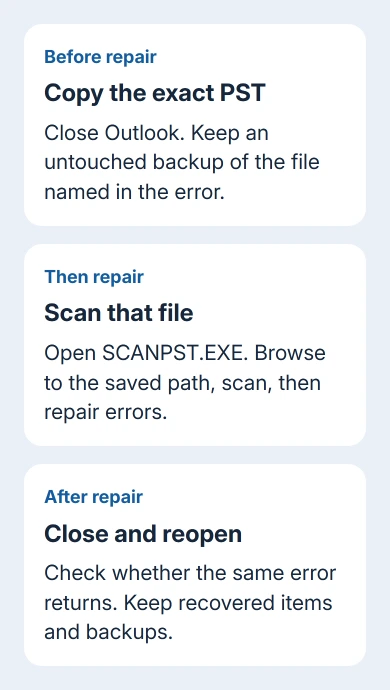
Close Outlook, then copy the affected PST to a separate backup folder. Keep a filename you'll recognize. Repairing the file changes it, so you need an untouched copy before trying to recover its contents.
Also record which calendars are subscriptions and where their subscription addresses came from. In classic Outlook, check File > Account Settings > Account Settings > Internet Calendars if Outlook stays open long enough.
A subscription gets updates from its publisher. Importing an ICS calendar file gives you a fixed copy of events. If you need to add the calendar again, importing a file won't restore an updating subscription.
The guide to adding Outlook calendars explains those two routes. Keep the original subscription address or the provider's instructions with your backup, especially for a private calendar link.
I wouldn't delete the troublesome PST as the first move. It may still contain recoverable calendar content. The owner who got past this problem had an older backup available to replace it.
3. Run Inbox Repair against the named PST
Microsoft's PST repair instructions use SCANPST.EXE, the Inbox Repair tool installed with classic Office. It checks your local file for damage; it doesn't repair the calendar publisher's server.
With Outlook closed, locate SCANPST.EXE in the Office installation folder. Common Click-to-Run locations use Microsoft Office > root > Office16 under Program Files or Program Files (x86), depending on the installation.
Use File Explorer to check the installed folder. The Office16 folder name is used by newer classic Office installations too, so don't expect a folder matching the Microsoft 365 product name.
Open SCANPST.EXE, select Browse, and choose the exact Internet Calendar Subscriptions.pst path you recorded. Select Start to scan it. If the tool reports errors, select Repair and keep its backup option enabled.
The tool's repair backup is useful, but it doesn't replace the separate copy you made first. The repair can recover only what remains readable. Some badly damaged items may not come back.
If SCANPST.EXE won't start, use the Office application repair route in section 5. If it runs successfully, check the repaired calendar next. Leave unrelated files alone.
4. Check reopening, then consider an older backup
Start Outlook with the same profile and open the affected calendars. Check a few familiar events and whether the calendar is usable. Next, quit Outlook normally. Launch it again and watch for another repair request.
Don't skip the closing check. The original owner reported that a repair could let Outlook run temporarily, but the program crashed during use or on exit. Reaching the inbox once didn't settle the problem.
If recovered folders appear, inspect Recovered Personal Folders and Lost and Found. The repair tool can place recovered items there when it can't restore their original folder structure.
One owner replaced the repeatedly failing internet-calendar file with an older backup. Their follow-up covered a day or two of working access, with no longer-term result. Keep checking your calendar after restoring a backup too.
If you have a backup of this exact store, keep the current file copied aside and use File > Open & Export > Open Outlook Data File to inspect the backup. Check that it has the events you expect before using it regularly.
An old backup can be missing newer information. Check its dates, and keep your subscription details available if calendars need to be added again. Without a backup, ask support about recovery. Keep the remaining copy.
5. Repair the app when the file tool can't run
For Windows 11, right-click Start, choose Installed apps, find Microsoft 365, open its three-dot menu and choose Modify. On Windows 10, use Apps and Features, select Microsoft 365, then Modify.
For Click-to-Run installations, Quick Repair replaces damaged application files. Online Repair downloads what it needs for a fuller repair. Save documents, then exit all Office programs because the entire suite is repaired.
The original owner said an advanced Office repair hadn't stopped this particular file crash. Repair Office when Outlook or its repair tool won't run properly. That repair won't automatically restore damaged calendar contents.
If Outlook fails before showing a named file, the Outlook startup guide separates loading-profile, add-in and window errors. Follow the steps for the startup problem you see.
When the same file keeps failing
Ask your work help desk or Microsoft 365 support to review the recurring PST damage. Provide the exact path, Outlook build from File > Office Account, repair log, and whether the crash happens during use or on exit.
Keep the original copy and any older backup available for recovery. If the repair only lasts until you close Outlook, say that. That tells support more than a report of occasional crashes.
The Short Version
Preserve the failing PST before scanning it, then see whether Outlook reopens cleanly. Preserve recovered content and inspect a known backup if repairs don't last. Repeated damage needs support, not deletion of your other Outlook files.
Checked November 17, 2026.
 If you have any business, I can build it online






