

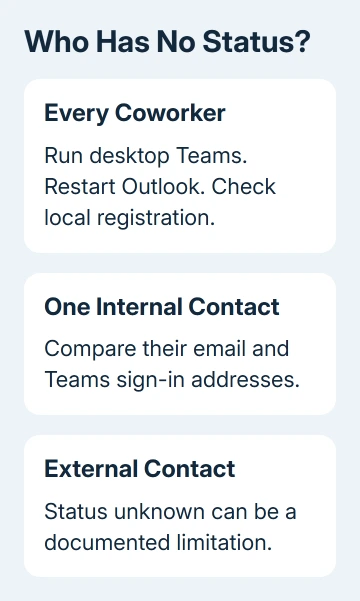
Teams can work normally while Outlook has no chat buttons or presence indicators. Start Teams on the same PC, sign in with your work account, and restart Outlook.
If only one contact is affected, compare their email address with their Teams sign-in address before changing the installation.
The old advice to install Skype came from a 2020 setup. Current Teams-only accounts get their presence from Teams, so that reply isn't a reason to install Skype on a current computer.
In this guide
1. Keep Teams running and reopen Outlook
Open the installed Teams desktop app, not just its browser tab. Confirm that it has finished signing in. Close Outlook completely, leave Teams running, and reopen Outlook.
Open a message from someone inside your organization and inspect their contact card. Look for the presence indicator and available chat controls. Compare several coworkers before assuming the installation needs repair.
The local Outlook integration needs Teams installed and running. A working browser chat shows that the account can use Teams online; it doesn't register the desktop app with Office.
If a New Teams Meeting button is missing instead, use the Teams meeting add-in checks. Scheduling a meeting and showing a person's chat status are different functions.
I'd check an internal coworker first. An external contact showing an unknown status can lead you to try repairs that won't change that result.
2. Check the Office chat registration where it exists
In older Teams versions, you'll find Settings > General > Register Teams as the chat app for Office (requires restarting Office applications). When that checkbox is available, select it and restart the Office applications.
The control appears in Microsoft's Office chat registration instructions. Those instructions show the older Teams interface, including its profile-picture route to Settings.
Your current Teams app may not have that checkbox. Keep the installed version your organization supplies, and check its account and registration next.
Check the account shown by Teams against the work account in Outlook. On a PC used with several organizations, an open Teams window can be signed into a different organization from the mailbox you're checking.
After restarting Outlook, inspect the same internal contact again. If the indicator returns, registration and restart were enough. If every internal contact still lacks presence, move to the local registration check in section 4.
3. Compare the affected contact's addresses
When only one or a few people are affected, ask each person to check their Teams sign-in address against the email address you use for them in Outlook. A renamed account or alternate email address can leave those values different.
Use the organization's directory entry when checking the person, rather than assuming an old personal contact record is current. Have the affected person or IT correct the address mismatch, then sign out of Teams and back in.
Try that person's contact card again after they reconnect. If your other contacts' indicators work, I'd check the affected person's addresses before reinstalling Teams on your PC.
There are also known presence differences. Contacts at other organizations connected through federation can show Status unknown in Outlook. That isn't the same problem as losing the indicators for every coworker in your organization.
Out-of-office status has limits too. The 32-bit version of Outlook doesn't currently display the related out-of-office icons, and automatic replies can produce different status displays in Outlook and Teams.
A green or red indicator won't always match what you expect from a calendar entry. Focus on whether the integration is absent for ordinary internal contacts, rather than treating every status difference as failed registration.
4. Have IT check the local presence registration
The current troubleshooting procedure checks HKEY_CURRENT_USER\Software\IM Providers in Registry Editor. Its DefaultIMApp value should be a REG_SZ string with data Teams for the documented Teams registration.
On a managed PC, give that path to IT. Back up the relevant registry settings before any change; a mistaken edit can affect other applications. A policy that restores a different value needs an administrator's attention.
The procedure also checks the Teams presence type-library files and their matching registry entries. These are separate from the Teams meeting add-in, so enabling a meeting add-in won't repair a missing presence library.
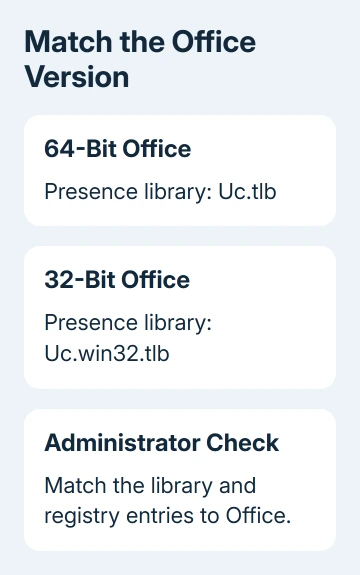
The listed folder is %localappdata%\Microsoft\TeamsPresenceAddin. The documented file is Uc.tlb for 64-bit Office or Uc.win32.tlb for 32-bit Office. Choose the file to match your Office version, not your Windows version.
In classic Outlook, File > Office Account > About Outlook shows that bit version. Have IT match the file and TypeLib entries to that version. The registry entries need to match 32-bit or 64-bit Office too.
If the files aren't present or registration remains broken, the procedure's next repair is to uninstall and reinstall Teams. Use your organization's approved package, then restart Outlook and check the same internal contacts again.
5. Keep the 2020 Skype fix in its proper context
The original registration discussion concerned Teams 1.2 and Outlook 1908. One owner reported that installing Skype in disabled mode restored presence after updating and reinstalling Teams hadn't helped.
That's a real reported result, but it concerns an old installation. The current presence policy says Outlook gets presence from Teams for TeamsOnly accounts and from Skype for Business when the account isn't in that mode.
Ask IT to check which upgrade mode applies to your account and which apps are installed. A consumer Skype installation won't tell you how your company configured Teams presence.
For missing meeting controls as well as chat, the Teams meeting and account guide helps distinguish Outlook's missing meeting controls from the account connection.
Give support the two affected accounts
Ask your administrator to open a request in the Teams Admin Center if the manual checks fail. Include your sign-in address, an internal contact whose presence is wrong, both app versions, and whether all internal contacts are affected.
The support procedure requests desktop and web logs from both people. Have IT collect those through its approved process, along with the registration and reinstall results. Support can then check presence between those two accounts.
The Short Version
Run desktop Teams, restart Outlook, and compare internal contacts. Check addresses for individual failures and registration for a failure across internal contacts. Have IT verify TeamsOnly policy rather than copying the 2020 Skype fix.
Checked November 17, 2026.
 If you have any business, I can build it online






