Outlook failing to attach files, send images and save drafts together points to a problem creating messages. In the reported classic Outlook case, Cached Exchange Mode restored sending, and a newer Office build addressed the old bug.
Check the version and account type first. These symptoms were reported with Outlook version 1908 in 2019. That old report doesn't explain a failure today on its own. Check whether your Outlook has the same symptoms.
In this guide
1. Remove the signature image from one new message
Start a blank message in classic Outlook and remove its signature completely. Type a short test message without a picture or attachment, then send it to a test mailbox you can open.
If that sends, create another new message and add the normal signature. A failure only after its image returns suggests Outlook is having trouble attaching the image, rather than just sending to that address.
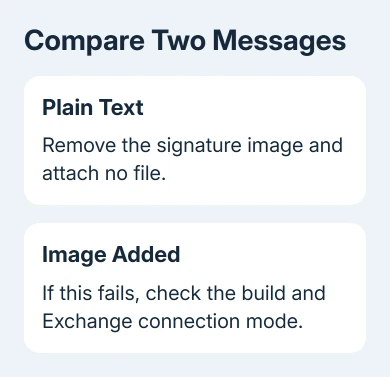
A signature picture is embedded content even when it looks like part of the text. That's why an image-bearing signature can trigger the same failure as inserting another image into the message body.
In the original report, removing only the signature's images allowed sending. Leaving the rest of its layout in place was enough. The same users couldn't add ordinary document attachments or save the unfinished email as a draft.
Keep that distinction when describing the fault to IT. A message stuck in Outbox without these other symptoms belongs with the Outlook sending checks, rather than assuming every sending failure has this cause.
For an urgent text-only email, leave the image out while the desktop fault is repaired. Keep any unsaved message text in a separate document before closing Outlook, since this problem can prevent a draft from saving.
2. Update the affected classic Outlook installation
Choose File > Office Account and look under About Outlook for the version and build. On installations that show Account instead, use that page. Write down both numbers so support can identify the installed release.
Under Product Information, select Update Options > Update Now if the control is available. Allow the update to finish, close Outlook when prompted, and reopen it before repeating your message test.
The accepted forum response said a newer version 1908 build wasn't affected, but gave no fixed build number. Don't install an arbitrary archived 1908 package or downgrade your current installation to that release.
With a current Microsoft 365 subscription, use the supported update offered to your organization's channel. Update Now checks that channel; it doesn't necessarily move a business PC onto the same build as a personal subscription.
Microsoft's Office update instructions explain this route. If your workplace hides or manages Update Options, ask IT how Office updates reach this PC.
Test three actions after updating: insert a small file, save the message as a draft, and send a harmless message with an embedded image. Even after a successful send, test draft saving and file insertion separately.
If all three work, resume using the signature. If they still fail, check the Exchange connection mode next, particularly when the issue affects some users on a shared server.
3. Check Cached Exchange Mode for the affected account
In classic Outlook, choose File > Account Settings > Account Settings. On the Email tab, select the affected Exchange account and choose Change.
Look for Use Cached Exchange Mode. Some builds show the longer label Use Cached Exchange Mode to download email to an Outlook data file. Enable it if appropriate for your setup, continue through the dialog, then restart Outlook.
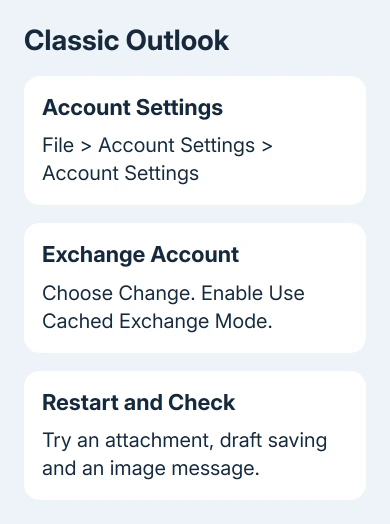
Cached Exchange Mode syncs a local mailbox copy with the server. One owner turned it on for an affected Terminal Server user and reported that Outlook worked again. A new Outlook profile hadn't solved the fault.
Caching worked for that owner on their Terminal Server setup. It doesn't mean enabling caching fixes every image or attachment error, especially with POP, IMAP, or the new Outlook app, which don't offer this classic Exchange setting.
On Remote Desktop or Terminal Server, have IT decide whether to enable caching. Downloading large mailboxes for several users changes how much storage the server needs; test one affected account before changing the whole server.
After Outlook reconnects, repeat the same small attachment, draft and image-message checks. If the account now works in cached mode but fails in online mode, give that result to IT together with the Outlook build.
I'd keep that comparison in the support request. It tells the administrator much more than trying another profile without recording which connection mode worked.
4. Compare desktop failure with the web mailbox
Sign in to your organization's webmail site with the account that has the desktop problem. Create a harmless message, attach a small file, save the draft and send it to your test recipient.
If those actions work on the web, use webmail for attachments while IT handles the desktop fault. That keeps the work moving without granting local administrator rights or changing the sender's mailbox permissions.
If the website fails too, record its exact error. Ask the administrator to check mailbox storage and current Exchange service health. A failure across both clients needs a wider check than the old classic Outlook bug.
Advice about receiving attachments won't help with this test. The guide to missing Outlook attachments applies when someone already sent the file but the recipient can't see it; this fault prevents adding it to a new message.
In the original desktop case, switching between paste and Insert didn't help. Compressing files and starting in safe mode also failed. Repeating those actions isn't a substitute for the version and connection-mode checks.
If the three actions still fail
Send IT the exact errors, whether a plain message works, the Office build, account type and results in cached mode and webmail. Include whether one user or several users on the same machine are affected.
For Microsoft 365, send IT these results so they can open a support case about the failed attachment, draft and image tests. Older on-premises deployments also need IT to review client and Exchange support.
The Short Version
Test without the signature image, update Outlook, and check Cached Exchange Mode. The owner confirmed caching worked, while the update advice concerns a 2019 build. Use your current test results to guide the repair.
Checked November 17, 2026.