

Outlook can skip a two-factor prompt because an earlier sign-in is still valid or the organization's verification policy didn't apply. For a work Microsoft 365 mailbox, ask IT to check the sign-in event before changing Outlook settings.
Mail already stored on the laptop is a separate issue. Existing messages alone won't show whether Outlook can retrieve fresh mail after a dismissed prompt. Check Outlook's connection, then have IT review the server's sign-in record.
In this guide
1. Separate saved mail from a new connection
Multifactor authentication (MFA) uses two or more kinds of verification. A password plus approval in an authenticator app is one example.
Start Outlook, then read its connection status. In classic Outlook for Windows, Connected to: Microsoft Exchange, Disconnected, Trying to connect, and Working Offline describe different states.
After dismissing the prompt, ask a colleague for a new test email with a unique subject. Check whether that new message reaches the desktop app, rather than judging access from mail that was already visible.
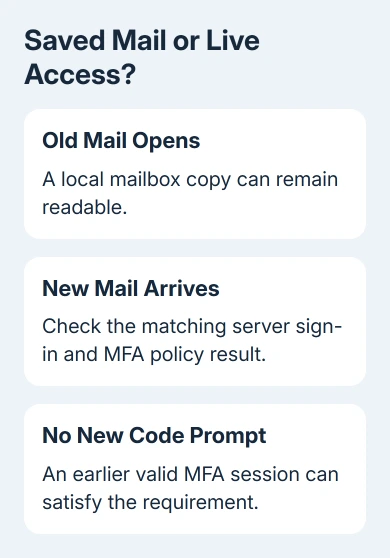
Cached Exchange Mode stores a local mail copy. Verification when Outlook connects to the server doesn't lock saved mail each time the app opens. Protecting the laptop also needs Windows sign-in and your organization's device safeguards.
If old mail opens but the new message doesn't arrive, record the connection status and prompt text. Old mail without fresh delivery indicates a different problem from a new connection that skips the expected MFA requirement.
The classic Outlook offline checks explain the Work Offline control when connection status is the immediate problem. Don't change authentication policy just to fix that switch.
If new mail arrives, note the test time and account address for the administrator. The next check shows whether an earlier sign-in already met the MFA requirement or whether the account connected without the intended protection.
2. Read the sign-in event, including Authentication Details
Ask an administrator with access to sign-in reporting to open the Microsoft Entra admin center. Go to Entra ID > Users > Sign-in logs and find the account's event around the time of your test.
Open the event and check its application and resource. Office activation and an Exchange mailbox connection aren't necessarily the same sign-in. Record the time and application before deciding which event explains Outlook.
Under Authentication Details, look at the methods used, their success or failure, and why the authentication requirement was satisfied. Under Conditional Access, check the policy results for that sign-in.
Microsoft's MFA reporting instructions explain that a requirement can be satisfied by an existing claim in a token. In plain words, the service can accept a record of your earlier verification without asking you again.
The log may show satisfied by claim in the token, satisfied by strong authentication, or another reason. Read that explanation together with the policy results, rather than counting how many code windows appeared on the laptop.
New events can initially contain incomplete or inaccurate authentication details. Wait for the record to finish updating before drawing a conclusion from it.
If the intended policy applied and MFA was already satisfied, a missing fresh prompt can be normal. If the policy didn't apply, continue with its scope and state instead of deleting the Outlook profile.
3. Check which MFA system the organization uses
Have IT identify whether protection comes from Conditional Access, security defaults, or older per-user MFA. These controls aren't three checkboxes that must all be enabled for the same person.
With Conditional Access, check that the user and Exchange resource are included, exclusions are intentional, and the policy is enabled. Report-only evaluates a sign-in without enforcing the policy's grant requirements.
For a per-user MFA deployment, the account can appear as Disabled, Enabled, or Enforced. Enabled and Enforced have different meanings, but those states don't describe the protection applied by Conditional Access.
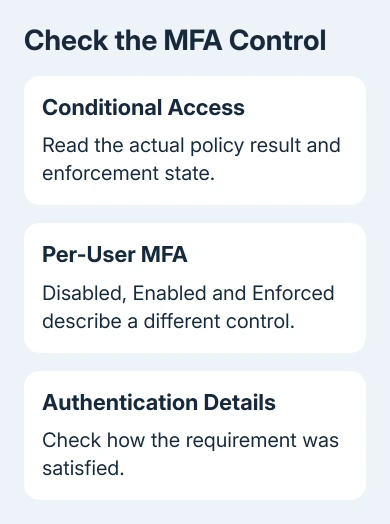
A person protected through Conditional Access can still appear Disabled in the per-user list. Don't turn on per-user MFA just because that screen looks wrong; check which policy protected that sign-in.
With per-user MFA, Enabled users normally move to Enforced after registration. IT should check registration and the intended state rather than treating Enabled as a complete result.
I'd ask for the policy result from the test event before reinstalling Office. A reinstall won't add an excluded user to the organization's access policy.
If the authentication challenge actually fails instead of being skipped, keep its error text and timestamp. Give those to IT with the failed sign-in event so they can address the reported method or policy failure.
4. Keep the old modern-authentication advice in context
The source discussion is from 2018. It describes Outlook retrieving mail before a later prompt, with advice to enable modern authentication for Exchange Online. Modern authentication supports MFA through the service's sign-in process.
That discussion predates the removal of Basic authentication for Outlook connections to Exchange Online. Basic authentication was the older password-only method. An app password won't restore that retired connection method.
Outlook for Windows versions since 2016 enable modern authentication by default. Exchange Online has enabled it by default since August 2017. IT can still check an unusual older tenant configuration if the test results point there.
From an existing Exchange Online PowerShell session, the read-only check is:
Get-OrganizationConfig | Format-List OAuth2ClientProfileEnabledIf it returns False, IT can review the documented modern-authentication setting for that organization. Changing that setting alone doesn't create an MFA policy or tell you whether that policy covers the right user.
Don't use registry changes to force older authentication or follow instructions to disable security defaults. They don't fix a missed MFA policy, and the retired password connection isn't a fallback for Exchange Online Outlook mail access.
Which results should IT send to support?
Give IT the Outlook build, account address, test timestamp, sign-in event ID and policy results when submitting the case to Microsoft 365 support. Include whether fresh mail arrived after the challenge was dismissed.
If an unfamiliar successful sign-in appears, use your organization's security reporting process immediately. That's a different task from deciding why a familiar laptop didn't ask for another code.
For an account trapped in repeated password prompts, the Outlook disappearing password-box guide addresses that separate symptom. Keep the server-side MFA result as the starting point for this case.
The Short Version
Check fresh mail access and its Entra sign-in event. An earlier MFA session can explain a missing prompt; policy exclusions or report-only settings need IT's correction. Don't reuse 2018 app-password advice for Outlook mailbox access.
Checked November 17, 2026.






