Word's macro language support error can mean Visual Basic for Applications wasn't installed. In Office 2007 or 2010, add it through Office's installation options. Enabling every macro won't install missing software.
An add-in can trigger the same warning at startup. If Word opens normally with add-ins skipped, follow that branch before repairing the entire Office installation.
In this guide
1. Add the missing component in Office 2007 or 2010
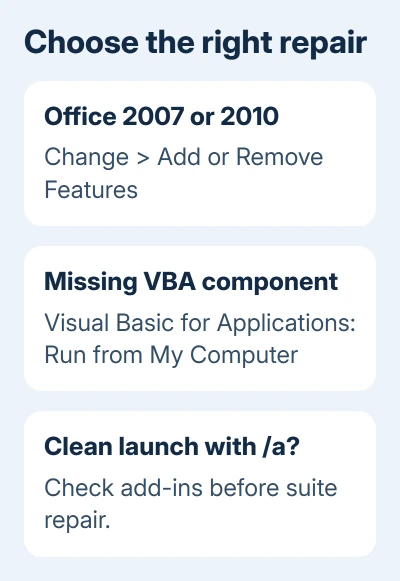
Close Word and the other Office apps. Open Control Panel > Programs > Programs and Features, select your Microsoft Office installation and choose Change.
These are the older Windows desktop installers. When the installer offers Add or Remove Features, select it and continue. Expand Office Shared Features, find Visual Basic for Applications and choose Run from My Computer.
Complete the installation, then start Word normally. If that fixed it, Word will open without repeating the macro-language warning. Compare an empty document with the file that originally triggered the message.
One owner in the original macro-language discussion reports that adding VBA removed the error. A second owner confirms success with VBA under Office Tools. Look for the component's name because the group labels differ.
VBA is the part of Office that runs its built-in programming language. Installing it makes that feature available; it doesn't require granting every document permission to run code. Leave your macro security settings in place.
If Add or Remove Features isn't offered, don't search for the same feature tree in a modern Microsoft 365 installer. Continue with the startup comparison and the repair route for your installed release.
2. Start Word without its usual add-ins
Exit every Word window. Press Windows+R, enter winword /a and press Enter. The space before /a matters because it separates the program name from the startup option.
The Word startup troubleshooting steps explain that this skips automatically loaded add-ins and global templates. It also prevents Word's usual settings files from being read or changed during that session.
Open a blank document and see whether the warning appears. If Word starts cleanly this way but complains on a normal launch, check the add-ins and templates it normally loads. This test skips them without removing them from your computer.
Close this session before opening Word normally again. Using the special startup command every day would avoid some custom features without correcting the item that triggers the message.
If the error persists with /a, move to the installation checks. If only one document triggers it, keep a copy and tell support. A warning on every launch points to a startup problem; a warning with just one file points to that document.
3. Disable the add-in that triggers the warning
In normal Word, open File > Options > Add-ins. Review anything installed just before the warning began. A new document or PDF tool is more useful to check than an unrelated Windows setting.
At the bottom, choose COM Add-ins in Manage, then select Go. Clear the checkbox for a suspected add-in, select OK, close Word and start it again. Note the cleared checkbox; you might need to restore that add-in.
If that launch is clean, repeat the normal opening action that previously caused the warning. Leave the triggering add-in disabled while you get a compatible version from its supplier or your organization's IT team.
If nothing changes, restore the checkbox and check the next relevant add-in. Word also has a Word Add-ins category, so an empty COM list doesn't rule out every template loaded at startup.
Another owner in the saved discussion reports that disabling an accidentally installed add-in fixed the same error without reinstalling Office. Check yours to find which one triggers the warning on your PC.
For startup faults that prevent access to those menus, Word's opening checks cover getting into the app. Keep the exact macro-language message in your notes so support knows which startup problem you're seeing.
4. Repair current Microsoft 365 or Office installations
Windows 11 lists Office under Settings > Apps > Installed apps. Windows 10 places it under Settings > Apps > Apps & features. Find Microsoft 365 or Office, open its available options and choose Modify.
Save your Office files, then close the apps for repair. If the dialog offers Quick Repair and Online Repair, start with Quick Repair. Online Repair is the more thorough internet-based option if the first repair doesn't resolve the warning.
Some older installers show just Repair rather than two repair choices. Use the choices your installer offers. A different installer won't necessarily have the Office 2010 feature list.
After repair, reopen Word and try both the original file and an empty document. If only the original triggers the error, send support a small example of its behavior instead of repairing the suite again.
For ordinary editing while support checks the file, make a separate document copy. Keep the original format if the document contains macros you need, so a format change doesn't silently discard them.
5. Escalate a persistent component or startup error
I'd stop changing Trust Center settings once the component and startup tests are done. Allowing more macros doesn't repair a disabled add-in or an incomplete Office installation, and it changes how other files are treated.
Record the Office product name, About Word version, Windows version and the exact moment the warning appears. Include whether it appears when starting Word without a file, when using /a, or only when opening one file.
For a work installation, ask IT to check whether VBA was omitted or restricted in the Office deployment and whether a required add-in depends on it. That is more specific than asking them to enable all macros.
For a supported personal copy, use Help > Contact Support with those results. Office 2007 and 2010 are unsupported; use supported Office for ongoing work. Don't download installer components from unrelated sites.
The Short Version
Older Office installations can need Visual Basic for Applications > Run from My Computer. A clean winword /a launch points toward an add-in or startup template instead. Repair modern Office through Modify if the error survives those checks.
Checked November 17, 2026.