Missing Microsoft 365 Groups can be an Outlook update fault, especially when they work in the browser. Try File > Office Account > Update Options > Update Now in classic Outlook before deleting caches or rebuilding profiles.
The fault reported in April 2023 has been fixed. Old rollback instructions remain in forum replies, but that 2023 build isn't a repair for a current installation. Check the app, account and update result first.
In this guide
1. Check that the missing item is a Microsoft 365 Group
Open the mailbox for the affected school or workplace account. Look for its Groups list and note whether the heading is missing, the list is empty, or a group appears but won't open. If you need support, describe which of those happens.
Microsoft 365 Groups have shared resources such as conversations and a calendar. These differ from a personal contact group used to address a message. A missing contact suggestion needs the Outlook contact-group checks.
Expand the account's folder list if it's collapsed. If the whole mailbox list disappeared, restore the Outlook folder pane before checking access to the group itself. That fixes the missing navigation area, not group membership.
Record the wording: You have not joined any groups differs from Cannot display the folder. Microsoft Outlook cannot access the specified folder location. Note whether the inbox works while Files or Notebook is unavailable.
Don't join duplicate groups or create replacement ones because the desktop list is empty. First compare the same account and group in the browser, where a desktop display failure won't hide the result.
2. Compare browser access using the same mailbox
Open your organization's browser-based Outlook mailbox. Sign in with the same work or school address used by the affected desktop mailbox. Open Groups and select the particular group you're missing.
Open the group's conversations and calendar, rather than only looking for its name. If Files or Notebook fails, check that resource too. Even when the group inbox opens, its other shared resources can still fail.
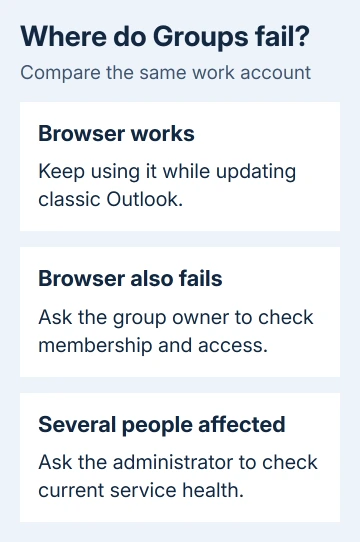
If the group works in the browser, you can keep using it there while fixing desktop Outlook. The original report described the list sometimes taking time to appear online, but its group access worked there even when the desktop app failed.
If the group won't open online either, ask its owner to check that your email address is on the member list. A different signed-in account can show a different group list. Give them the group's name and the browser's actual access message.
One missing group needs a membership check. For several coworkers losing all groups, ask IT to review Exchange Online incidents. Microsoft 365 admin center has Health > Service health; ask IT to check it.
Those pages require your organization's sign-in. An ordinary Outlook marketing page or successful Microsoft account sign-in doesn't check whether the affected work mailbox can open its groups.
3. Install current classic Outlook updates
In classic Outlook, select File > Office Account > Update Options > Update Now. Save any open Office documents, then follow the updater's instructions. When it finishes, close and reopen Outlook, then try the same group again.
If updates were disabled during an earlier workaround, choose Enable Updates in that menu before checking again. A PC left on an old version won't receive later repairs through a disabled updater.
On a work PC, your organization may control Office updates. If the menu isn't available, send the administrator the version and build shown under About Outlook so they can review your approved update channel.
Microsoft's Groups repair notice confirms Version 2303, Build 16227.20212 was affected; 2304, Build 16327.20214 fixed it. Those numbers identify the 2023 repair. Install the current release approved by your organization.
The old fault also caused trouble with message changes and membership. That old fault won't explain every failure on a newer build. Record your version and continue using the browser and account results to narrow the problem.
4. Leave the old rollback and cache recipe in the past
The accepted forum answer recommended returning Office to 16.0.16130.20332. One owner confirmed a combined rollback and cache-file procedure worked for employees during that incident. Those replies predate the published fix.
The current notice marks the issue fixed and tells people who disabled updates to enable them again. Installing the old build or leaving Office updates off would return the PC to an outdated installation instead of applying the repair.
Replies also suggest deleting .nst files, Outlook's group-related cache. Because the owner changed both, their result doesn't tell us which change helped. For the fixed incident, follow the vendor's update instructions instead.
The asker tried deleting an OST (an offline mail copy), disabling Cached Exchange Mode and running the old recovery assistant. Access still changed unpredictably. Those attempts didn't fix their access problem.
I'd keep the browser workaround while the administrator checks a current build. It avoids changing several local settings at once and keeps the working route available for group messages and calendar access.
5. Give support the desktop and browser results
If updating doesn't help, have your administrator request Exchange Online or Outlook support. Include the full About Outlook version, the affected mailbox, the group name and the exact error.
Say whether every group fails, whether another member can open the same group, and whether your account can open it in the browser. Include whether the inbox, calendar and Files or Notebook resources fail together or separately.
EX540503 identifies the April 2023 incident. Ask support to check today's service health instead of assuming that incident has returned. Keep using the browser if you've confirmed it opens the affected group.
The Short Version
Compare the affected group in the browser using the same account, then update classic Outlook. Re-enable updates if needed and skip the 2023 rollback. Report a continuing failure with the current build and both access results.
Checked November 17, 2026.