

Shift+F7 still opens Word's thesaurus, but a laptop's top row can send a brightness or media command instead of F7. Try Fn+Shift+F7 first. On a separate keyboard with F Lock, change that key's setting and try Shift+F7 again.
When the shortcut does nothing but Review > Thesaurus works, the thesaurus itself is available. Check the keys first, before repairing Word or changing its dictionaries.
In this guide
1. Give Word the F7 key your keyboard is hiding
Click inside an ordinary word in a document. Hold Fn and Shift, then press F7 once. Release all three keys and look for the thesaurus pane at the right of the Word window.
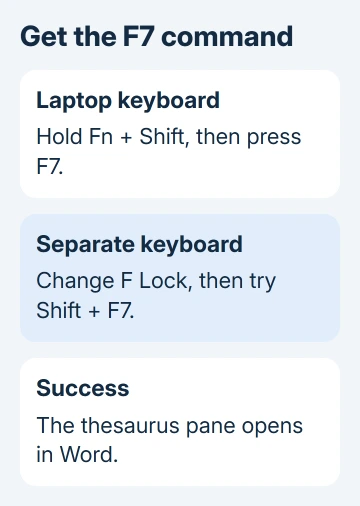
On many laptops, the small picture on the F7 key is its default action. Holding Fn changes which action reaches Word. Your computer's keyboard settings control this, so another laptop can behave differently.
One owner restored Fn+Shift+F7 on an HP dm4 in Microsoft's forum. Later replies confirmed the same combination on HP laptops running Word 2010. Other owners fixed it with F Lock on separate keyboards.
A keyboard with F Lock doesn't necessarily need Fn as well. Press F Lock once, return to the document, and try Shift+F7. If it works, related words appear in the pane without using the ribbon.
I'd check these keys before considering a reinstall. It takes seconds, and a working ribbon command with a failed function key is a good reason to check the keyboard first.
Don't assume Fn+Esc changes the setting on every laptop. Use the keyboard's own instructions if you want to change its permanent function key behavior. Keeping Fn held for this one shortcut is enough to continue working.
2. Open the thesaurus without the shortcut
Select a familiar word such as happy, then choose Review > Thesaurus. Word 2010 opens its reference pane on the right. A newer desktop Word version can give the pane a different appearance.
The important result is a list of related words. If that appears, Word can look up related words in that language. Check which command the shortcut runs next, rather than replacing proofing files.
Right-clicking the word and choosing Synonyms is another way to see suggestions. It's useful while you fix the shortcut, though the full pane offers a separate place to browse related words.
If the pane opens but has no useful results, try another ordinary word in the same language. A proper name, abbreviation, or specialist term can have no suggested replacement even when the command works.
Check Review > Language > Set Proofing Language for the selected text if the language is wrong. Choose the language the text actually uses. That changes which language Word looks up; it won't change what your F7 key sends.
A missing reference service is a separate problem. The guide to Word 2010's missing dictionary explains the difference between spelling, synonyms, and older online reference services.
3. Check what Shift+F7 is assigned to
Open File > Options > Customize Ribbon. Next to Keyboard shortcuts, choose Customize. Click in Press new shortcut key and press Shift+F7, adding Fn if your keyboard needs it.
Look at Currently assigned to. For this Word 2010 command, the expected name is ToolsThesaurusRR. If that name appears, Word already has the assignment; adding it again won't fix an F7 signal that never arrives.
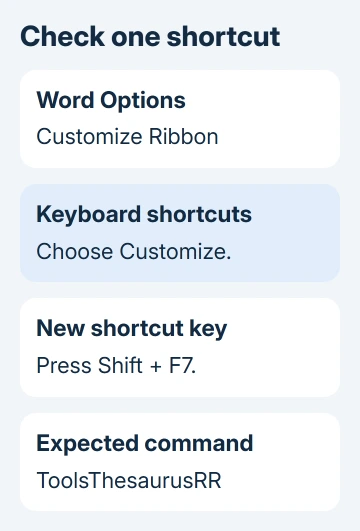
If a different command appears, make a note of it before changing the assignment. In Categories, select All Commands, then select ToolsThesaurusRR in the commands list.
Once your shortcut appears in the new key box, choose Assign. Use Save changes in to choose the template or document that should keep it, then close the dialogs and try the command in your document.
Microsoft's keyboard customization instructions explain that assigning a used combination changes what it does. Avoid Reset All when you only need to correct this one command.
If Word won't record the combination in that box, try a plain external keyboard if one is available. A working external F7 points toward the laptop's function key settings or keyboard utility, rather than a broken thesaurus.
4. Check whether a Word add-in intercepts the shortcut
Save your documents and close Word. Press Windows+R, enter winword /safe, and press Enter. Click into Word if another window remains in front, then type a word and try the shortcut again.
Word leaves out extra components in safe mode. If the command works there but fails when you start Word normally, check its add-ins and customizations. Safe mode is a check, not the setting to use permanently.
Close that window and start Word normally. Open File > Options > Add-Ins. Select COM Add-ins in the Manage list and choose Go. Record the enabled items, then turn off one suspect item and restart Word.
Test Shift+F7 after each restart. When turning off an add-in restores it, ask its maker about a compatible version. Re-enable anything that made no difference so unrelated features stay available.
For problems affecting several shortcuts, Word's shortcut troubleshooting covers language settings and wider keyboard customizations. A thesaurus-only failure doesn't call for changing every shortcut.
5. Get the remaining failure checked in the right place
If Review > Thesaurus works but neither keyboard can send the shortcut, give your computer support team the keyboard model and the assignment shown in Word. Say whether the keys work in safe mode.
When Review > Thesaurus also fails in a fresh document, ask your Office administrator to look for problems with its language resources or installed program files. Include the Word version and the language selected for that word.
Word 2010 is an old release. Avoid old Fix it downloads or registry edits copied from replies about unrelated spelling problems. The original discussion included a failed Fix it attempt despite working right-click synonyms.
The Short Version
Try Fn+Shift+F7 or change F Lock first. A working Review > Thesaurus command points toward the keys or their assignment. Check ToolsThesaurusRR next, then compare safe mode with an ordinary Word launch.
Checked November 17, 2026.






