

Segoe UI can be missing from Word 2011 for Mac's ribbon even when it appears in Font Book. Open Format > Font from the Mac menu bar and check that list first. One owner with the same missing ribbon entry found the font there.
That works when the font is installed but missing from the ribbon. A font missing from both lists needs a different check, and instructions written for Office 2011 shouldn't be treated as the current Mac Office font list.
In this guide
1. Select the font through Format > Font
Open the affected document in Word 2011. Select a short piece of text, then choose Format > Font using the Mac menu bar. Look for Segoe UI in the font list inside that dialog.
Choose the font and confirm the change. Check the selected text rather than relying on the ribbon's list. If you can select the installed font there and apply it to new text, you can use it without the ribbon entry.
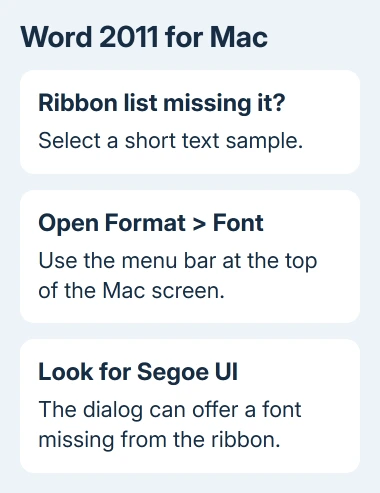
The original owner found Segoe UI in the Font dialog, despite its absence from the ribbon lists in Word and PowerPoint. They could select it there even though the ribbon didn't list it.
The font will still be missing from the ribbon, but you can select it through the dialog. Reinstalling a family that the dialog already recognizes doesn't address the difference between these two lists.
Try a fresh paragraph as well as existing text. A presentation or document received from Windows might already contain Segoe UI formatting; seeing that formatting isn't the same check as selecting the font yourself for a new passage.
If the font is absent from the dialog too, continue with the installation check. If it works in a blank document but not the original, compare the same short text in both files before making document-wide changes.
2. Check whether the Mac actually has the font
In Font Book, search for Segoe UI. Seeing the font's name in a Word document doesn't mean it's installed. The receiving Mac needs access to the font itself to use it normally.
Compare the family names in Font Book and Word's Font dialog. Segoe UI and Segoe UI Variable are different names, so keep them separate when checking which family the document needs.
Try selecting the same font in another Mac app that offers a font picker. If the other app and Word's Font dialog both offer it, the missing ribbon entry is the problem. If neither offers it, work on the font installation first.
Open a font file you're entitled to install on your Mac, then use Font Book's installation controls. Close Word before installation and reopen it afterward so you're checking a fresh font list.
The Office font installation instructions explain that the system supplies fonts to Office. There isn't a separate Word-only installer that fixes every missing font.
Don't download a random file simply because it has Segoe in its filename. Use a font supplied with your software or one obtained under suitable terms. A missing ribbon entry isn't a reason to copy the Windows Fonts folder onto a Mac.
For the broader Windows and Mac installation process, the PowerPoint font guide explains how installed fonts become available to Office apps. Return to the Font dialog after that check.
3. Separate Office 2011 behavior from current Office
Microsoft's Segoe UI family history dates its addition to Office for non-Windows devices to 2022. That is much later than Office 2011 for Mac.
That fix doesn't tell you which fonts current Mac Office includes. Check Word > About Word and note the release and version. Use those details when seeking help, so you get steps for your version rather than Office 2011.
On a newer release, check its Font dialog and installed fonts rather than assuming the 2011 ribbon behavior still applies. A modern Office font supplied through that product has a different history from a Windows font copied years ago.
I'd try the dialog before changing the font file. It tells you whether Word can see the installed font without switching to another typeface or rebuilding font caches.
If you're deciding whether to move an old document into a newer release, the Office on Mac guide covers the available app choices. Keep the original file while comparing its layout in another version.
4. Avoid cache resets that don't match the fault
The original report already described deleting the Office font cache and reinstalling the font without success. Those attempts didn't make the ribbon list complete. Repeating them before trying the dialog misses the simplest working route.
Later replies suggest font conversion and Terminal cache commands without a clear, lasting ribbon repair. Conversion leaves you managing another font file without explaining why the lists differ.
If the document must be shared, check it on the receiving computer. A font visible on your Mac may be substituted on a machine that lacks it. Inspect headings and line endings after the recipient opens the file.
When the dialog also fails, give the font provider or Office support the exact font family, Word version, and the result in Font Book and another app. Ask whether that font file is supported by the release you're using.
If you're working to a deadline, choose an installed font that suits the document and check the resulting page layout. That is a deliberate formatting choice, not a repair that makes Segoe UI appear in the ribbon.
The Short Version
Try Format > Font first in Word 2011. The owner found Segoe UI there despite the ribbon omission. If both lists lack it, check Font Book and the font's source, then seek advice for your Word version.
Checked November 17, 2026.






