
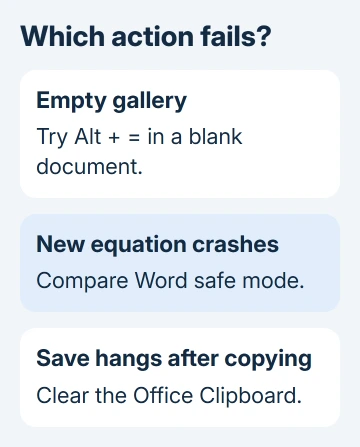
Word 2013 can fail while inserting a new equation or freeze while saving copied equations. Try Alt+= in a blank document first. For a save freeze after equation copying, clear Word's Office Clipboard and save again.
The old Compatibility Pack fixed some 2013-era installations, but it isn't a sensible new installation step today. Check what triggers your crash before following a download link from that discussion.
In this guide
1. Separate a missing gallery from a failed editor
Save a copy of your document, then open File > New > Blank document. Press Alt+= to create a new equation. Type a small expression, click outside it, and save the new document.
Also try Insert > Equation > Insert New Equation if that command is available. A blank list of ready-made equations doesn't necessarily mean the command for a new equation is broken.
If the new equation works, retest using a duplicate of the troublesome file. Try inserting a new equation there. If only that file fails, focus on that document rather than starting a repair of Office.
If Alt+= or typing into the new box crashes Word even in the blank document, move to safe mode. If insertion works but copying equations makes saving hang, use the clipboard step first.
An old embedded Microsoft Equation 3.0 object is another case. The message Microsoft Equation is not available refers to the old editor that was removed, rather than the built-in Insert > Equation command.
For existing objects that refuse editing, use the Windows legacy-equation conversion route rather than repairing the new-equation gallery.
Microsoft's Equation Editor explanation says that legacy component was removed in the January 2018 update. Don't reinstall it to repair new equations. Convert the old equation with a compatible tool or rebuild it in the built-in editor.
For older Mac documents, the missing Equation Editor object guide covers that separate compatibility problem. The Windows Word 2013 crash procedure here concerns new built-in equations.
2. Clear the Office Clipboard after copying equations
Use this step when Word still responds, but saving or closing starts hanging after you copy and paste equations. Leave this document open for the Clipboard check, then attempt another save.
On the Home tab, open the Clipboard group's small dialog launcher. In the Clipboard pane, choose Clear All. Clear All discards the pane's stored clips. Save any clips you still need before clearing them.

Then choose File > Save As and save another copy of the document. Reopen that new file and inspect its equations and latest edits.
An owner in Microsoft's forum stopped the save-and-exit freeze by clearing the Clipboard after copying equations. They had already tried Office repair, reinstallation, and other fixes without success.
If copying another equation brings the freeze back, try the same steps again in the document copy. Tell IT if copying brings the freeze back. That's different from a crash as soon as you create a new equation box.
If Word is completely unresponsive, you can't use its Clipboard pane. Allow it time to respond before closing the application. Reopen Word and inspect recovered documents if the unsaved changes weren't saved successfully.
For a broader copying problem, Word crashes when pasting covers a different set of checks. Don't apply formatting changes to every equation when ordinary text pasting also triggers the crash.
3. Compare equation insertion in Word safe mode
Close Word after saving anything you can. Press Windows+R, enter winword /safe, and press Enter. Use the safe-mode session for a fresh document and another short Alt+= expression.
Safe mode leaves out extras and customizations that Word normally loads. If the equation now works, look at those components before reinstalling the suite. Exit safe mode and start Word normally to make changes.
Open File > Options > Add-Ins. Select COM Add-ins beside Manage, choose Go, and note the enabled items. Disable one suspect item, restart Word, and check another new equation.
Check an old MathType installation against your exact Word version before re-enabling its integration. Removing MathType and reinstalling Office hadn't fixed the original asker's crash.
If safe mode also crashes, re-enable any unrelated items you changed and continue to Office repair. If safe mode works but there are no COM add-ins, give that result to IT rather than assuming the test was useless.
One later participant reported exactly that combination: equations worked in safe mode despite no add-ins being listed. Templates or other customizations can still differ between a normal and safe launch.
4. Repair the installed Office suite
Open Control Panel > Programs > Programs and Features. Select your Office installation and choose Change. Save and close other Office apps before starting the repair.
For a configuration error before Word 2013 opens, test the pinned shortcut first; that launch fault differs from an equation crash.
A Click-to-Run installation can offer Quick Repair and Online Repair. Start with Quick Repair; if it doesn't resolve the crash, Online Repair is the more complete option. An older Windows Installer (MSI) setup offers Repair instead.
Online Repair downloads files and may ask for another account sign-in. On a managed computer, let IT handle it so they can restore the correct edition, license, and any required add-ins.
After repair, check a new blank document before reopening the main file. If a small new equation works but the old file still fails, send IT a copy of that file with private information removed.
I'd reopen the saved test document before returning to a long piece of work. Equation editing and saving both need to work reliably.
Avoid repeating a full uninstall after every failed attempt. Others had repaired or reinstalled Office, but the crashes continued. A different result in a blank file, safe mode, or after clearing the Clipboard is more useful.
5. Treat the Compatibility Pack answer as historical
The old discussion contains multiple success reports for the Office Compatibility Pack. Others still had crashes, and one couldn't install the pack. So the pack didn't fix every installation.
The pack was designed to let older Office releases read newer document formats. Word 2013 already supports DOCX. Don't download an abandoned installer from another site just because it was marked as the accepted answer in a 2013 discussion.
For a remaining failure, give IT the Word build, whether Office is 32-bit or 64-bit, and your Windows version. Say when it crashes and whether new equations work in Excel and PowerPoint; the original fault sometimes affected those apps too.
Ask IT to check a short file containing the failing equation. Office 2013 is an old release. If repair can't restore reliable editing, arrange a supported desktop Office installation and check your document there.
The Short Version
Try a new equation in a blank file. Clear the Office Clipboard for freezes after copying equations. Then check safe mode, added components, and Office repair. Avoid retired Compatibility Pack downloads.
Checked November 17, 2026.






