

An Office update can break Excel UserForm controls even when the VBA code hasn't changed. For the October 2016 visibility, transparency, and frame-control fault, updating to Version 1611 resolved the original asker's remaining problem.
That confirmed fault dates from 2016; don't install an obsolete build today. Get the updates offered for your edition, then compare the same workbook on both computers before rewriting its code.
In this guide
1. Update Excel before changing the form
Save the workbook, then make a spare copy of its macro-enabled file for these checks. In Excel, open File > Account > Update Options > Update Now. If the menu first offers Enable Updates, select that, then check again.
Close Office applications when the updater requests it. When installation finishes, reopen Excel and the same workbook. Repeat the action that made the button disappear or left the text box unclickable.
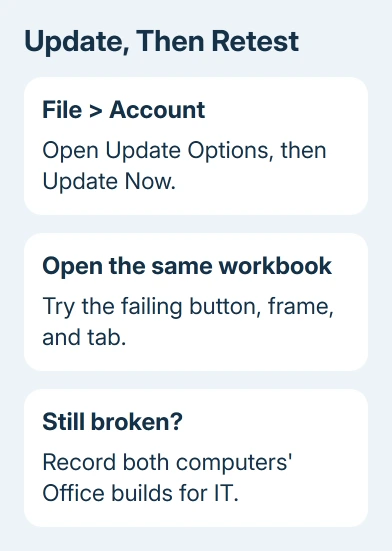
Check that the control appears when the code tells it to, accepts clicks or text, and still works when you reopen it after closing it. Opening the workbook without an error isn't enough.
One owner in the Microsoft discussion still had failing Frame and MultiPage controls after the early transparency patch. Version 1611 finally fixed those controls for them.
That sequence matters if you're reading old instructions. Version 1609 Build 7369.2054 was an intermediate fix, not the final successful build for that person's remaining symptoms. Don't stop at that old number on a preserved installation.
For current installations, follow Microsoft's Office update procedure for your edition. For a missing or company-controlled update menu, continue with the build comparison.
2. Record the edition and build on both computers
Open File > Account on each computer. Write down the installed product and its version/build beside the update controls. Open About Excel to record whether the installation is 32-bit or 64-bit.
Use the exact same workbook copy for the comparison. Two files with similar names can contain different form code, so a successful older backup doesn't answer whether the current file fails on both installations.
The original report compared failing Version 1609 Build 7369.2038 with an older working build. Older code failed on the updated computer too, pointing to the Office installation rather than a recent code edit.
If your company manages Office, send IT the working and failing build numbers, update channel if shown, plus a description of the failing control. Ask whether both computers can move to the same approved current build.
When Update Options is missing and only About Excel appears, that edition's updates may be handled through volume licensing or an IT policy. Don't replace its program folders with files from the other computer.
I'd compare the build numbers before spending an afternoon redesigning a working form. A difference between computers gives the person managing updates something concrete to act on.
If both installations are current and only one fails, keep going. The old update bug alone doesn't explain why only one computer still fails.
3. Tell a broken form from macros that never run
A UserForm is the custom window built in Excel's VBA editor. Its controls are the buttons, labels, lists, and text boxes placed on it. A frame groups controls; a MultiPage control contains separate tabbed pages.
Check how far the workbook gets. Does the form open and run some code, while certain controls stay invisible or don't respond? That matches the kind of behavior in the old update fault.
Does Excel instead display a security message and refuse to run the workbook's macros at all? That's a different starting point. Save the security message for IT and review where the workbook came from and which macro policy applies.
Don't enable all macros globally to solve a problem with one file. The Excel commands troubleshooting guide also separates editing restrictions from controls that stop responding after Excel has opened normally.
Try the form's actual sequence, not just its first screen. Select the option that should reveal a button, switch to the affected tab, and enter text in the field that previously ignored clicks. Note which action fails first.
If controls on the main form work but controls inside a frame don't, tell the maintainer which container holds the failing controls. That detail helps the maintainer focus on the affected part of the form.
4. Compare a small example without dismantling the workbook
Work on the spare copy. If you're responsible for its VBA code, try to make the same action fail in a small form using the same type of control. Keep the original workbook's data and code untouched while doing this.
For a visibility problem, record which action should change the control's Visible property, the setting that shows or hides it. For a transparency problem, note whether BackStyle behaves differently on the two installations.
Before replacing the code that responds to a click or another event, check that it runs and reaches the line changing the control. A control that displays incorrectly calls for a different repair from code that never runs.
A developer can set a breakpoint in the VBA editor to pause the code at that line. If you use a supplied business workbook, send the example and steps that trigger the problem to its maintainer rather than editing its working macro.
Problems opening a particular external query have a separate Office update check. Keep its error separate from the custom form's control failure.
5. Escalate a reproducible failure on a supported build
Send the workbook maintainer or IT team the affected file, the smallest example, both build numbers, and the sequence of actions. Strip confidential records out of examples sent outside the organization.
Ask them to run this small example in an updated, supported Excel release. If it also fails there, submit it through Excel feedback or your organization's Microsoft 365 support with the steps that make the control fail.
Support for the standalone Office 2016 product finished on October 14, 2025. If you're still using that standalone edition, plan an upgrade. Office 2016 won't receive another new patch.
The old thread includes people rolling back and copying Office's root folder. People tried those workarounds while the fault was current. The later update that fixed it is the useful part of that history.
The Short Version
Install your edition's current updates and retest the exact failing control. Compare Office builds before changing VBA, and give the workbook maintainer a small example if the fault survives on a supported build.
Checked November 17, 2026.
 If you have any business, I can build it online






