Excel runtime error 57121 at a worksheet-selection line can come from a UserForm control, even when the sheet name is correct. In a resolved Excel 2010 case, a TextBox's saved ControlSource link triggered the failure after compilation.
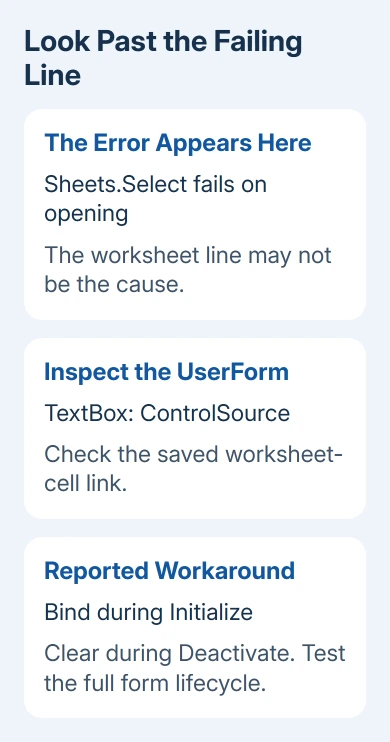
The workaround was to remove the link saved in the form's design and set it in code when the form loaded.
That specific pattern matters: compilation succeeded, then reopening the workbook failed. Check the forms and their linked cells before rewriting every Sheets.Select line.
In this guide
1. Check the failure after a full Excel restart
Work on a separate copy of the macro-enabled workbook. Leave the original alone while you test changes to the forms and their code. Exporting components is useful, but it doesn't replace having a complete workbook backup.
Record the exact error number and highlighted line. In the original case, Sheets("MainMenu").Select failed after compilation, but selecting a sheet by index failed too. A misspelled sheet name didn't explain both failures.
I'd try Save As with a new filename in the test folder before removing forms. Compile and reopen that copy. One owner said renaming and compiling worked; their report didn't explain the cause.
Another owner saved the workbook in Excel 2016 and then reopened it successfully in Excel 2010. If you have another desktop Excel version available, test that route on a copy and check the macros afterward.
Close every Excel window, reopen Excel and open the test copy. If you only close the workbook, an earlier macro can leave application settings changed.
If events are disabled, Excel can skip Workbook_Open, the code that runs when you open the file.
Open the Visual Basic Editor with Alt+F11, then use Ctrl+G for the Immediate window. Enter Application.EnableEvents = True and press Enter when you need to restore event handling after the failed startup code.
Save and compile, then test again after fully restarting Excel. If the workbook opens only because Excel skipped its startup code, test its opening again with events enabled.
If the error instead says that a sheet doesn't exist, verify its tab name and the workbook the code addresses. Don't jump to UserForm repairs for every worksheet error.
This procedure fits 57121 recurring after compilation in a project with forms.
2. Find the form that changes the result
In the Visual Basic Editor, open View > Project Explorer and locate the project's Forms group. Note which forms the workbook opens at startup and which controls are linked to worksheet cells.
The resolved discussion describes exporting the forms, removing them from a test project, then importing them individually and recompiling. The failing worksheet line stopped failing when the troublesome forms weren't present.
For a project you maintain, right-click a form and choose Export File before removing it from the test copy. Keep both the exported .frm file and its accompanying .frx file when one is created. They belong together.
Temporarily disable calls that show a removed form so the reduced test can compile. Use Debug > Compile VBAProject, save, quit Excel, then reopen the workbook. Write down exactly which forms were present for each test.
Restore forms one at a time and repeat that same compilation and opening sequence. If adding one form brings the error back, start checking that form. It doesn't mean the worksheet-selection statement needs a different spelling.
If you're a workbook user rather than its developer, send this step to the author. Removing forms can break business workflows and code references. The author can make a smaller test version while leaving your working copy alone.
3. Inspect every TextBox through the Properties list
Open the suspect UserForm in the editor and press F4 to show Properties. Use the object list inside that window's upper area to select each control. Don't rely only on clicking controls visible on the form.
In the original repair, a transparent TextBox with no value was missed during the rebuild. Adding it back brought the fault back. Its BackStyle made it hard to see, so checking the Properties list was the way to find it.
For each TextBox, inspect ControlSource and record the exact existing value. This property links the control to a worksheet cell. Changing the box can change the cell, and changing the cell can change the box.
The ControlSource reference explains that the saved linked value loads into the control.
Clearing that property removes the automatic link. Check afterward that the form still reads and saves cell values as intended.
Clear the suspect TextBox's ControlSource in the test copy, compile, save and repeat the fresh-opening test. If the error stops, keep the control and examine its cell link rather than rebuilding unrelated worksheets.
The person repairing the original project suspected an interaction with protected cells. The error didn't happen in their separate small workbook, so they couldn't confirm that protection fully explained it.
A later follow-up recalled unprotecting the linked sheet before assigning ControlSource. Have the author handle that sheet's protection in the form code, rather than removing protection throughout the workbook.
4. Move the confirmed link into the form's events
The reported workaround left ControlSource empty in the saved form design. It assigned the link in UserForm_Initialize and cleared it in UserForm_Deactivate. That changed when the cell link was active and kept the control itself.
Use the control's actual name and the exact link you recorded. For example, a developer might adapt this pattern inside the UserForm's own code module:
Private Sub UserForm_Initialize()
    Me.TextBox1.ControlSource = "Sheet1!A1"
End Sub

Private Sub UserForm_Deactivate()
    Me.TextBox1.ControlSource = vbNullString
End Sub
TextBox1 and Sheet1!A1 are placeholders for your control and linked cell. If those event procedures already exist, merge the assignments into them. Adding a second procedure with the same name creates another code problem.
Initialize runs when the form loads. Deactivate runs when it stops being the active window; unloading the form doesn't trigger it. Moving focus to a different application doesn't trigger it either.
Before using this workaround in your working file, check what happens when the form is hidden, unloaded and shown again.
Compile and reopen the test workbook, then open the form, edit its value and check the linked cell. Close and reopen the form using the buttons the workbook normally uses.
Check that the original error has stopped and that values still pass between the form and its linked cell as needed.
When the project still fails
Ask the workbook developer to review the smallest form set that brings back the error. Include your Excel version, the steps used to compile and reopen the file, the failing line and what changed when you cleared ControlSource.
With only the affected forms in the example, the developer has less to check than in the full business workbook.
An Inquire add-in runtime failure has a different repair path.
Likewise, a Power Pivot loading error involves an add-in and the components it needs. Neither explains this confirmed UserForm pattern.
The Short Version
For 57121 after compilation, check whether a UserForm's saved TextBox cell link triggers the failure. Test with events enabled, identify the form, then adapt the reported Initialize/Deactivate workaround with its developer.
Verify reopening and normal form use.
Checked November 17, 2026.