

Power Pivot's runtime error means Excel found the add-in but couldn't load it. For Excel 2010, check the Visual Studio Tools for Office runtime. In newer Excel, first check whether Office disabled Power Pivot.
The version matters here. Excel 2010 used a separate PowerPivot installation, so its old installer advice shouldn't be applied to Microsoft 365. Start with the steps for the Excel version on your PC.
In this guide
1. Check the Excel version and the load message
Open File > Options > Add-ins. Beside Manage, choose COM Add-ins, then Go. Select Power Pivot and read the load information. A checkbox that clears itself after you select OK means the component hasn't stayed loaded.
Record the complete message, especially A runtime error occurred during the loading of the COM Add-in. A missing ribbon with no error can simply mean the add-in hasn't been enabled. Those two situations need different checks.
In Excel 2010, use File > Help to find the product and version information. In newer Excel, open File > Account > About Excel. Record whether Excel is 32-bit or 64-bit, as well as the version number.
Don't choose an old PowerPivot package from the Windows system type alone. Excel can be 32-bit even on a 64-bit Windows PC. The separate Excel 2010 add-in must match your 32-bit or 64-bit version of Excel.
Keep a copy of important workbooks before changing installed components. These steps fix an add-in that won't load, rather than a worksheet formula or a model's sort order.
A worksheet-selection line failing after compilation needs the Excel 57121 form checks instead of another Power Pivot runtime installer.
If Power Pivot opens and only the report's month order is wrong, use the Power Pivot sorting checks. Continue here when the component itself won't load.
2. Restore Power Pivot in newer Windows Excel
For an Excel edition that includes Power Pivot, choose File > Options > Add-ins. Set Manage to COM Add-ins, select Go, check Microsoft Office Power Pivot, and confirm with OK.
Look for the Power Pivot ribbon tab. Select Manage there to open its window. A checked box isn't enough: the window needs to open without the loading error returning.
If its window opens but the import command does nothing, check From Other Sources before changing runtime components.
If the ribbon disappeared after Excel closed unexpectedly, return to Add-ins. This time choose Disabled Items in Manage, select Go, select Microsoft Office Power Pivot, and choose Enable.
Microsoft's Power Pivot startup instructions describe this disabled-item route. Excel can disable the component after deciding that it contributed to instability.
Close Excel normally, reopen it, and check the ribbon again. If it stays available, try your workbook. If the add-in immediately fails again, record that result and move to Office repair rather than repeatedly checking the same box.
If Power Pivot isn't listed, check your Excel edition. Ask your administrator whether your Windows Excel edition includes it. An old Excel 2010 package can't supply the modern feature your edition lacks.
When Solver and other checked extensions disappear after opening a Drive workbook, check the Google Drive integration as a separate loading problem.
3. Repair the runtime dependency in Excel 2010
For the original Excel 2010 error, one owner reported success after installing Visual Studio 2010 Tools for Office Runtime, then enabling PowerPivot again. This runtime supplies software the add-in needs while it starts.
Close Excel and the other Office programs before installation. Have your administrator obtain the runtime from the official download linked in the runtime installation instructions.
The runtime installer is named vstor_redist.exe. The instructions also require .NET Framework 4 or later and administrator rights. Ask IT to check those requirements against the old computer before running a replacement installer.

After installation finishes, reopen Excel 2010. Go back to File > Options > Add-ins > Manage: COM Add-ins > Go, check PowerPivot, and select OK. Check the dialog again: has PowerPivot remained selected?
Then open the PowerPivot tab and its management window. If the window loads, save your work and check again after a normal Excel restart. If the runtime error remains, the next check is the installed Office features and add-in package.
This is a repair for a legacy installation, not a reason to move a current workbook into Excel 2010. I'd have IT handle an old business PC's dependencies before replacing Office components that other add-ins also use.
4. Check Office Shared Tools on the old installation
Another Excel 2010 owner got PowerPivot loading after changing the Office installation to Run All From My Computer. Installing the runtime wasn't the fix in that case.
On that older Windows setup, open Control Panel > Programs > Programs and Features. Select the installed Office product, choose Change, and open the feature-selection option if offered.
Expand Office Shared Tools, choose Run all from My Computer, and let setup finish. Keep the original installer or your organization's installation source available if setup requests it.
Reopen Excel and enable PowerPivot through COM Add-ins again. If setup completed but the error hasn't changed, confirm that the separate PowerPivot package matches 32-bit or 64-bit Excel before arranging its repair or replacement.
A later reply said the matching-package and shared-tools suggestions hadn't helped that installation. The successful reports give you repair routes to try, but the same loading message can have different causes.
5. Repair the installed product when loading still fails
For current Windows Office, save work and close its apps. On Windows 11, find Office under Settings > Apps > Installed apps, open its menu, and choose Modify. Windows 10 uses Apps & features instead.
Click-to-Run installations offer Quick Repair and Online Repair. Start with Quick Repair; use Online Repair if needed. Older installer-based Office can offer a single Repair option through Control Panel.
If Excel also shows a different code error, try the hidden-module error checks. That message means Excel can't prepare the add-in's code to run. It needs different checks from this loading error.
When the component still won't stay loaded
Give IT your Excel version, whether it's 32-bit or 64-bit, the load message and the runtime check result. Include whether Disabled Items lists Power Pivot. Ask for a component repair or a move from Excel 2010 to supported Office.
The Short Version
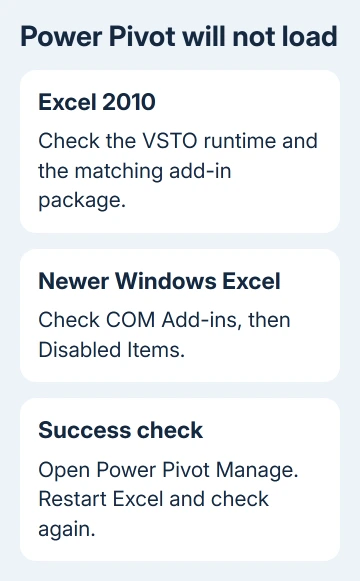
Use Disabled Items and COM Add-ins for newer Windows Excel. For Excel 2010, check the VSTO runtime, matching PowerPivot package, and Office Shared Tools. Confirm success by opening the Power Pivot window, then restarting Excel.
Checked November 16, 2026.






