

OneDrive showing only Libraries and Me for a new work account can mean its storage hasn't been created yet. Open that account's OneDrive in a browser first, then clear the Android app's data and sign back in.
That pattern differs from a missing upload button in one SharePoint folder. If personal files and other folders still appear, check that folder's controls instead. Use these steps when a new account's own files area is missing.
In this guide
1. Open the new user's own OneDrive online
In your browser, open the Microsoft 365 portal. Use the new employee's work or school login to sign in. Select OneDrive in the app launcher. Check the email address first, especially on a computer signed into an administrator's account.
Let the user's OneDrive finish its initial setup. Their own files area should open, even if it's empty. Reaching the Microsoft 365 home page or a shared team library isn't the same thing.
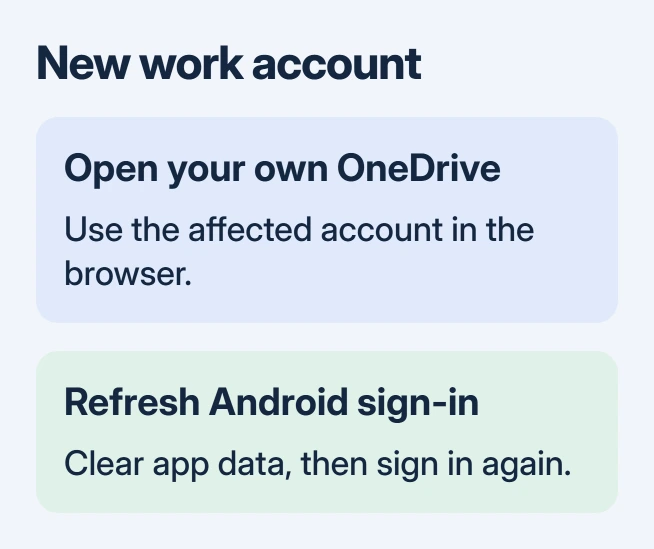
Microsoft's account creation guidance explains that a user's OneDrive is normally created when they first browse to it. This setup is called provisioning. Working email doesn't mean file storage has been set up.
In the original report, several newly created users had only shared libraries and Me on identical Samsung phones. An existing user's account worked on the same phone model. Account setup was a better place to check than the handset.
If the browser opens the user's file area, continue with clearing the phone app's data. If it reports no access, a missing license or an administrator restriction, stop there and have IT check the account before reinstalling the app.
For a team library that opens but won't let you add files, confirm editing permission separately. Viewing and editing access in OneDrive are different; signing in doesn't give you upload permission to every shared folder.
2. Clear the phone app's data from Android Settings
Before clearing app data, keep a separate copy of phone-only files, scans and pending uploads. Clearing the app's data signs you out and can remove locally available content.
Leave OneDrive and open the phone's Settings app. On Samsung, choose Apps > OneDrive > Storage > Clear data, then accept the confirmation. This is the phone's settings page, not the Settings screen inside OneDrive.
That location was the stumbling block in the confirmed missing-settings case. An owner couldn't find Clear data until the reply pointed them to Android's Apps and Storage pages. The online setup and app refresh then worked.
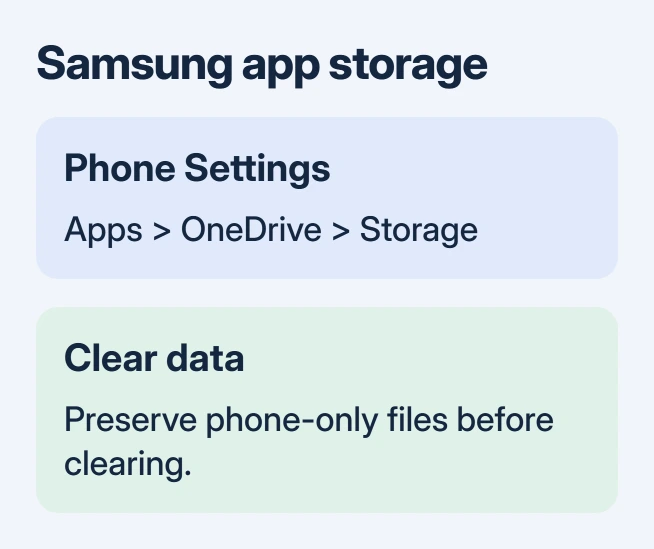
On other Android phones, the route can be Settings > Apps > See all apps > OneDrive > Storage & cache > Clear storage. Labels vary by manufacturer. Look for OneDrive's app-information page and its storage controls.
Clearing cache alone removes temporary files, but doesn't reset the saved account data like Clear data or Clear storage. In the reported fix, clearing data reset the app's saved account details after the online storage was ready.
If those controls are disabled on a managed phone, ask the help desk to refresh OneDrive's app data through the approved management tools. Don't remove the work profile or other company apps to reach one unavailable button.
Once the data is cleared, open OneDrive from your phone's Home screen. Expect a fresh sign-in prompt. If it immediately returns to another account's files, read that account's address before attempting any uploads.
3. Sign back in and check the account's file area
Enter the affected user's work address and complete the organization's normal sign-in prompts. If that address offers personal and work accounts, choose the work or school option.
Look for access to the user's own files alongside shared libraries. The navigation labels have changed since the 2019 report, so success means the correct account's own work file area opens and its file actions are available.
Open one existing file, or upload a harmless test document if your organization permits it. Confirm its destination is the intended account. An upload into a shared library doesn't check the new user's own OneDrive.
When the file area appears but a new empty SharePoint folder still lacks Add, use the empty-folder upload-button workaround. That older bug has a different trigger and doesn't require creating the user's storage again.
If the app looks normal under an older employee's account but not under the new one, record that comparison for IT. Use a permitted test account or have each person sign in themselves rather than sharing passwords.
Don't copy business files into a personal Microsoft account as a test. Check whether the affected work account can open its own storage, in the browser and then in the app.
4. Have IT check provisioning when online access also fails
Have your organization's Microsoft 365 administrator confirm that sign-in is allowed and a SharePoint license is assigned. OneDrive for work or school relies on that service, even when email is already working.
The administrator can pre-create users' OneDrive storage for a rollout instead of having each employee open it for the first time. That's an administrator task; phone users don't need to run PowerShell commands to fix their navigation.
Give IT the affected addresses, whether each user's OneDrive opens online, and when any license or account settings changed. A list of newly affected accounts helps them compare setup with a working employee's account.
If online storage opens correctly but the app still shows only libraries, update Microsoft OneDrive through Google Play and repeat the sign-in check. Use the current release rather than looking for the old version from the discussion.
For an app that also crashes or won't launch, follow the Android app repair instructions. Reinstallation is a later app repair, once you've checked that the account itself has storage.
If it still doesn't work, have IT open a OneDrive mobile support case. Include the phone model, Android version, OneDrive version and screenshots with addresses hidden. State whether the same account's own files work online.
The Short Version
First, open the employee's OneDrive online. Then clear OneDrive data through Android's app storage settings and sign back in. If the browser can't open that storage, have IT check licensing and provisioning before repairing the app.
Checked November 17, 2026.






