
The message "This access control entry is corrupt" points to a damaged folder permission rule. For personal files, check ownership and replace the entry; for Phone Link in WindowsApps, try app repair first.
In this guide
1. Identify the affected folder and account
Record the folder's complete path from the Properties window. A personal folder on a data drive needs a different approach from C:\Program Files\WindowsApps, which holds installed app packages and their special permissions.
An access control entry is a permission rule saying which account can do what. It doesn't mean Windows is telling you to delete the folder or the files inside it.
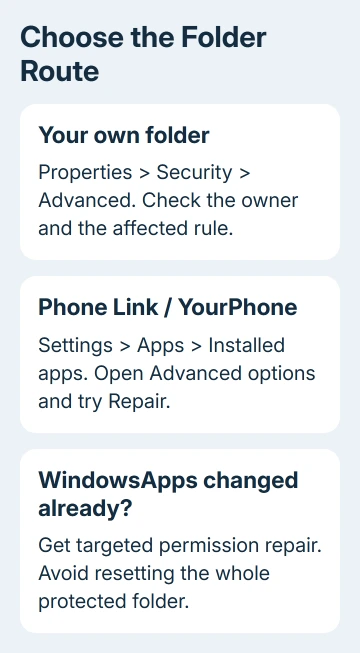
One owner fixed a YourPhone startup error by changing ownership through the folder dialog. That package is associated with Phone Link. Their fix applied to that error; resetting permissions across your entire drive is a much broader change.
Take a screenshot of the existing Owner line and permission entries before making changes. For personal files, copy readable documents to separate storage. Leave the affected folder where it is while checking the repair.
If the location belongs to a work or school device, send its administrator the path and message. Work and school accounts can have permission rules you can't safely copy from another computer.
If Properties has no Security page, restore the missing Security tab before trying to edit a folder rule.
2. Repair Phone Link when the error names YourPhone
For a Phone Link startup error, close the app and open Settings > Apps > Installed apps in Windows 11. Find Phone Link, open its three-dot menu, and select Advanced options if available.
Select Repair, then open the app again from Start. Repair keeps the app's stored data while attempting to fix it. Microsoft's app repair instructions explain this route.
On Windows 10, use Settings > Apps > Apps & features, choose the affected app and open its Advanced options. An older installation can list it as Your Phone rather than Phone Link.
If Repair doesn't help and Reset is offered, remember that its local app data and sign-in information will be erased. Plan to reconnect your phone afterward, then select Reset and accept the confirmation.
Test both opening the app and restarting Windows. If opening the app works yet sign-in still brings up the message, check its startup item too. The message may still point to an old package path.
If you don't want the app to launch at sign-in, open Settings > Apps > Startup and turn it off if it's listed. This stops the startup attempt; it doesn't fix folder permissions. Check that the app opens too, even if the message has stopped.
3. Recover ownership of a personal folder
Use this section only for a folder containing your own files. Don't apply it to WindowsApps, Windows, Program Files, or the root of the system drive. Those locations need their existing system accounts and permissions.
Right-click the affected folder, select Properties > Security > Advanced, and read Owner at the top. If Windows offers Continue to view the permissions with administrator access, use it and approve the prompt.
Select Change beside Owner. Type the account name of whoever should own the folder and select Check Names. Check that Windows finds the right account, then choose OK. Apply the ownership change, then reopen Advanced Security Settings.
Ownership and permission to read files are separate things. Changing the owner lets that owner manage the rules; it doesn't automatically give every account access to the contents. The ownership rights reference explains that distinction.
To change ownership of the files and folders inside it too, select the ownership checkbox mentioning subcontainers and objects. Use it only when all those files and folders belong to you, since it changes more than the top folder.
If the controls are still disabled after reopening the dialog, check that you're signed in with an account allowed to administer this PC. Don't enable a hidden administrator account simply to work around an unknown folder policy.
4. Replace only the damaged personal-folder rule
In Advanced Security Settings, inspect the affected entry's account, access level, Applies to field, and Inherited from column. These details show what the damaged rule allowed and whether it came from the folder containing this one.
For a rule added directly to your own folder, select the damaged entry and Remove. Then choose Add > Select a principal, type that account's name and select Check Names. Choose the access that account actually needs.
For ordinary personal-file editing, Modify permits reading, changing, and deleting files. Full control also permits changing permissions. Don't give a broad group full control to solve one account's damaged entry.
Set Applies to for the files that need this rule, confirm, and apply it. After closing Properties, test access with the account you chose. Reopen the entry too: the corruption message should be gone.
If Inherited from names a parent folder, repair the rule at its source with the parent's owner or administrator. A disabled Remove button can mean the child is inheriting the rule, rather than that Windows has ignored your click.
5. Get targeted help for protected app folders
I'd avoid recursive ownership and Full control commands on WindowsApps. They change thousands of app files and can leave the app with the wrong permissions. Our WindowsApps permission repair guide covers an already altered folder.
For a personal folder named C:\Personal, an administrator can inspect its rules with icacls C:\Personal /verify. This checks whether the permission list is formed correctly; it doesn't rebuild the permissions an app needs.
If app repair failed, open Get Help with the affected folder's full path, startup error, and any ownership commands you've used. Ask for repair of the affected app package permissions. Include whether other Store apps still open.
For a personal folder still refusing access, show a technician the original owner and permission screenshots. Ask them to recover access to that folder while keeping the right accounts and permissions.
The Short Version
Repair the affected app first for a YourPhone or WindowsApps error. On a personal folder, recover ownership if needed and replace the damaged rule with the correct account and scope, then test access.
Checked November 17, 2026.






