
A missing Security tab can mean the folder is on FAT32 or exFAT storage, or that Windows is hiding the permissions page. Check the drive's file system first. For an ordinary local NTFS folder, check the Remove Security tab policy next.
Windows 11 Home can show the Security tab on NTFS folders. Home doesn't include the Group Policy Editor, but you don't need to upgrade to Pro to get the tab.
In this guide
1. Check the drive format before changing Windows
In File Explorer > This PC, right-click the drive holding the folder and choose Properties. Read File system on General. For a folder on an external drive, check that drive rather than the Windows disk.
NTFS supports Windows file and folder permissions. FAT32 and exFAT don't offer that same permissions system, so a missing Security tab there isn't a broken Windows interface to restore with a registry tweak.
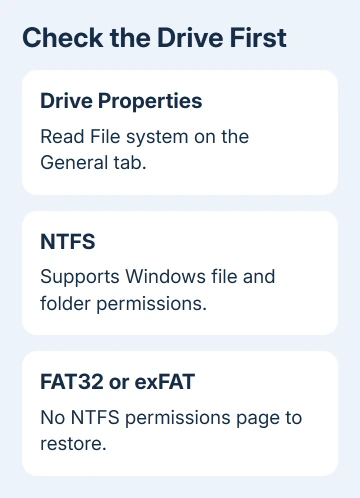
If the data is on FAT32 or exFAT, leave its format alone while you still need the files. Moving a copy to an NTFS drive lets you check the folder there without erasing the original device.
The USB format comparison explains the compatibility tradeoffs before changing a removable drive. A format chosen for phones, cameras or other devices may be more useful than Windows permission controls.
In the original Windows 11 Home report, both drives were already NTFS. That ruled out the first suggestion, and one owner confirmed success with the linked Security tab restoration tutorial.
The owner didn't name the registry entries they changed. That confirms the tutorial helped them, but it doesn't tell us which registry change worked or explain every missing Security tab.
2. Compare an ordinary local folder
In your local Documents location, create a temporary folder. Right-click that folder and select Properties. Check the actual folder rather than This PC, a library, a search result or a compressed archive entry.
Those views don't all have the same property pages as an ordinary folder. Checking a local NTFS folder tells you whether the tab is missing in just one location or in regular folders throughout your account.
If the test folder has Security, return to the original folder's real location and inspect its drive or service. For a network share, ask the administrator about server permissions rather than changing the client PC's local policy.
If every ordinary NTFS folder is affected, continue with the policy check. When the drive itself has Security but its folders don't, report that distinction too. Support needs to know which Properties windows are affected.
Close and reopen each Properties window after a change. A window you left open can still show the old setting. Use the same temporary folder for each comparison.
3. Restore the policy on Pro, Enterprise or Education
Press Windows + R, type gpedit.msc, and press Enter. On Windows editions that include this editor, open User Configuration > Administrative Templates > Windows Components > File Explorer.
Find Remove Security tab and open it. Set it to Not Configured or Disabled, then click Apply > OK. Enabled hides the tab; Disabled allows it. The wording is easy to reverse because the policy names the removal action.
Microsoft's Security tab policy explains that behavior. The policy affects the Properties windows for folders, files, drives and shortcuts.
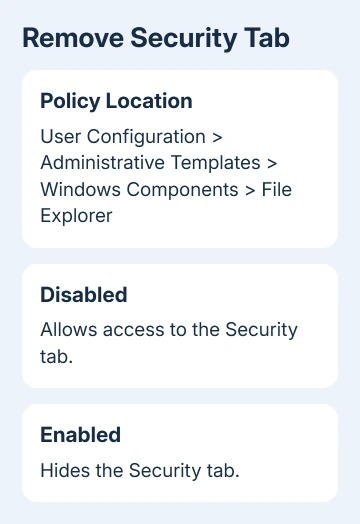
Sign out of Windows and sign back in, then reopen the test folder's Properties. If Security returns, the page was being hidden. Getting the tab back doesn't give you permission to change somebody else's files.
If Security returns but reports a corrupt access control entry, inspect the affected rule and folder owner next.
Leave managed policy changes to IT on an organization-owned PC. A domain or device-management policy can apply again after a local change. Request a review of the Remove Security tab user policy for the affected account.
If gpedit.msc can't be found on Windows 11 Home, continue with the registry check. Don't install an unofficial Group Policy Editor package just to reach a single setting.
4. Check the current user's registry policy on Home
Press Windows + R, enter regedit, and approve the prompt. Navigate to HKEY_CURRENT_USER\Software\Microsoft\Windows\CurrentVersion\Policies\Explorer. This is the user policy location listed for NoSecurityTab.
Before changing an existing key, select it and use File > Export to save a backup. Keep the export somewhere you can identify later. Change only the value described here rather than importing an unrelated collection of registry fixes.
Look for NoSecurityTab in the right pane. If it exists and its data is 1, open it and set the value data to 0. Close Registry Editor, sign out of Windows and sign back in, then check the same local folder again.
If that value or the Explorer policy key isn't present, don't create a hiding policy to repair a missing page. If it's missing, this user policy hasn't explained the problem. Check another account next.
This checks one user policy; it won't repair every possible cause of a missing Properties tab. The tutorial that helped the original owner may have changed other entries too.
If a setting returns to 1 after sign-in, check whether the PC is managed or whether a customization tool is applying it. Repeating the edit without checking what restores the value won't stop the setting from returning.
Does the tab appear in another account?
Sign in to another existing Windows account and open Properties on a normal NTFS folder that account can access. If Security appears there, focus on the original account's policies or settings.
If no second account exists, an administrator can create a temporary local test account through Settings > Accounts > Other users. There is no need to move your documents or replace your main profile just to compare a property page.
If Security is present but a folder still won't open, the external-drive access guide covers a different failure. Showing the permissions page and being allowed to read its files are separate checks.
When the tab is absent across accounts, use Get Help or your administrator. Give them the Windows edition, drive format, local-folder result and whether the drive's own Properties still has Security.
Ask them to check how the Properties tabs are configured, as well as the policy, before suggesting a reinstall. Keep the registry backup and the name of any customization utility used just before the tab disappeared.
The Short Version
Check the file system and a real local folder first. NTFS folders can show Security on Windows 11 Home. On supported editions, disable Remove Security tab; on Home, check the documented NoSecurityTab user value before seeking deeper repair.
Checked November 17, 2026.






