

An outdated Explorer customization app can remove Windows 11's address bar and tabs after an update. Update or remove StartAllBack if installed. If folder names remain visible, try Ctrl + L to edit the path instead.
In this guide
1. Tell a hidden path from a broken toolbar
Open File Explorer with Windows + E, then press Ctrl + L. In a normal Explorer window, this selects the location field for typing or copying a folder path. Alt + D is another shortcut for selecting it.
Folder names separated into clickable parts are normal. The address area doesn't always show an editable text box until you select it. That appearance is different from the whole toolbar or tab row disappearing.
If Ctrl + L selects the path, copy it or type the destination you need and press Enter. Our File Explorer address bar guide covers normal path editing and navigation.
If the shortcut doesn't reach an address area and the tabs are gone too, check customization software next. The owner who fixed this had a window with an older Explorer layout and Windows 11-style icons.
Press F11 once if Explorer is in full-screen mode, then check the toolbar again. That rules out full-screen mode before you change installed software. If the window frame returns without the address area, check the customization apps next.
2. Check whether StartAllBack is installed
Open Settings > Apps > Installed apps and search for StartAllBack. Also note any other program installed to change Explorer, the taskbar, or the Start menu. An app can alter Explorer even when you haven't opened its settings recently.
Updating StartAllBack restored both controls for one owner who reported the result on Microsoft's forum. Their problem appeared after a Windows update on Windows 11 Home 22H2, build 22621.3593.
That fix was for a compatibility problem on an older build, so don't install that build to copy it. Check that your customization app supports the Windows version you're using.
Press Windows + R, enter winver, and record the complete build number alongside the Windows release. Check the app version in its About or settings screen. Its support team needs both numbers after an update changes Explorer.
If StartAllBack isn't installed, don't install it to fix this error. Move to other shell customization apps you already use, or the ordinary Explorer restart if there are none.
3. Update the customization app or remove it temporarily
Look in the customization app's settings for its updater, and follow its restart instructions. Keep the update specific to the app you've identified rather than installing a second tool that also modifies Explorer.
To check whether removing the app helps, save your documents and uninstall StartAllBack through Settings > Apps > Installed apps > its three-dot menu > Uninstall. Follow the uninstaller, then restart the PC.
Open Explorer with Windows + E again. Check that the address area is present and Ctrl + L selects it. On a Windows 11 installation that normally supports Explorer tabs, check for the tab row too.
If those controls return after you remove the app, the app was involved in the problem. You can leave it uninstalled or return to a version that supports your Windows build. Don't reinstall the incompatible package for its familiar taskbar.
If a different shell tool is installed, use that publisher's supported disable or uninstall procedure and test after restarting. Restart and check Explorer after changing each app separately.
Avoid downloaded registry files claiming to restore an old Explorer layout. They introduce another change before you've found out why the current layout failed, and can make the next compatibility check harder.
4. Restart Explorer when no customization app explains it
Save work and wait for any file copy or move to finish. Press Ctrl + Shift + Esc to open Task Manager. Find Windows Explorer in Processes, right-click it, and select Restart.
The taskbar and open folder windows can briefly disappear while the desktop reloads. Open a fresh Explorer window afterward and check the address area again. This reloads the desktop and file manager without reinstalling Windows.
If Windows Explorer isn't listed, open a folder with Windows + E and look again. When Task Manager itself won't respond, save what you can and use Start > Power > Restart instead.
A working toolbar after the restart suggests a temporary Explorer failure. If it breaks again at sign-in, note which customization or startup apps load before the problem appears. Our Explorer not responding guide covers broader freezes.
If only one folder window looks wrong, close that window and open another location. Don't reset the whole PC when only an old window that hasn't refreshed looks wrong.
5. Repair Windows files if the normal shell stays broken
Open Settings > Windows Update, install available updates, and restart. Then check a new Explorer window before moving to system-file repair. Until you restart, Windows might not have finished applying its updates.
If the problem remains with customization apps removed, follow the system-file repair procedure. Search Start for Command Prompt and select Run as administrator.
Run DISM.exe /Online /Cleanup-image /Restorehealth and wait for successful completion. Then run sfc /scannow and let verification finish. These commands repair Windows files; they don't change how you've arranged your folders.
Record any failure message and restart after the repair. Check both the address area and the tab row in a new window. If they remain missing, give Get Help your Windows build number, a screenshot, and a list of removed shell tools.
I'd get Explorer working before turning appearance changes back on. Once you can use your folders normally, it's easier to see whether reinstalling a customization app brings the problem back.
The Short Version
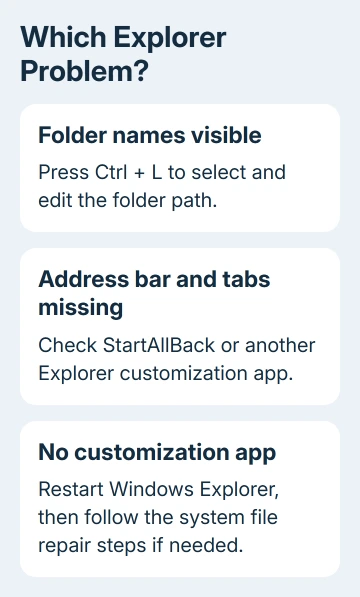
Try Ctrl + L for an address area showing folder names. If the address bar and tabs are both missing, check StartAllBack or another Explorer modification, then restart Explorer and repair Windows files if needed.
Checked November 17, 2026.
 If you have any business, I can build it online






