

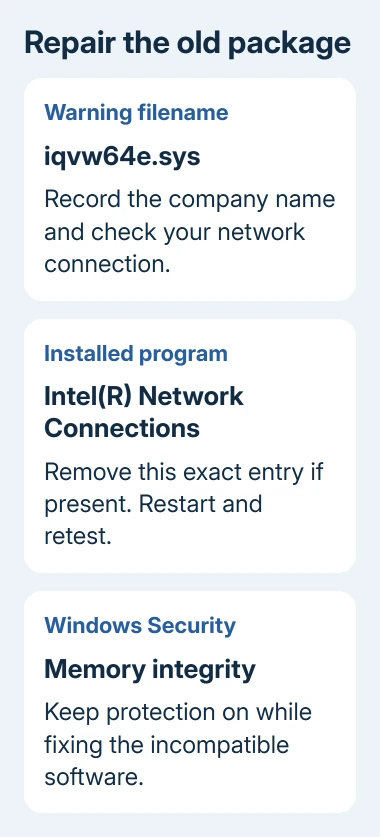
The iqvw64e.sys warning means Windows is blocking an Intel network diagnostic driver. If Intel(R) Network Connections is installed, removing that older software can stop the warning while keeping Memory integrity turned on.
Start with the installed program instead of renaming a Windows file. Owners confirmed uninstalling the Intel package cleared the message, but other software can supply the driver too. Check which software supplies it before uninstalling.
In this guide
1. Confirm the filename and check your connection
Read the warning carefully and record the filename plus its listed company. This procedure is for iqvw64e.sys. A different filename, such as ene.sys, needs the software that supplies that particular driver.
Windows can start normally even while it blocks this driver. Check whether your internet connection and usual network features still work. The popup can appear even when the network adapter you're using works normally.
Memory integrity helps protect Windows from unsafe code running at a low level in the system. Microsoft's driver-loading guidance recommends checking for a compatible driver from the manufacturer or Windows Update.
I'd keep that protection on while repairing the old software. Turning it off changes the security setting and may allow a blocked driver to run, but it doesn't replace the driver with a compatible version.
Before uninstalling, save the correct network-driver installer on your PC so you can use it without internet access, or arrange another connection. On a company PC, send IT the warning and ask whether a required utility supplies it.
2. Uninstall Intel Network Connections if it is present
Search Start for Control Panel, open Programs > Programs and Features, and look for Intel(R) Network Connections. Select that exact entry and choose Uninstall or Uninstall/Change, then follow its removal prompts.
This list shows your installed programs. Don't substitute Device Manager > Network adapters and remove every Intel device there. The utility removed in the successful report is separate from your adapter's working network driver.
Save your work and restart when removal finishes. Read any message from the uninstaller before dismissing it, especially if it reports that removal couldn't complete or needs a reboot.
An owner on Microsoft's forum cleared the warning by uninstalling Intel(R) Network Connections and restarting Windows. Later replies also supported removing the old package instead of disabling Memory integrity.
After signing back in, look for the warning and test that your connection works. Browse to a familiar page or test the network task you normally use. Check both: the warning should be gone, and your connection should still work.
If networking stops, use the model-specific driver installer you prepared or ask the PC manufacturer for recovery help. Don't reinstall an old package solely to remove a new connection problem without checking its Windows 11 support.
If there is no Intel Network Connections entry, stop at that point and use the next section. Uninstalling an unrelated Intel graphics or wireless app because its publisher matches isn't the same procedure.
3. Identify another program that supplies the driver
Open Settings > Apps > Installed apps and review older network-management or hardware-diagnostic utilities. Note their names and versions. A PC manufacturer's support tool can include components that aren't listed as a separate Intel app.
To check a file's location, search This PC in File Explorer for iqvw64e.sys. The search may take time. If a result sits inside a named program folder, record its full location and check that program's update or uninstall instructions.
Use the location as information for support, not as an instruction to delete the file. A result under C:\Windows\System32 doesn't identify which installed program originally supplied it.
One suggestion in the forum thread was to rename the file, but the asker couldn't find it and didn't report success. There isn't enough support there to make manual renaming the next repair step.
If the package belongs to a manufacturer utility, use that utility's supported update or normal uninstall process. Ask its support team specifically whether the current version removes or replaces iqvw64e.sys for Windows 11.
The Windows driver update guide explains how to match a download to the actual device. The PC model and adapter model matter more than the presence of an Intel logo somewhere on the computer.
4. Check compatible updates without changing security
Open Settings > Windows Update and select Check for updates. Install applicable updates, then check Advanced options > Optional updates > Driver updates if that section is offered.
Review the device name before selecting an optional driver. An empty driver list means that Windows Update has nothing to offer in that list; it doesn't tell you that an older diagnostic utility has been removed.
If Windows Update has no suitable package, use the PC manufacturer's support route for your exact model. Request a Windows 11-compatible network or diagnostic package. A similarly named Linux download won't replace its Windows driver.
In the forum thread, the asker downloaded an OS-independent Linux package and extracted it, but the popup remained. Extracting that archive didn't replace the Windows driver that was trying to load.
Restart after a supported update and check the warning again. If it now names another file, record the new name separately. Fixing one blocked component doesn't resolve a second incompatible driver automatically.
5. Verify protection and escalate a remaining warning
Open Windows Security > Device security > Core isolation details and read Memory integrity. If it was on, check it remains on. Keep your chosen security setting and fix the incompatible software.
A separate Device Manager error on the network adapter needs its own check. Record its code along with the popup, especially if the network connection itself isn't working.
If the warning remains after you uninstall the utility or install its current supported package, contact the PC or utility manufacturer with the filename, company, file location, installed-app version and Windows build from winver.
Ask which component still tries to load the driver at startup and request a compatible replacement or safe removal steps. If the supplier is unclear, open Get Help and request Windows driver-compatibility support with those details.
The Short Version
Remove the older Intel Network Connections package if installed, then restart and check networking. If another app supplies iqvw64e.sys, use its supported update or removal process while keeping Memory integrity on.
Checked November 17, 2026.
 If you have any business, I can build it online






