

A blank Error window when selecting or opening ZIP files can come from an extension loaded into File Explorer. Disabling the faulty extension worked for several owners, including two who traced it to Autodesk software.
Start with that extension check when the message has only an exclamation mark and an OK button. A message naming a corrupt archive, a missing password or a destination folder is a different problem and needs a different repair.
In this guide
1. Match the blank window before changing anything
Open the folder containing an affected ZIP and select the file once. Note whether the empty Error window appears immediately, before you choose Extract All or launch an archive program.
In the confirmed reports, selecting, opening, right-clicking and extracting ZIPs could all trigger the same window. That pattern matters: Explorer can load another program's file-handling code before extraction starts.
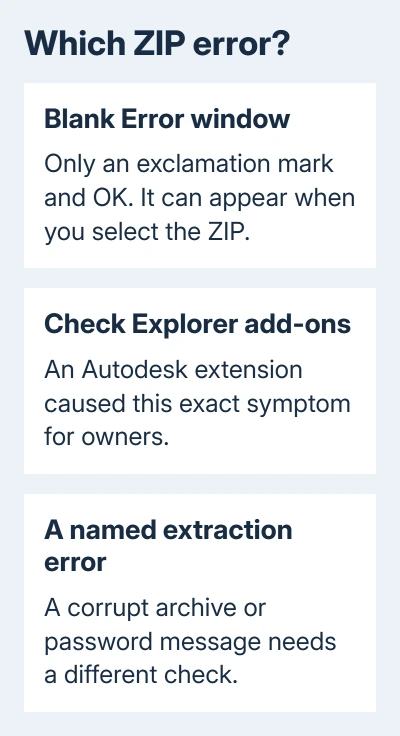
Explorer add-ons, called shell extensions, provide extra commands, previews or file details. A broken one can affect files unrelated to the program it belongs to. Installing a design program can therefore disrupt ZIP browsing.
Compare with another ZIP already on your PC. If only one download fails with a specific extraction message, use the normal ZIP opening checks instead of changing Explorer add-ons.
If every affected archive produces the same empty dialog, continue with the extension check. I'd try this before repairing Windows because owners resolved the exact symptom without reinstalling the operating system.
2. Disable the Autodesk handler if it's present
Get ShellExView from its official NirSoft page. The utility lists Explorer extensions and can disable one without removing its parent program. Match the utility download to the system type listed for your PC.
For Windows 11 on Intel or AMD hardware, use the x64 package. Check Settings > System > About > System type if unsure. On an Arm-based PC, ask the utility's publisher about compatibility before using this procedure.
Extract the downloaded utility into its own folder and open it. In Options, select Hide All Microsoft Extensions so the list shows add-ons installed by other software.
If the utility's own ZIP brings up the error and you can't extract it, the official page also offers a self-install executable. Use that download to reach the extension list without having to extract the utility first.
Look for Autodesk Inventor Part in the extension names. Two owners identified Autodesk extensions; one named this entry. Check it first if present. Removing every Autodesk application isn't necessary.
Select that entry and choose File > Disable Selected Items. Leave Microsoft extensions alone. Disabling an entry is reversible, so record its name before changing it.
Finish any Explorer file copies, then use Options > Restart Explorer. Folder windows may close and the taskbar may briefly disappear while Explorer reloads. Test the ZIP again in its original folder.
If the error is gone, leave that entry disabled and look for a newer release of the application it belongs to. Check that the ZIP action works again; a changed icon in the utility alone doesn't tell you that.
3. Find another extension when Autodesk isn't installed
The person who asked the question said disabling an extension stopped the error, but didn't name it. Autodesk is a confirmed example, not the only possible cause. Don't install Autodesk software just to look for that entry.
Keep Microsoft extensions hidden. Record which non-Microsoft entries are already disabled, then disable the enabled third-party entries as a group. Keep that list handy when you restore the original configuration.
Restart Explorer and repeat the ZIP selection or right-click. Explorer integrations from other applications can temporarily disappear during this test, including extra context-menu commands. The applications themselves remain installed.
If the empty dialog stops, re-enable one of the entries you changed, restart Explorer and repeat the same ZIP action. Continue until re-enabling a particular entry brings the window back.
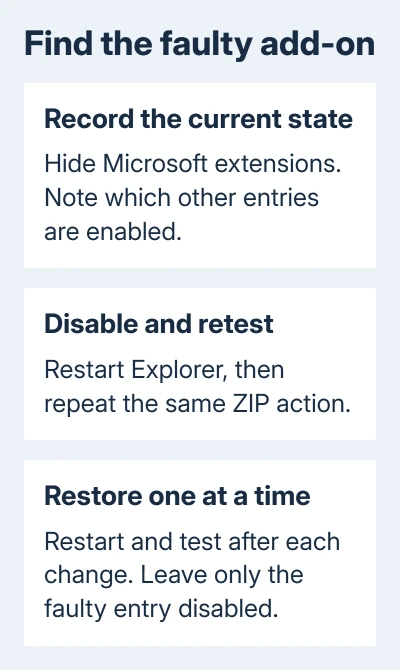
Disable that entry again and confirm the ZIP action works. Restore the other entries you changed. You'll have one add-on to repair, with the other features working again.
If the error continues with those extensions disabled, return them to their recorded state. If the error stays, this test hasn't pointed to an extension. Repeating it with the same entries won't help.
4. Repair the application behind the faulty entry
Read the extension's Company and Filename columns to find the program it belongs to. A DLL is a component loaded by an application, not a document to open. Its folder can help identify which installed product needs attention.
Open that product's update or repair controls and check its official support instructions. With several Autodesk products installed, give support the extension name and DLL path rather than assuming every product needs removal.
After updating or repairing the product, re-enable its entry in ShellExView and restart Explorer. Test the same ZIP again. If the empty window returns, disable the entry and report that result to the application publisher.
Missing archive commands afterward are a separate issue. The 7-Zip menu guide covers its integration setting and Windows 11's Show more options menu.
For ordinary, unencrypted ZIP archives, Windows has its own extraction command. Microsoft's ZIP instructions describe right-clicking the archive and choosing Extract All.
Use a new destination folder and check the extracted contents. If extraction works after the extension change, your original ZIP task works again. You don't need to change which app opens every archive type.
When the empty error remains
Give the application publisher the extension name, filename, Windows version and exact action that triggers the dialog. Include whether disabling that one entry removes the error and whether the latest product update changes the result.
If changing extensions didn't help, open Get Help from Start for Windows support. Describe the blank dialog, whether selection alone triggers it, and whether several archives are affected. This helps distinguish it from a damaged download.
The Short Version
For the empty ZIP Error dialog, check Explorer extensions first. Autodesk Inventor Part was a confirmed cause for one owner. Disable the faulty entry, restart Explorer, then update the program it belongs to and restore unrelated extensions.
Checked November 17, 2026.
 If you have any business, I can build it online






