A write-permission error during an app update doesn't always need new folder permissions. For one owner updating Malware Hunter on Windows 11, reinstalling the app worked after an administrator installer attempt failed.
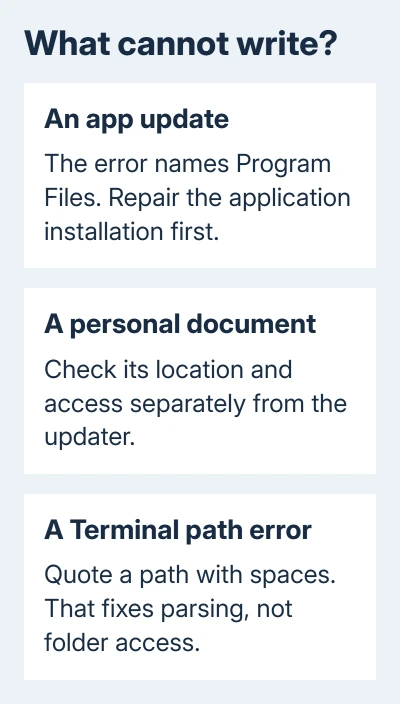
That distinction matters when the error points into Program Files. Start with the application's installation before giving your account control of its folder. A personal document you can't edit needs a separate access check.
In this guide
1. Check whether the update or an ordinary file is failing
Write down the error's full folder path. C:\Program Files and C:\Program Files (x86) contain installed software. An updater failing there needs different attention from a document that won't save in Documents.
Write down the application name, installed version and the action that failed. Keep the exact error text, especially if it names a file in the app's installation folder. These details give its support team something specific to check.
In the original case, the owner tried changing CREATOR OWNER permissions for the Malware Hunter folder. They also tried changing file attributes from Terminal. Neither fixed the update.
CREATOR OWNER is a special permissions entry used when permissions pass to newly created items. It isn't another spelling of your signed-in account. Changing it isn't a required update step.
If the failure happens only during this app's update, continue with its installer. If unrelated documents also refuse to save, record those locations separately. One failing updater isn't a reason to rewrite access rules across the drive.
2. Try the installer with the permission it needs
Close the application and get its current installer from the publisher's official download page. Check the product name and edition instead of selecting a lookalike utility advertised alongside it.
Right-click the setup file and select Run as administrator. Check that the User Account Control prompt names the expected installer before approving it. A standard Windows account may need an administrator's sign-in details.
Start the update and watch for it to finish. Afterward, look at the version shown inside the app. An installer that closes without changing the version hasn't necessarily completed the update you wanted.
Running a normal Explorer window with a different shortcut isn't the same action. The administrator tool guide explains why the installer itself is the program that needs the extra permission.
In the confirmed Malware Hunter case, this administrator attempt didn't work. Try it once, then move to the reinstall if the same write-permission error returns. Repeated approvals won't repair a broken installation.
3. Reinstall the affected application
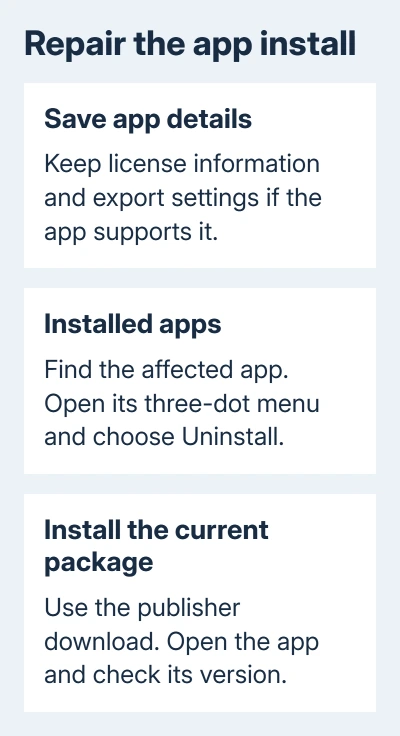
Before removing the app, save its license details and any settings the publisher lets you export. Uninstall options can remove preferences, so check what the confirmation says before accepting it.
On current Windows 11, open Settings > Apps > Installed apps. Find the application, open its three-dot menu, and select Uninstall. Earlier Windows 11 builds can show the list as Apps & features.
On Windows 10, open Settings > Apps > Apps & features, select the program and choose Uninstall. Follow the application's own removal prompts and restart if its uninstaller requests it.
If the entry isn't removable there, open Control Panel, then Programs > Programs and Features. Select the desktop program and choose Uninstall or Uninstall/Change. Microsoft's app removal instructions describe both locations.
Install the publisher's current package, then check the version and update controls inside the app. The owner in the saved thread confirmed that uninstalling and reinstalling fixed their problem.
I'd reinstall before taking ownership of the program folder. Reinstalling fixed this installation problem, and it doesn't leave broad permission changes behind. Other apps don't need removal just because this updater fails.
If removal itself fails, note its error separately. Stop at that failure and use the publisher's removal instructions or support service; manually deleting its Program Files folder can leave the installation registered but incomplete.
4. Don't confuse attributes with access permissions
An attrib command changes file attributes such as read-only or system. It doesn't grant your account permission to write to a protected folder. The folder's Security tab controls access permissions.
Spaces and parentheses in a path are another issue. In a command that accepts a path, quote the complete path so the command reads it as one path, for example "C:\Program Files (x86)\Glarysoft\Malware Hunter".
Adding quotation marks made the owner's Terminal command accept the path. The update still failed: correcting the command hadn't repaired the app's installation.
Don't copy the old attribute command as an update fix. File attributes weren't the setting that needed changing in this case. The attrib reference lists the attributes that command actually controls.
If you've already changed permissions, tell the application publisher exactly which folder and entries you changed. There isn't a universal permissions reset that safely fits every installed program and every folder on the PC.
When the reinstall still can't write
Send the application's support team the error, installer version and affected path. Ask about cleanup or permission-repair steps for that app. Tell them whether uninstalling completed and whether other apps update normally.
For an employer's or school's PC, send IT the error details before attempting any ownership changes. Their installation policy or security rules need an administrator's attention if setup asks for sign-in details you don't have.
If your own documents are affected too, give support an example file and its location. They can check whether account access, a locked file or a restricted storage location explains that separate failure.
The Short Version
Try the installer as administrator, then reinstall the app if its Program Files write error remains. Reinstalling fixed the Malware Hunter case. Quoting the path corrected command syntax; changing attributes didn't fix the update.
Checked November 17, 2026.
 If you have any business, I can build it online