File Explorer isn't a dependable way to open a separate administrator file manager in Windows. Use administrator PowerShell for a protected copy, or run the installer itself as administrator when installing software.
A folder's Continue button is another case: it can change permissions permanently. That is different from opening the folder once with extra rights, so decide which task you need before accepting it.
In this guide
Match the administrator action to the job
In Windows 10 and 11, everyday apps normally have limited rights even under an administrator account. Run as administrator requests extra permission for a particular program through User Account Control, usually shortened to UAC.
That permission doesn't automatically apply to Explorer windows that are already open. Starting explorer.exe from an administrator command window isn't a reliable way to give Explorer administrator rights.
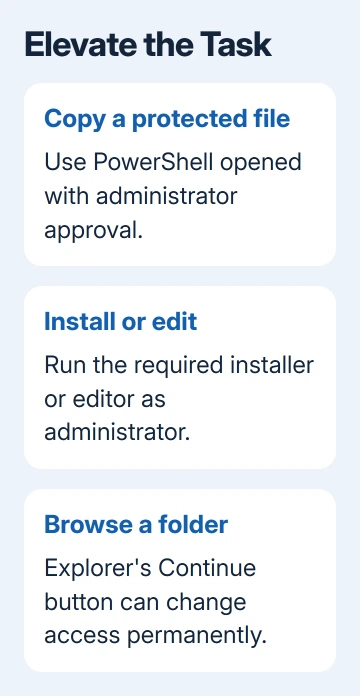
For most jobs, choose the program that actually needs access. An installer needs its own approval. A protected file copy can use PowerShell. For a folder you need regularly, ask its owner to review your access permissions.
Microsoft's explanation of Explorer folder access recommends elevated tools such as Command Prompt or PowerShell when the goal is to avoid changing a folder's permissions.
Don't disable UAC to make this easier. It changes protection across the system without giving you a way to limit the extra access to this one job.
Open an administrator PowerShell window
On Windows 11, right-click Start and select Terminal (Admin). Approve the UAC prompt, or enter an administrator's credentials when requested. If another shell opens, select Windows PowerShell from Terminal's tab menu.
On Windows 10, search Start for Windows PowerShell. Right-click the result and select Run as administrator. This route also works on Windows 11 if you prefer opening PowerShell directly.
Check the window title for Administrator before entering a command. A normal Terminal window and an administrator Terminal window can look very similar, especially when they use the same color scheme.
If the prompt asks for an administrator password you don't have, stop there. A standard account can't give itself administrator rights. Ask the PC's administrator to do the job or grant the access you need.
Keep the original File Explorer window open to read paths. It can show where the source file lives while you use the separate PowerShell window to copy it. Leave Explorer running.
Copy one file without opening the whole folder as admin
Find the file in Explorer and use Copy as path. On Windows 11 it appears in the file's context menu. On Windows 10, hold Shift while right-clicking to reveal that choice.
First check that the destination folder exists and is the one you want. In administrator PowerShell, use Copy-Item with the source's exact path and a destination file name. This example uses placeholder folders:
Copy-Item -LiteralPath 'C:\Source Folder\report.txt' -Destination 'C:\Target Folder\report.txt'Replace both paths before running it. Single quotes keep spaces together, and -LiteralPath treats the source as an exact name instead of interpreting characters such as brackets as a search pattern.
Choose a destination name that isn't already in use if you need to preserve an existing file. The example copies one file; it doesn't move the source or copy an entire directory tree.
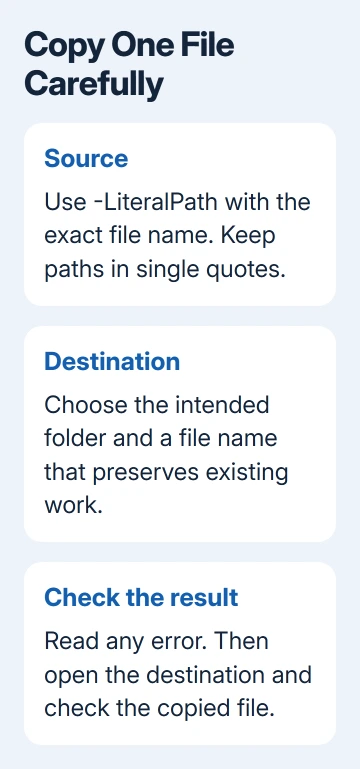
The Copy-Item reference describes the command and its path options. After it finishes without an error, open the destination and check the copied file's name and contents.
No printed output can be normal for a successful copy. A red error message is different: read whether it names a missing path, an access denial or a file in use before changing the command.
Administrator rights don't unlock every file. A file being used by an app may need that app closed. Encrypted files can require their owner's encryption credentials. Neither problem is solved by changing Explorer's shortcut.
Run the installer or editor that needs permission
For an application installer, right-click the downloaded setup file and choose Run as administrator when the installation instructions call for it. Approve the prompt for that program, rather than launching Explorer again.
For a text edit in a protected location, open the intended editor with Run as administrator, then use its File > Open command to select the document. Save a copy of the original before making the change.
I'd give administrator permission only to the program doing the job. Giving one editor permission for a specific change is easier to review than using an elevated file manager for unrelated browsing afterward.
Close the elevated program when finished. Apps you open from the normal desktop can use their usual permissions. You don't need an administrator session open for normal document work.
If an elevated app can't see a network drive that Explorer shows, check the mapped drive administrator behavior. A missing mapping in that session isn't the same as a deleted network folder.
Understand what a folder's Continue button changes
Explorer can show You don't currently have permission to access this folder with a Continue button. When elevation succeeds, Windows can add your account to the permissions for that folder and its contents.
That access can remain after the window closes. Treat Continue as a permission change, rather than a temporary administrator viewing mode. On a managed PC, ask IT whether you should have ongoing access to that folder.
For an application data folder that a team uses regularly, the administrator can grant access to the right user group. Changing access for one approved folder is different from taking ownership of entire system directories.
Leave Windows system folder permissions to the relevant repair instructions or IT administrator. Broad ownership changes can interfere with the programs and services that depend on those permissions.
If Explorer itself freezes or won't display ordinary folders, use the File Explorer repair steps. Extra administrator rights don't address a stalled folder view.
When the protected operation still fails
Save the exact error, the source and destination paths, and the name of the program doing the job. For work files, ask IT to review those details and decide whether to grant account access or perform the operation for you.
For a personal PC, give Get Help or Microsoft Support those details. If administrator PowerShell fails, fix the access, path or file-lock problem shown in the error. Repeated attempts to launch Explorer as admin won't solve it.
The Short Version
Use administrator PowerShell for a protected copy, or elevate the installer or editor doing the work. Explorer's Continue prompt can grant lasting access. Keep UAC enabled and close elevated tools after the job.
Checked November 15, 2026.