

An IsArcExtract or isdone.dll installation error can come from missing supporting software. Start with the game's supplied Visual C++ installers. One owner running Windows 11 fixed this error by adding missing Visual C++ Redistributables.
The filename alone doesn't identify every cause. An incomplete download and an installer missing another runtime call for different repairs. Save the full error text with the game's title before changing its setup.
In this guide
1. Install the runtimes supplied with the game
Open the game folder from its publisher or official launcher. Look for prerequisite installers or installation instructions. A prerequisite is supporting software needed before the game's installer or executable can run.
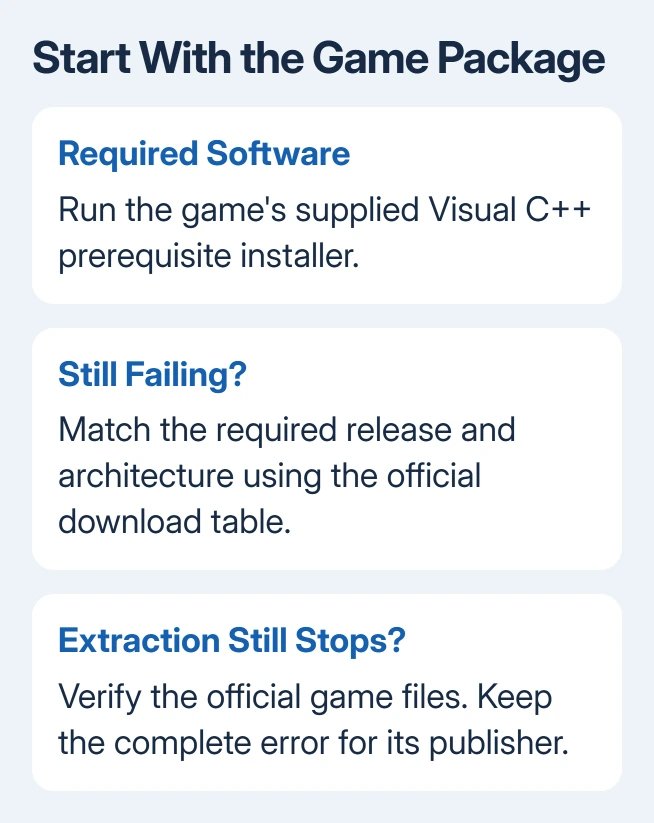
Run the Visual C++ Redistributable package the game provides, accepting the Windows permission prompt when you trust the source. If it offers Repair, use that option. Complete any requested restart before trying the game installer again.
The original asker confirmed that adding missing Visual C++ Redistributables let the installation work. They didn't name the package years or architectures, so their reply can't tell you which exact download your game needs.
That missing detail matters. Checking the runtimes makes sense after that result, but installing every old package you can find doesn't. I'd start with the game's own prerequisites because they give you a package chosen for that title.
If the error changes after installing them, save the new wording. A message naming MSVCP140.dll or VCRUNTIME140.dll is more specific than the original extraction error; the missing Visual C++ runtime guide covers those names.
2. Match the runtime to the program
When the game provides no prerequisite installer, use its support page to identify the required Visual C++ release. The official runtime download table separates the current v14 packages from older releases.
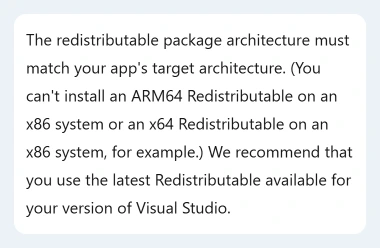
Choose the architecture required by the program using that runtime. x86 means a 32-bit program; x64 means a 64-bit program. Even on 64-bit Windows, a 32-bit setup program needs x86 runtime components.
Read Settings > System > About > System type for your PC's architecture. That identifies your Windows architecture, but the game installer could still be 32-bit. Check the game's requirements for the package its program needs.
The current v14 package supports apps built with the shared v14 toolset. An older game can need another generation, such as 2013 or 2012, alongside it. The newest v14 package doesn't replace every older runtime family.
For an ARM-based Windows PC, check the game's own support requirements before choosing a package. An ARM64 label describes a different processor architecture. It isn't a faster version of the x64 download for an Intel or AMD computer.
Download the required package from the official table and follow its prompts, then retry the game installation. If the runtime package fails, save that error separately: you'll need to fix its installation before the game can use it.
3. Leave standalone DLL downloads out of the repair
Don't download isdone.dll from a DLL collection and copy it into Windows folders. The asker downloaded a standalone copy, then hit another error while trying to register that file.
A runtime installer adds related components together. Copying one file doesn't install the others or tell you whether the library belongs with Windows, the game, or setup. Use the required software package for the repair.
Likewise, regsvr32 isn't a general command for fixing any file ending in .dll. A registration error isn't an instruction to keep trying different downloaded copies. Stop that route and return to the game's supplied software.
If a separate DLL was added, give game support its exact path and source. Don't remove system files by matching names from memory. Ask which package needs repair before changing files inside Windows folders.
4. Check the actual installation files
If the runtime installs but extraction still fails, check the game download through its official launcher. Use Verify, Repair, or its file-check command when available. The wording depends on the launcher.
A file check can replace damaged or missing game files without guessing which archive failed. When it finishes, run setup through the same publisher-approved route. Note the progress point if the error returns.
For a standalone installer, compare its files with the publisher's list and use any supplied integrity check. If an archive is incomplete, get a fresh official copy rather than replacing an unrelated DLL.
For a space error, check the destination and Windows drives in File Explorer > This PC. Compare that free space with the capacity requirements published for your game. An extraction error alone doesn't supply a free-space target.
Installing a runtime won't repair a damaged archive. Equally, downloading the whole game again won't install missing supporting software unless the installer includes it. The result of each check decides which part needs attention next.
5. Report the persistent error to the game's publisher
Gather the game's title, installer source, complete error wording, Windows version, and the runtime packages you installed. Include whether the failure occurs at the same progress point and what the launcher's file check reported.
Use the publisher's game-support ticket form and ask which prerequisite packages its installer requires. The Windows version guide helps you supply the release and build instead of only saying Windows 11.
The original discussion also suggested Windows updates and system-file scans. The owner credited missing runtimes. That doesn't mean the suggested registry and memory changes fixed anything.
If unrelated applications fail too, include examples in a Windows Get Help request. Trouble across programs needs a wider check. If only one game's installer fails, ask its publisher first.
The Short Version
Install the game's required Visual C++ packages, matching release and architecture. Skip loose DLL downloads. If extraction still fails, verify the official files and give the publisher the complete error.
Checked November 17, 2026.






